Custom Toolblock Point Finder
Custom Toolblock Point Finder is point feature finder that allows user to customize how the point should be found.Line Finder
Add
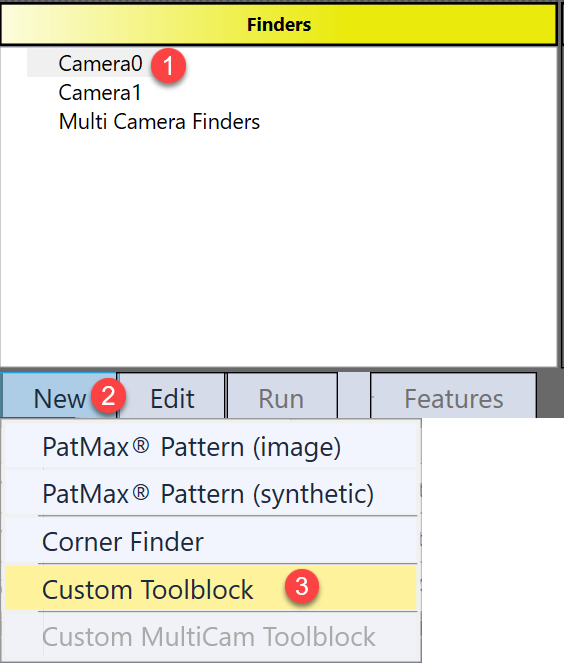
Custom Toolblock Point Finder is available in Point Features Finder HMI control. The steps to add it are:
-
Select one image
-
Click "New" button under the Finders panel
-
Choose "Custom Toolblock", then a custom toolblock point finder will be available for user to edit.
Setting
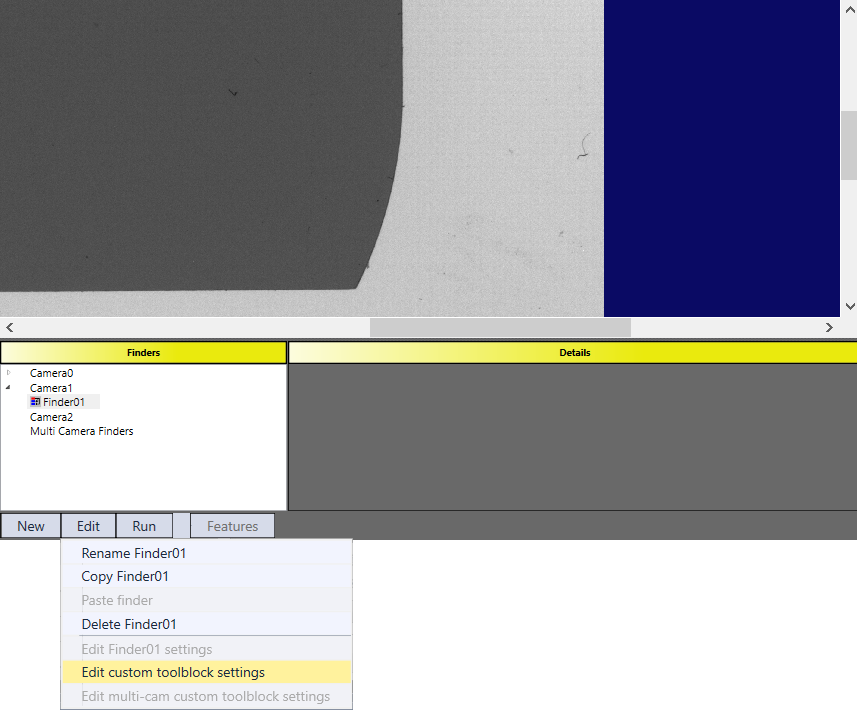
Settings of this finder are all contained in its custom toolblock. Follow the steps to open the toolblock: 1) select the finder, 2) click “Edit” button, 3) choose “Edit custom toolblock settings”.
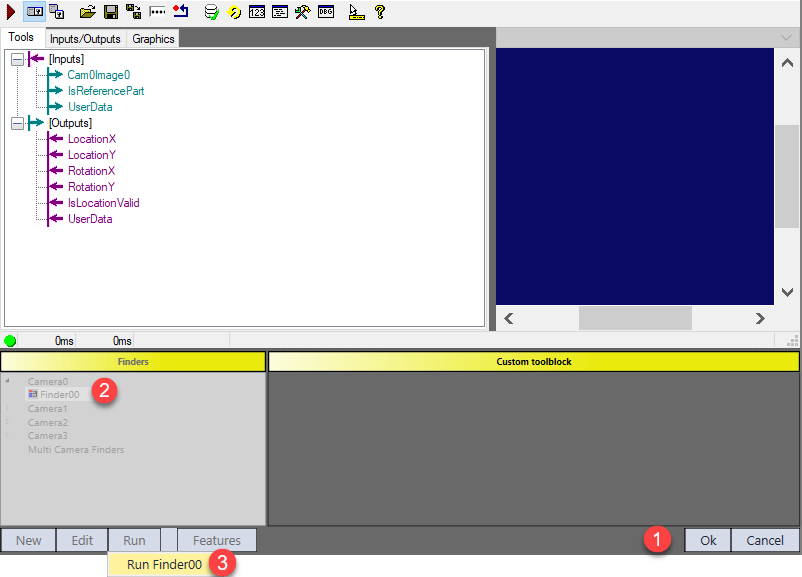
However, the input image of this toolblock is initially null because the finder has not been run yet. To get input image, click “Ok” button, run the current finder once in Finder panel, and open the toolblock again. Then, the toolblock is ready for user to customize.
Inputs
| Parameters | Type | Description |
|---|---|---|
| Cam0Image0/Cam1Image1 | Cognex.VisionPro.ICogImage | Input image(s) from corresponding camera(s) |
| InReferecePart | Boolean | A input pin for user to decide whether and how to use it for golden pose training using reference part |
| User Data | Cognex.VisionPro.CogDictionary |
Contains a CogDictionary with user specified data. |
Outputs
|
Name |
Type |
Description |
|---|---|---|
|
LocationX |
Double |
The X coordinate of the found feature. This value is undefined if IsFound = false. |
|
LocationY |
Double |
The Y coordinate of the found feature. This value is undefined if IsFound = false. |
| RotationX | Double |
The angle of the X Axis of the found feature(in radian). This value is undefined if IsFound = false and is valid only if found by a PatMax tool. |
| RotationY | Double |
The angle of the Y Axis of the found feature(in radian). This value is undefined if IsFound = false and is valid only if found by a PatMax tool. |
|
IsLocationValid |
Boolean |
The flag to show whether a feature is found or not. Later will be used to decide whether or not to use this feature to compute pose in A+ tasks. |
|
UserData |
CogDictionary |
More data can be stored inside UserData as an output, this UserData is only accessible in scripting. |
Editing
It is recommended to create an inner toolblock that contains all custom vision tools to keep the finder's toolblock neat.
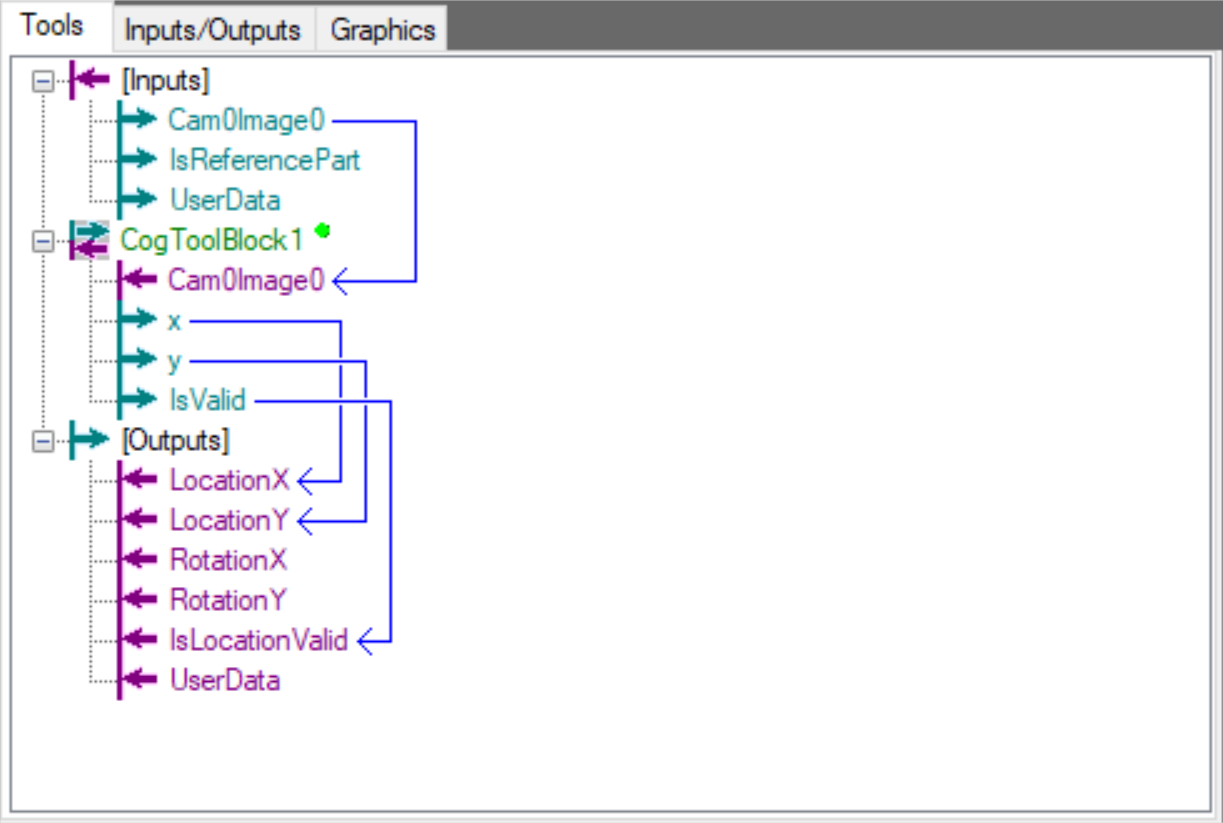
User has the flexibility to decide how the point should be found within the inner toolblock. However, few standard procedure should be considered:
-
Run time error check
When toolblock has any run time error, its output pins keep their previous data. Which means if IsValid was previously true, it remains true even the inner toolblock has exceptions. Following that, AlignPlus pose computer will take current point as a valid feature and use it for pose computing without knowing feature finding is actually failed.
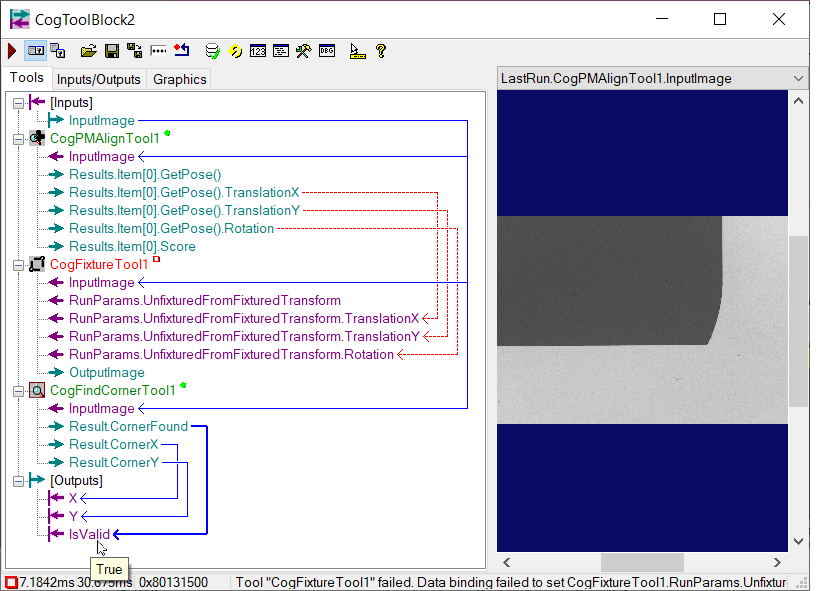
To avoid this problem, some scripts need to be added in inner toolblock to check run time error and update IsValid output pin.
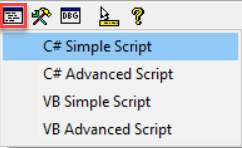
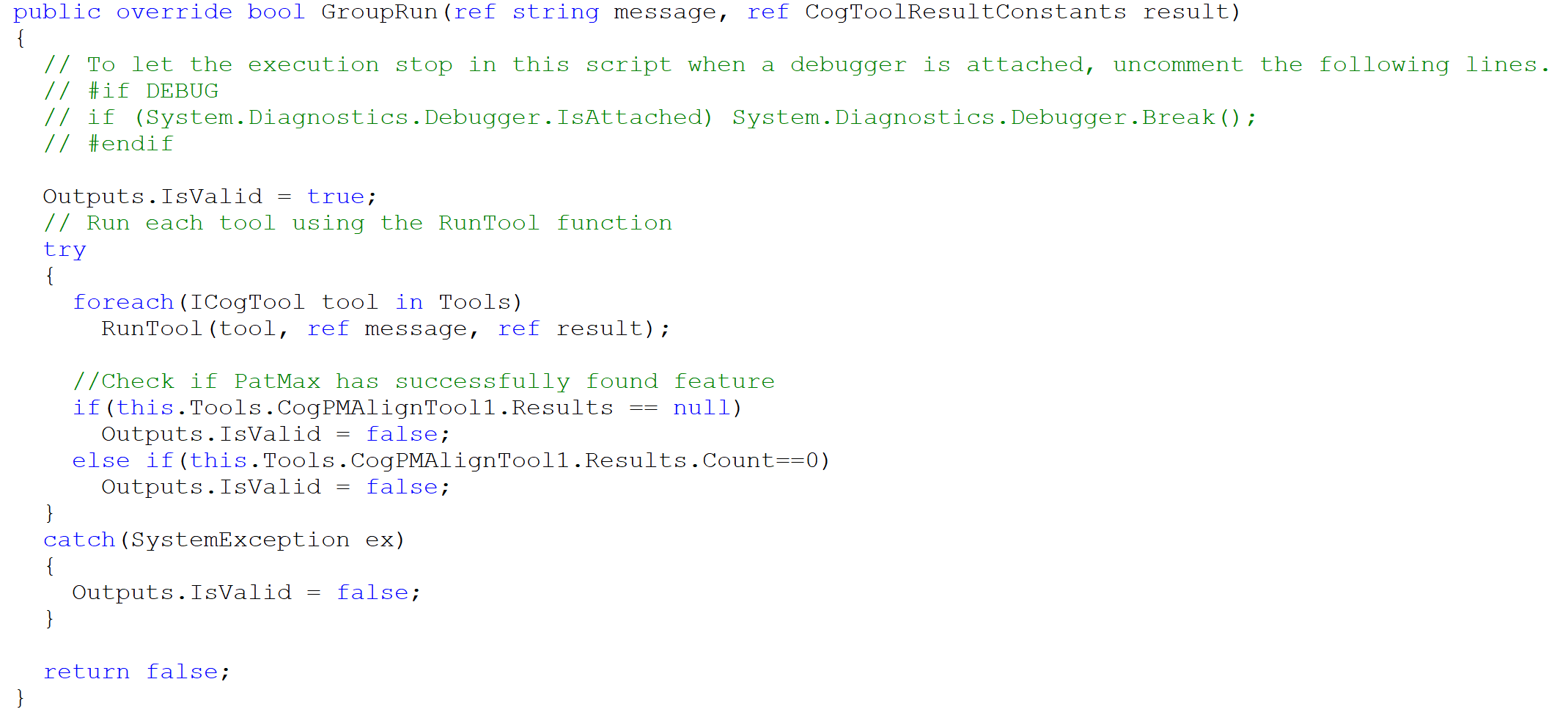
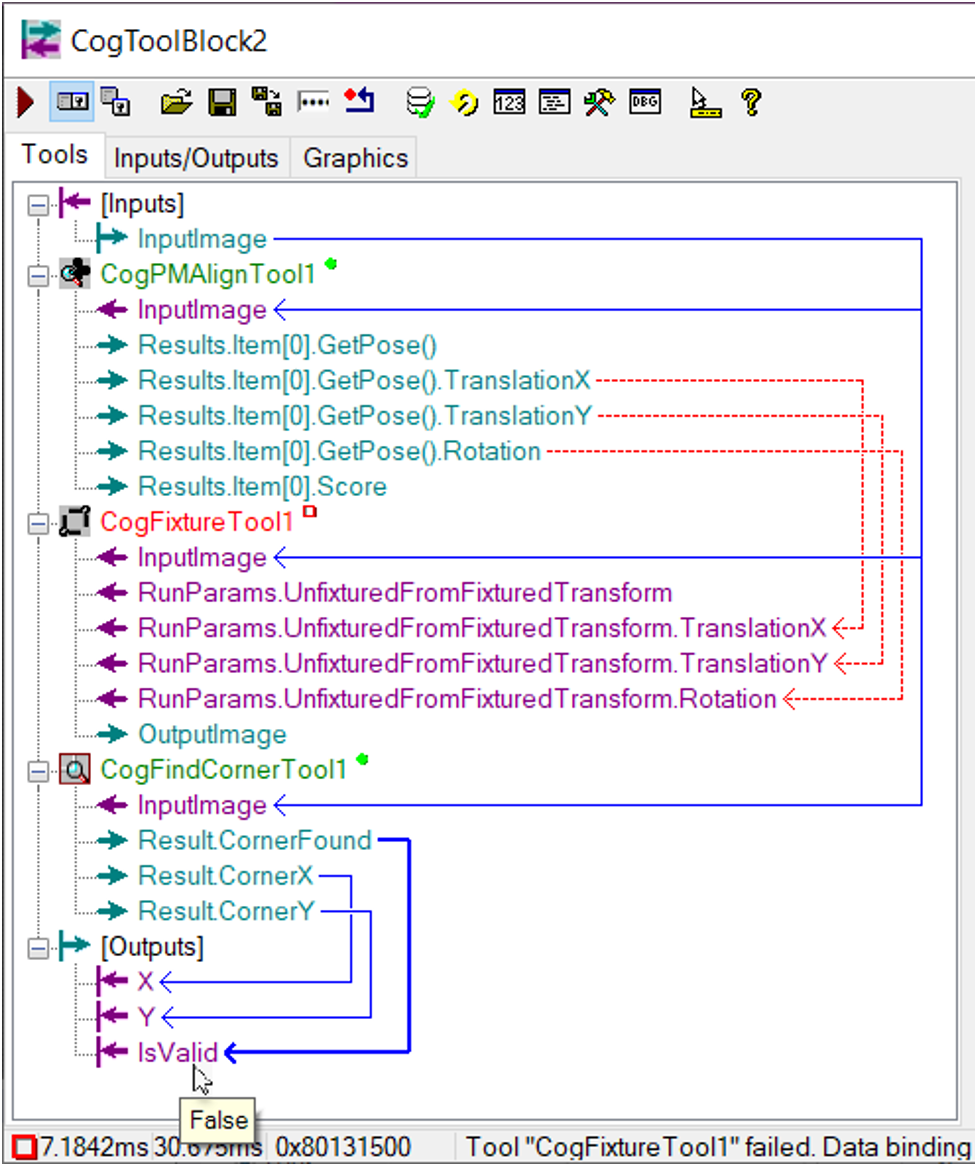
After applying the script, the IsValid pin will be false if there is any run time errors within the inner toolblock.
-
Space selection
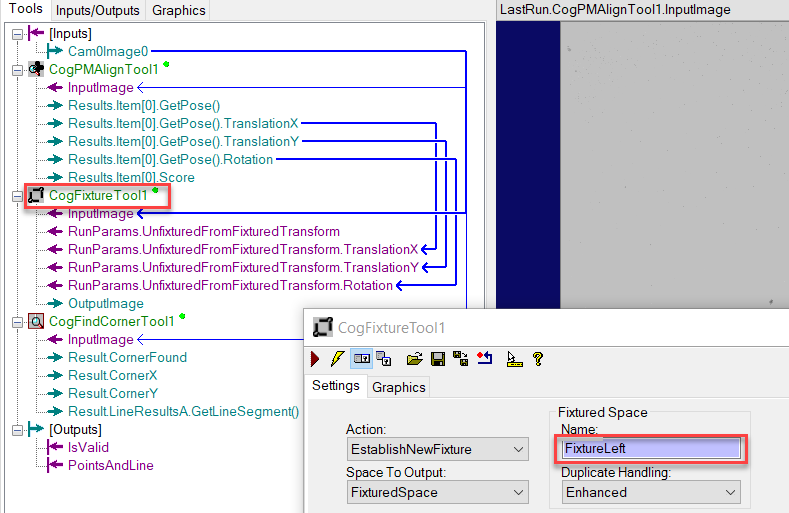
In the example above, CogFindCornerTool's output results are based on image's selected space, but its search region follows CogFixtureTool's Fixture space. For more information on how and why to configure in this way, please refer to Use Different Space for ROI and Returned Result in Space Selection.
-
Use different fixture names for each finder
Under one Point Features Finder, there might be multiple Custom Toolblock finders. If all of them are using CogFixtureTool whose default output space names are all "Fixture", there will be a name space confliction, and result in Finder failure
 .
. To solve this confliction, user can give different fixture space names for every CogFixtureTools used in current Point Features Finder.
Run
After finish customizing the tool block, click "Ok" button and run the finder to check the result.