Space Selection
Selected Space
At any given time, one space within the coordinate space tree is designated as the selected space for a given image. The selected space is the coordinate system in which all VisionPro tools that operate on the image return results (such as locations and distances) and in which the tools interpret input data (such as regions of interest). User can set the selected space for an image using the image's SelectedSpaceName property.
When you create a new image using a calibration or fixturing tool, the tool adds a new coordinate space to the input image's coordinate space tree and automatically selects that space as the new image's selected space name, so does the other calibration tools.
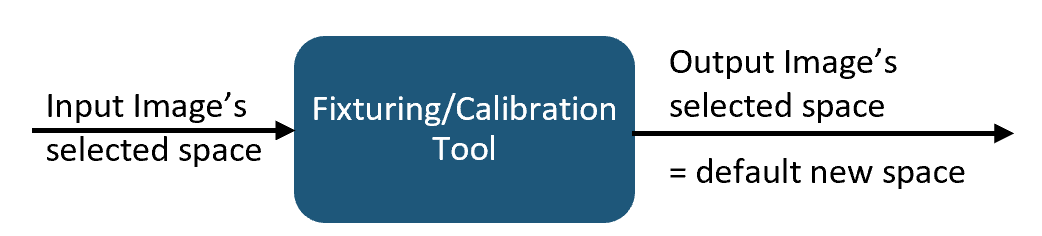
Different space serves different purpose
-
Fixture space
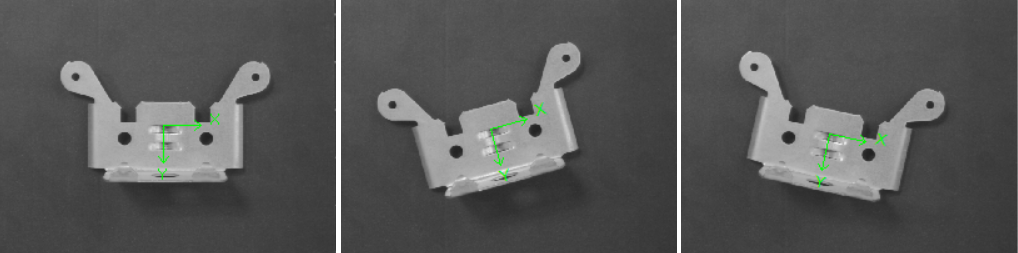
Fixture space created by fixturing tool is a user space defined based on parts' run time position. By using this space, other tools' ROI (region of interest) can follow the part.
Checkerboard calibration tool does changes as follow:
- Establish transform between input image's space and Fixture space.
- Add "Fixture" space to image space tree.
- Set "Fixture" space as selected space of its output image.
 Note:
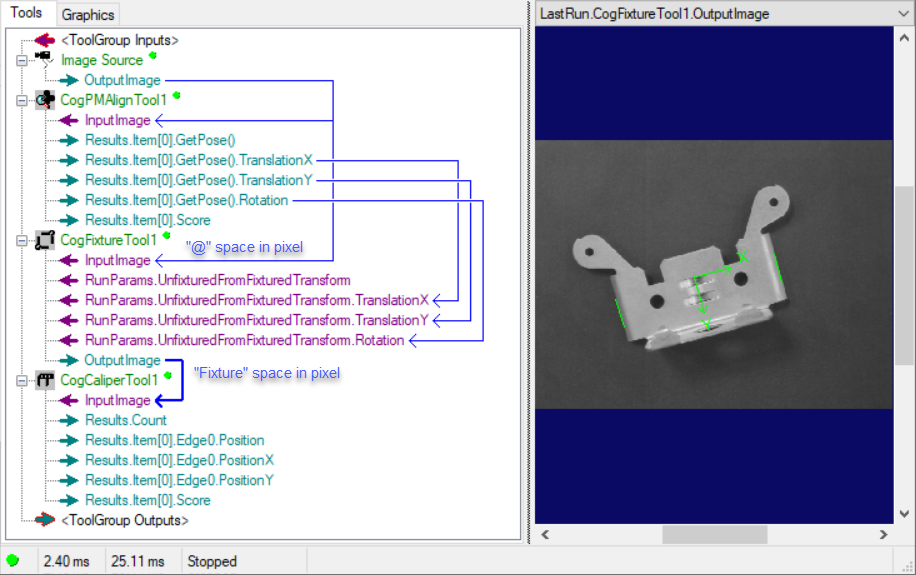
Note:CogFixtureTool doesn't change unit of input image. Therefore, if input image is in pixel, then output image is also pixel. If input image is in mm, then output image will also be in mm.
Here is an example:
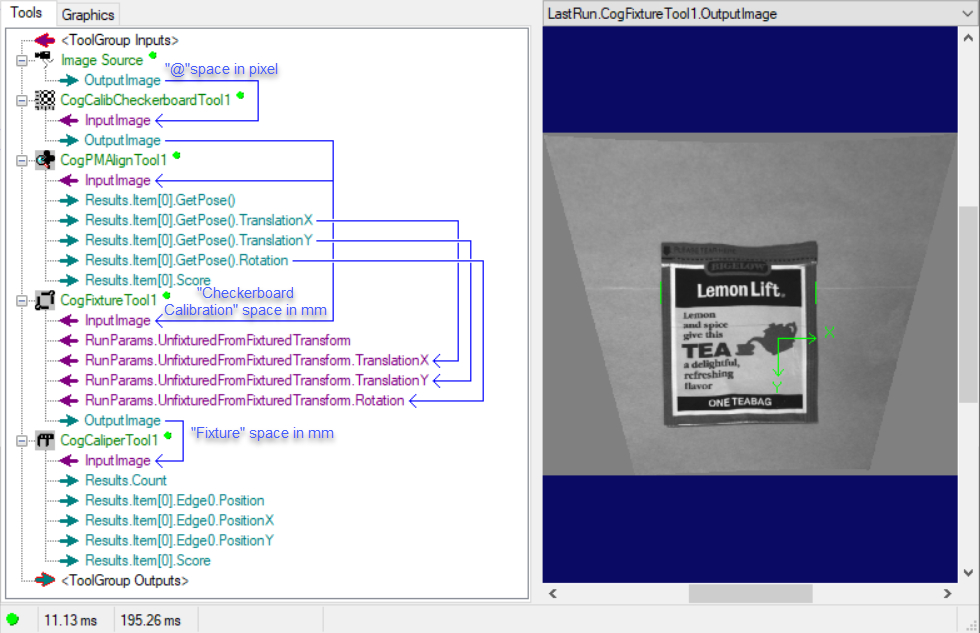
In the vision task below, the CogFixtureTool runs on raw image, and output an new image with a new space "Fixture" as its selected space. Then the follow-up CogCaliperTool result which measures the part width will be in pixel, not mini meter.
-
Checkerboard Calibration Space
Calibration space is generated by checkerboard calibration tool. Checkerboard calibration tool does the following changes:
- Establish transform between input image's space and checkerboard calibration space.
- Add "Checkerboard Calibration" space to image space tree.
- Set "Checkerboard Calibration" space as selected space of its output image.
- No matter what unit input image space is using, "Checkerboard Calibration" space uses real world unit (mm or inch depending on user's input) as its unit.
Every VisionPro tool which directly use this output image will get the result(such as location, measurement) based on checkerboard calibration space.
The most typical vision application using checkerboard calibration space is measurement because measurement requires no absolute positions of features but their relative distances.
In order to let measurement tool follow run time part, CogFixtrueTool is often used after checkerboard calibration and followed by measurement tool. Here is the one example:
CogFixture tool works on the output image of CogCalibCheckerboardTool whose selected space is "Checkerboard Calibration". And then CogFixtureTool outputs image with a new space named "Fixture" as its selected space. The measurement tool CogCaliperTool works on Fixture space. This time the measurement result will be in mm instead of pixel.
-
NPoint Space
NPoint space is the default space created by NPointNPoint Tool.
NPointNPointTool maps the input image's space to user defined space(such as Stage 2D space) using shared paired features whose coordinates in both spaces are known. NPointNPointTool does the following changes:
- Establish transform between input image selected space and motion 2D space.
- Add "NPoint" space(stands for Motion 2D space) to image space tree.
- Set "NPoint' space as selected space of its output image.
- No matter what unit input image space is using, "NPoint" space use mm/inch based on user's input for Motion 2D coordinate.
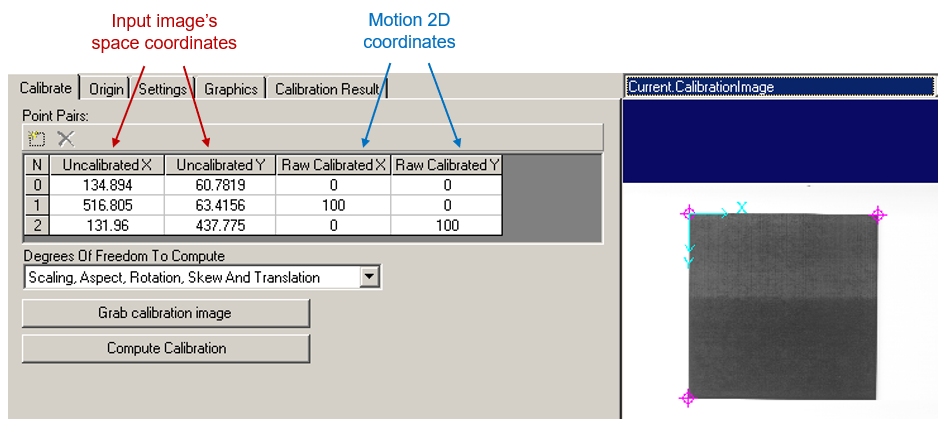
Every VisionPro tool which directly uses NPointNPoint tool's output image will get the result(such as location, measurement) based on NPoint space. NPointNPoint tool is wildly used in object locating applications such as picking or placing, it has similar function as hand-eye calibration in AlignPlus. The different is NPointNPoint tool only uses few points to map Raw2D to Motion 2D, and requires very skillful teaching process and manual inputs, so it's much less convenient and also has low accuracy. However in applications which doesn't require high-accuracy, NPointNPoint tool is an good option.
-
Home2D Space
The default selected space of output image of hand-eye calibration tool is named as "Home2D". Every VisionPro tool which directly use this output image will get the result(such as location, measurement) based on Home2D space.
Similar as NPoint Space, Home 2D Space is also related to Motion 2D, but not equal to Stage 2D, it is ideal orthodox coordinate which shares the same origin as Stage2D when motion is at initial position. An transform between Stage2D and Home2D is maintained in Hand-eye calibration result.
In picking, placing or alignment applications, features on image are extracted and located in Home2D, then vision calculated how much motion should move first in Home2D, later mapped to Stage2D and forward it to motion. So Home2D played an very important role in such applications.
Change Selected Space
There are mainly three ways to change selected space for different purposes:
-
Use different input image to change selected space
As shown above, different fixturing/calibration tool has different selected space for output image. By using those output images as input image, vision tool will work on the corresponding selected space.
-
Manually change default space of an output image
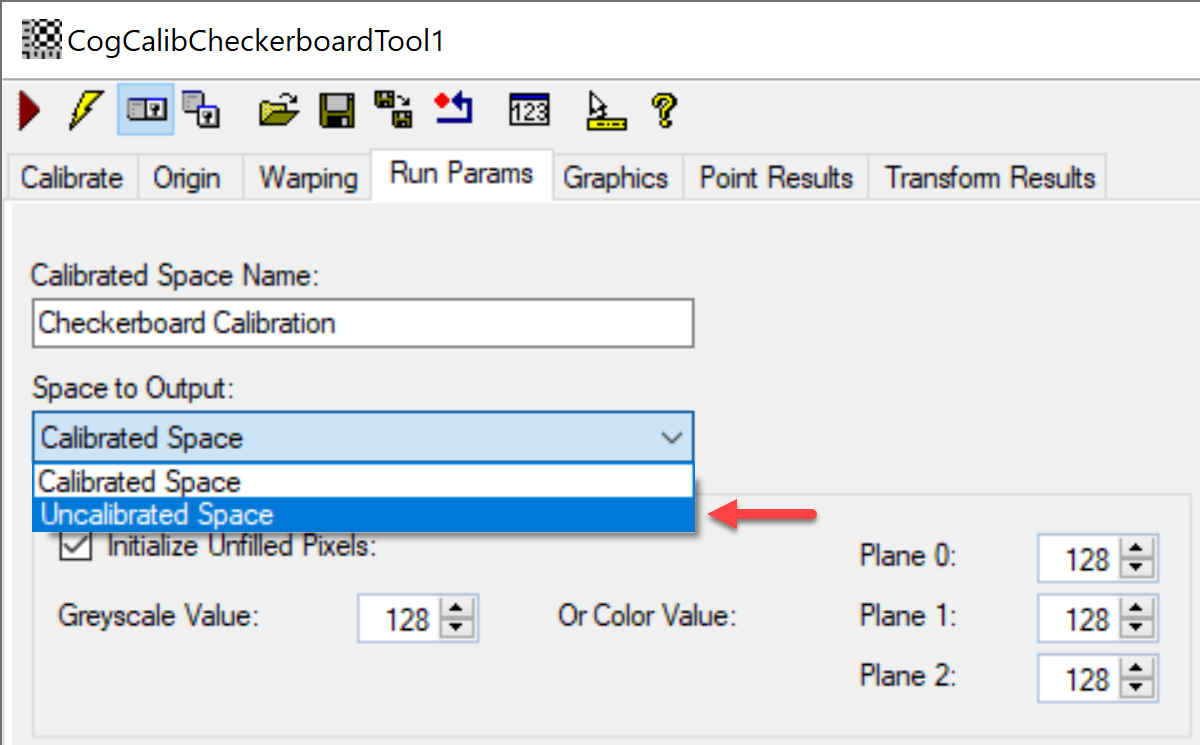
User can also manually change selected space for output image in fixturing/calibration tool.
By default, those tools will set the newly generated space as selected space. However, if user choose "Uncalibrated Space", then the output image's selected space will not change, and be the same as input image's.
-
Manually change via scripting
At any time, user can specify selected space of a particular image via scripting.
For example:

Use Different Space for ROI and Returned Result
In some applications, the vision tools needs to use different spaces for ROI and returned result respectively.
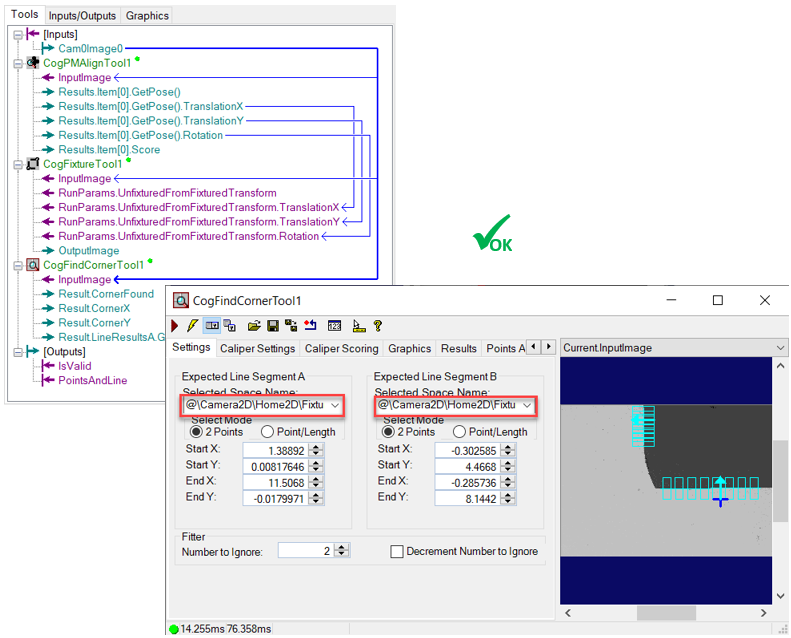
In the following example, Cam0Image0 is an image in Home2D space. CogFindCornerTool wants to locate the corner point of the image. If CogFindCornerTool use output image from CogFixtureTool, both CogFindCornerTool's ROI and returned result will based on current run time part's Fixture space. However, vision actually wants to locate corner in Home2D so that it can guide how much motion should move. So CogFindCornerTool should report corner point result in Home2D instead of in Fixture space.
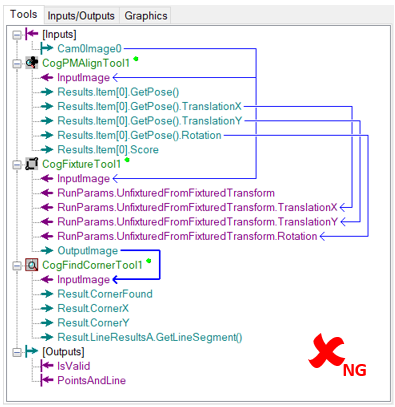
In the picture below, corner point's coordinates in Fixture 2D doesn't change in two images, but its Home2D coordinates actually changed a lot.
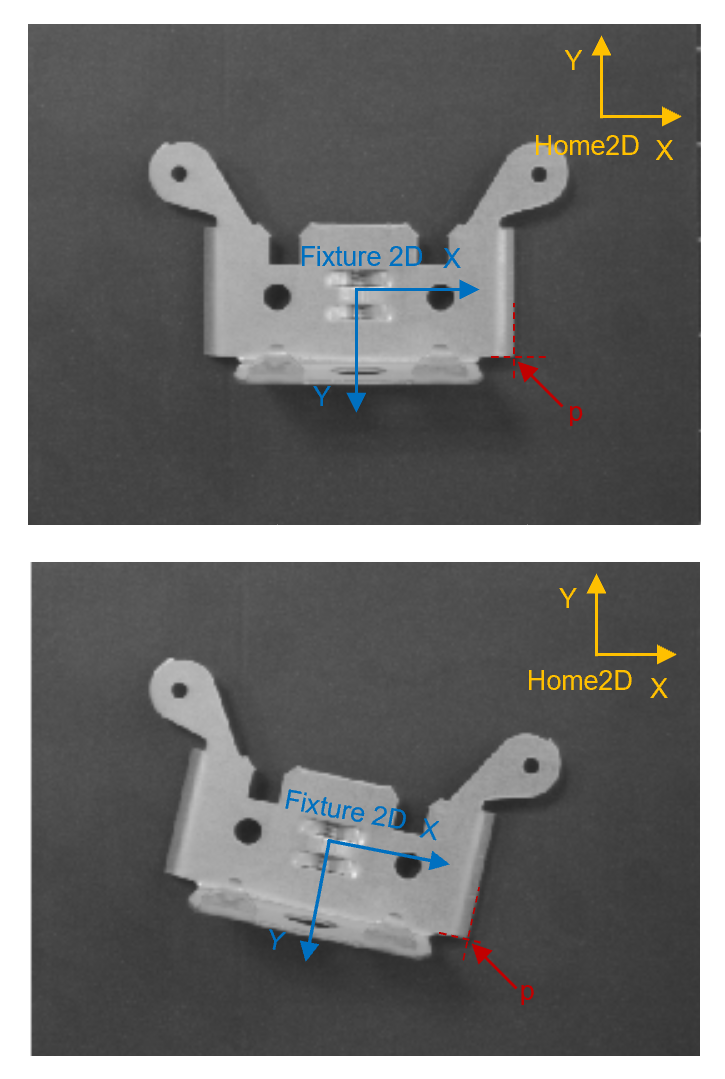
In order to follow the fixture space to find corner and report result in Home2D, CogFindCornerTool needs to use different space for ROI and returned result.
Here is the way to configure it:
- Use input image with Home2D as selected space
- Manually select fixture space for ROI selected space