Settings

After all components are well configured, click Next in the lower right of the Configuration Wizard to continue.

Then a setting page will show up:
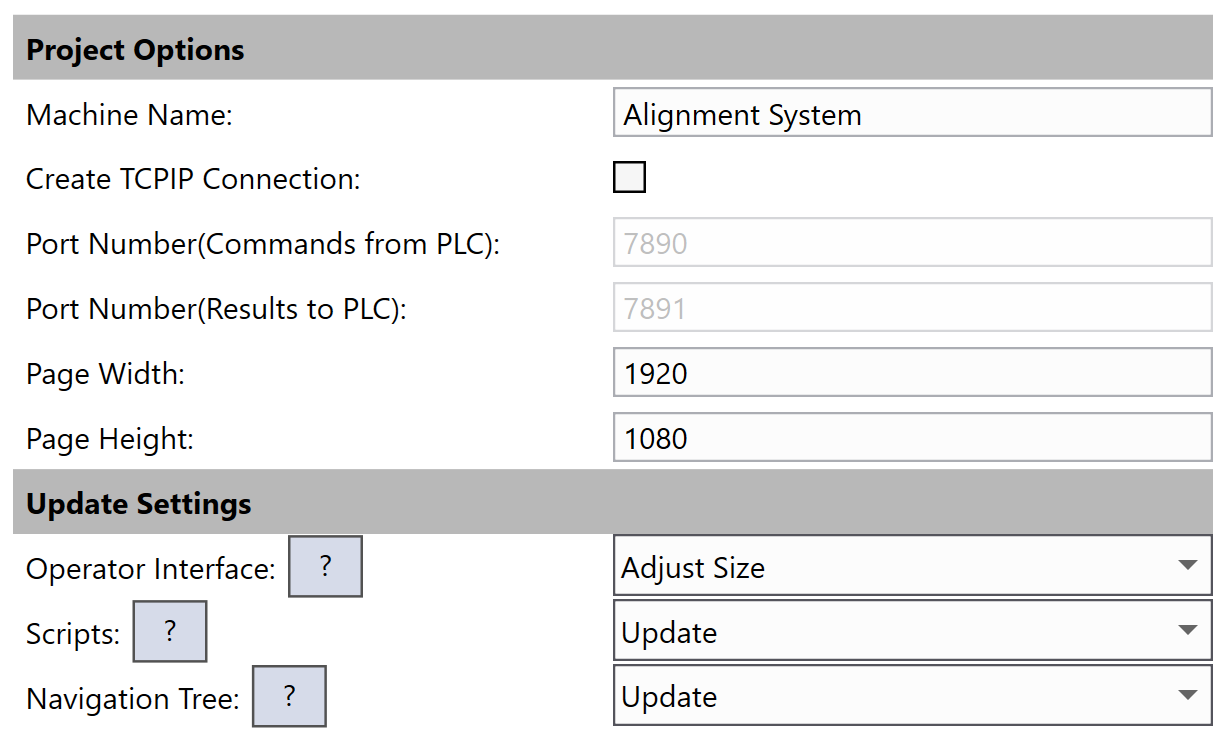
Element Description
Machine Name Displays the machine name that the header of the run-time application displays.
Create TCPIP Connection

If it is checked, Configuration Wizard will automatically create two TCP/IP server devices (CommandsFromPLC and ResultsToPLC) as well as their callback scripts during the project generation. Otherwise, these two devices and their callbacks will not be created.

Port Number(Commands from PLC) The port number of CommandsFromPLC TCP/IP server device.
Port Number(Results to PLC) The port number of ResultsToPLC TCP/IP server device.
Page Width Enter the width of the deployed application.
If you stretch the width of the deployed application and rescale it, the controls on the application will be stretched by the same scale factor.
Page Height Enter the height of the deployed application.
If you stretch height of the deployed application and rescale it, the controls on the application will be stretched by the same scale factor.
Operator Interface

Operator interface update settings can help fix interface issues after a upgrade

  • Minimal: this option will add missing pages or buttons only. If page width or page height have changed, the operator interface layout may break.
  • Adjust Size: this mode will resize and reposition all wizard-created pages and controls, and add back any missing controls. User-created controls are not affected.
  • Adjust All Properties: this option will resize, reposition and reset properties like color or style of wizard-created controls and pages. User-created controls are not affected.
  • Reset Pages: this option will remove all operator interface customizations from wizard-created pages. User-created pages are unaffected. Note that this option resets all scripts attached to buttons and controls as well
Scripts

Script Update Settings determine how AlignPlus updates scripts when the wizard runs.

  • Minimal: (Not recommended) this option performs no script changes other than adding any essential scripts that are missing.
  • Update: this option makes an attempt to update scripts in the project to the latest version without discarding user changes.
  • Reset: this option will remove all user changes to scripts and reset all scripts to their fresh state. Use this option if your project is having a lot of scripting errors.
Navigation Tree

Navigation Tree Update Settings determine how AlignPlus updates the Navigation Tree

  • Update: this option will preserves all edits to the navigation tree except those made invalid by configuration changes.
  • Reset: this option will remove all user changes to the navigation tree and restore it to its default state.
Note: If it is the first time of the project generation, keep the default settings for Operator Interface, Scripts and Navigation Tree; if it is wizard rerun, pick carefully what you want wizard to do for the already generated UI, scripts, and navigation tree.

Click Finish to let the wizard generate the project after all settings are done, click Previous to go back to Configuration Wizard workspace if you would like to modify anything on it, or click Cancel if you do not want to generate a program.

CAUTION:  If Cancel button is clicked, all settings you have done including the components configurations and the settings on current page will be cleared out. To save current configurations and settings, run the wizard first, and then you can export the configurations into a .json file which can be imported and reused later. See more on Export and Import Wizard Configuration