Devices
Devices in Configuration Wizard are representatives of real hardware devices related to vision system in an application, including motion devices, cameras, and light controllers. Their quantities should match with the numbers of corresponding hardware devices in that application.
Motion Device
A stage and a platform are created by default for an alignment system. Stage is a motion device that can move part on it, such as a XYT stage or a robot. Whereas platform is another type of motion device on which part cannot be moved, such as a stationary table.
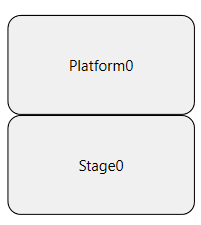
Add
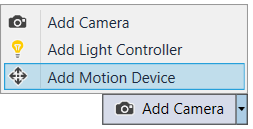
If there are more stages or platforms in the system, you can click Add Motion Device to add them.
Set
All motion devices including the default stage and platform have one parameter within: Vision System Guided. Click " " at the upper right corner of the component, or right click the component and select Expand/Collapse to open this parameter.
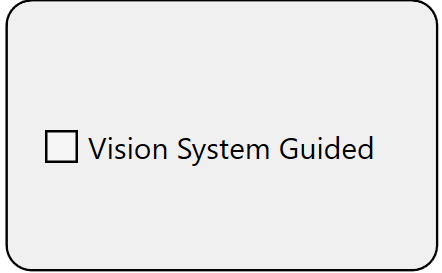
If the "Vision System Guided" is checked, the Configuration Wizard will generate a calibration loop that can be used to guide motion device to move during hand-eye calibration. If it is unchecked, the calibration loop will not be created, motion device and hand-eye calibration task need to interface step by step to finish the hand-eye calibration process.
Delete
Besides the two default devices (Stage0 and Platform0), the rest of the devices can be deleted if they are not used. To delete one, select it and press "Delete" button on keyboard.
Camera
Add
Click Add Camera to add a camera device to the alignment system.
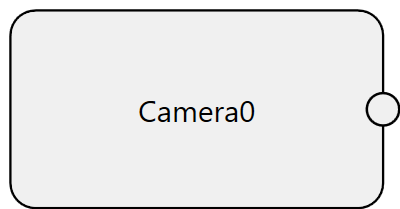
The first one has a default name of Camera0, the following ones will be Camera1, Camera2, and so on. To rename a camera device, double-click it or select it and hit "F2" key to enter edit mode, then input the new name.
Delete
Select the camera to be deleted, and press "Delete" button on keyboard.
Light Controller
Add
Click Add Light Controller to add a light controller to the alignment system.
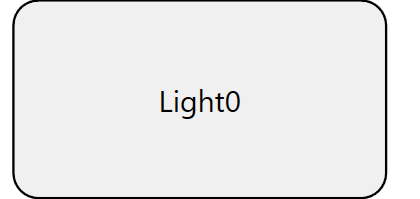
The naming scheme for light controller device works the same as it does for cameras.
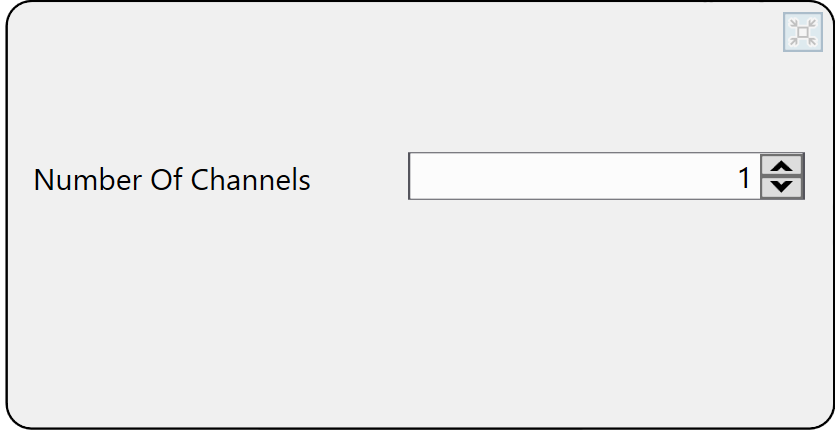
A light controller could have multiple channels, each channel controls one light. After the project is generated, the vision system can control through light controller which channel to turn on/off, what intensities to use to achieve desired imaging effect. To input the number of channels, click the "" icon to open the edit box and enter the number.
Delete
Select the light controller to be deleted and hit "Delete" button on keyboard.