Calibrations
Calibration establishes shared coordinate among different cameras and motion devices. There are six types of calibrations: stationary hand-eye calibration, moving hand-eye calibration, cross calibration, manual calibration, checkerboard calibration, and hand-eye camera mount calibration, each serves a different purpose. To understand more about different types of calibrations, please refer to Calibration Introduction and its following topics.
Add
Click Add Calibration to add a calibration component. The first component has a default name of Calibration0.
Connect
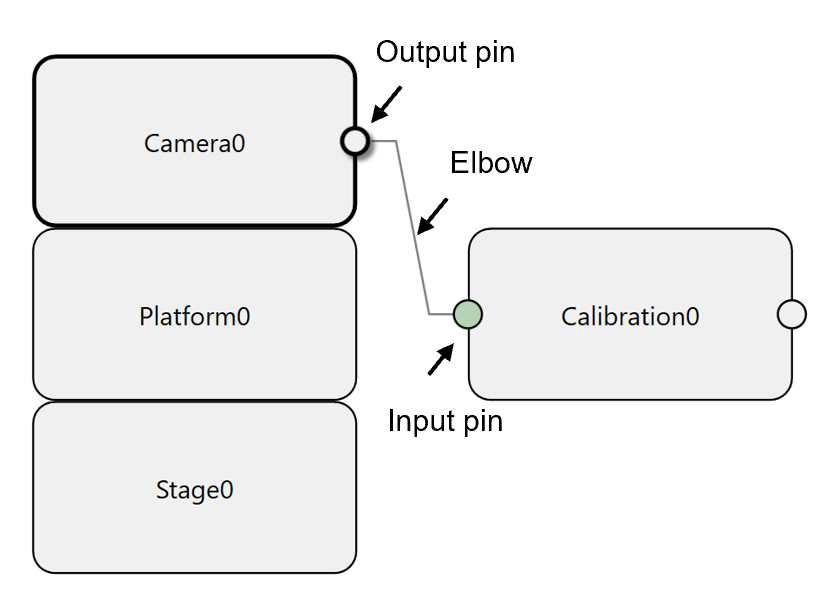
Before configuring its calibration type, the calibration component needs to connect to at least one camera device. Here are steps to connect:
1. Select one camera device.
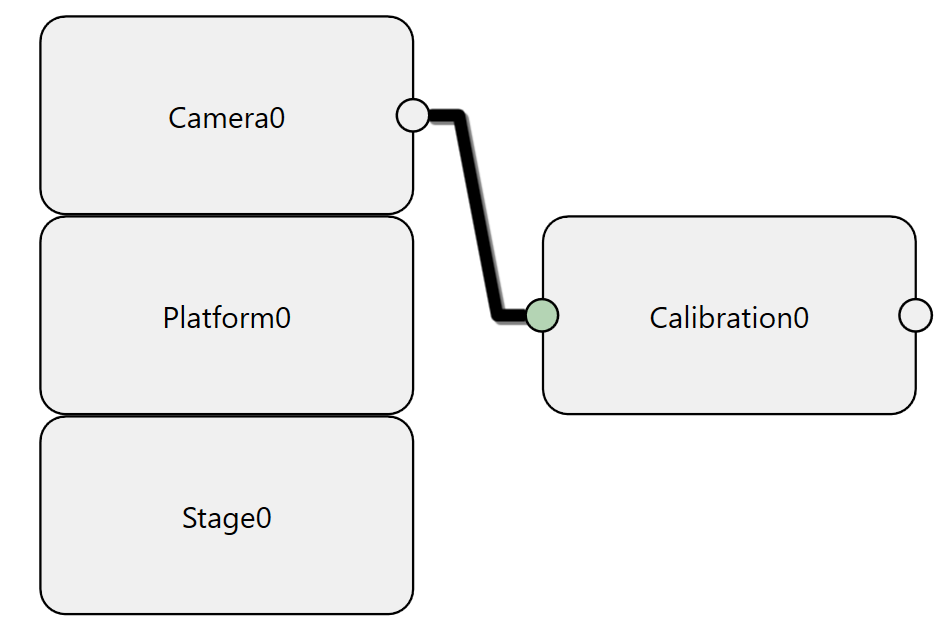
2. Click the output pin of the selected camera and drag a line from it to the calibration component on the right.
4. When you see the calibration component generates an input pin to receive the line, release mouse to finish connection.
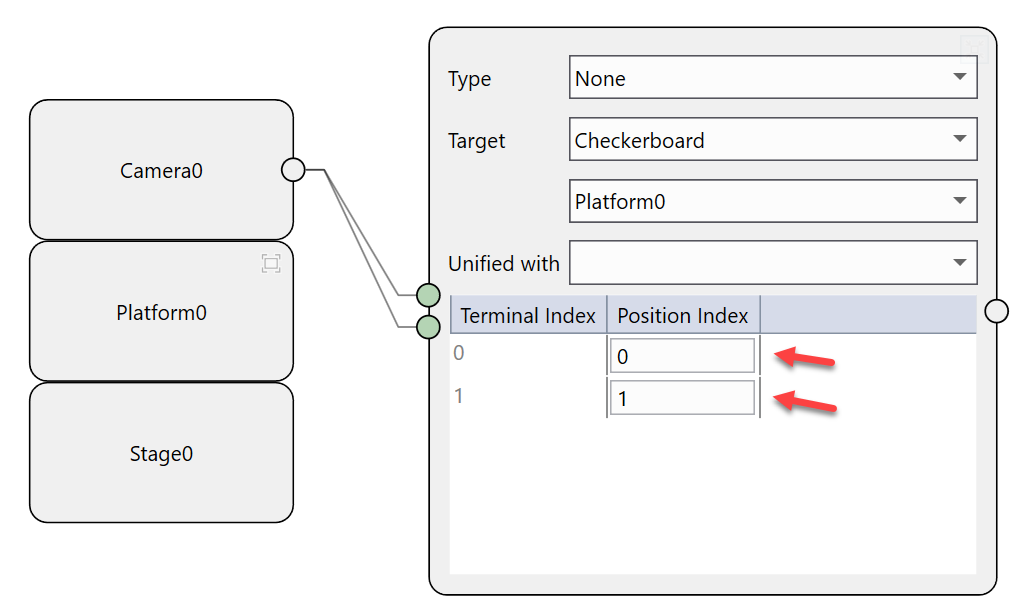
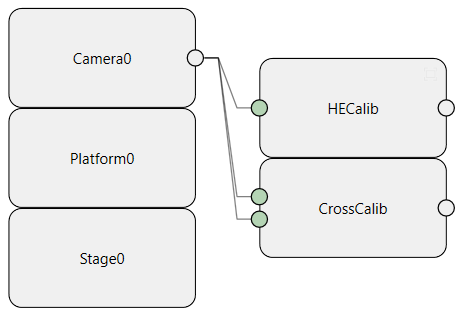
If a calibration requires two image acquisitions from the same camera at two different positions(such as camera shuttling case), then user need to drag two lines from that camera device to the calibration component. The calibration component will automatically generate two input pins with different position indexes.
To remove a link between two components, first select the line until it becomes bold, then press "Delete" button on keyboard.
Set
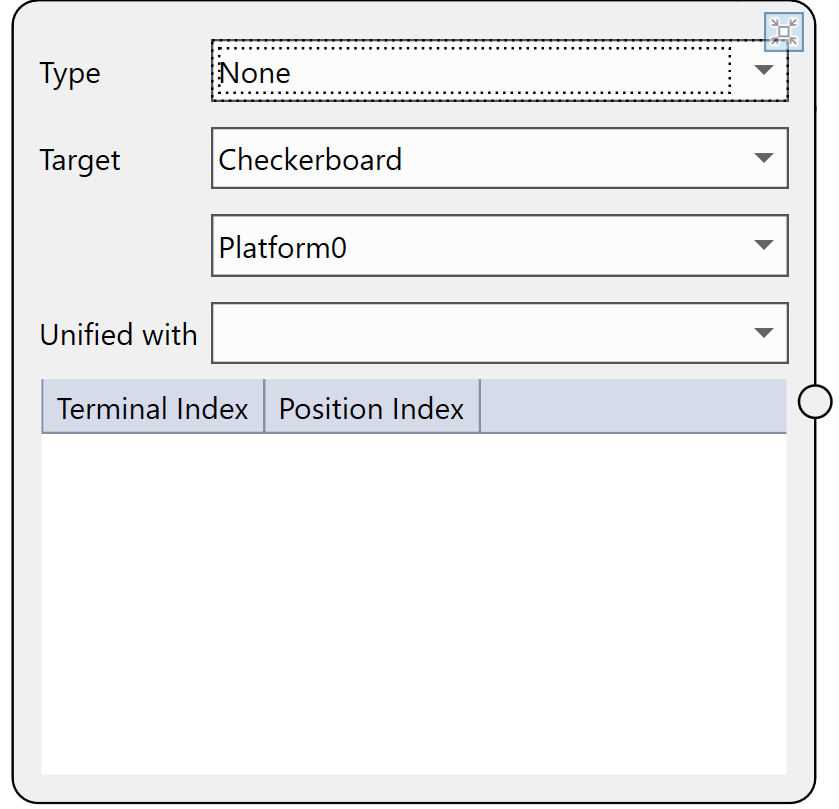
After connecting to camera device(s), user can start configuring parameters inside a calibration component. Click " " at the upper right corner of the component, or right click it and select Expand/Collapse to open its inside parameters.
Type
Here are all options for a calibration type:
| Option | Description |
|---|---|
| None | Upon this select, there will be no calibration task added to the auto-generated project. Images are merely passed through this calibration component from cameras to connected feature finders; these finders will find their features in pixel space. |
| Hand Eye Stationary Camera | Select this option to be able to perform stationary hand-eye calibration in which calibration target moves together with a motion device under the FOVs of stationary cameras. The connected feature finders will find features in Home2D. |
| Hand Eye Moving Camera | Select this option to perform moving hand-eye calibration of in which cameras moves together with a motion device over a stationary calibration plate. The connected feature finders will find features in Home2D. |
| Cross Camera | Select this option to be able to perform cross calibration. The connected feature finders will find features in Home2D generated by the unified hand-eye calibration. |
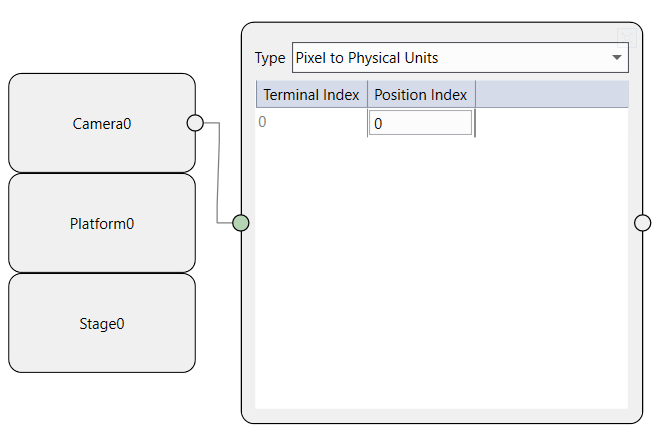
| Pixel to Physical Units | Select this option to be able to perform checkerboard calibration. The connected feature finders will find features in Plate2D. |
| Manual Calibration | Select this option to be able to perform manual calibration. The connected feature finders will find features in Home2D that is generated by manual calibration. |
| Hand-Eye Camera Mount | Select this option to be able to perform one time calibration for every connected cameras. These calibration results will be used to avoid recalibration during model change when cameras need to be repositioned to fit new model size. |
Hand-eye Calibration
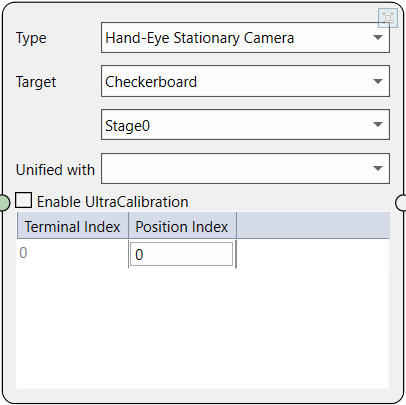
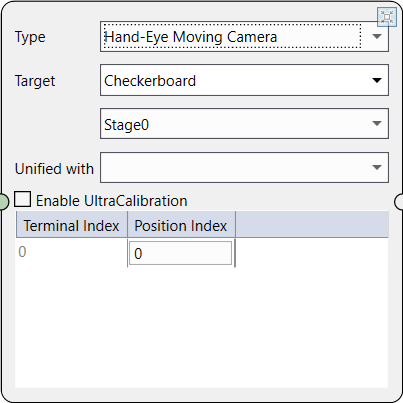
Hand-eye Camera Stationary and Hand-eye Moving Camera have similar parameters.
|
|
| Stationary Camera | Moving camera |
Target
| Option | Description |
|---|---|
| Part | Use part features to perform hand-eye calibration |
| Checkerboard | Use calibration plate features to perform hand-eye calibration |
| Hybrid |
Use calibration plate to calibrate cameras intrinsic parameters and generates distortion-free images, and then perform hand-eye calibration by tracking feature(s) on a calibration part. |
Motion Device
All available motion devices in the wizard. Choose the one that will move the calibration target/cameras during the hand-eye calibration.
Unified with
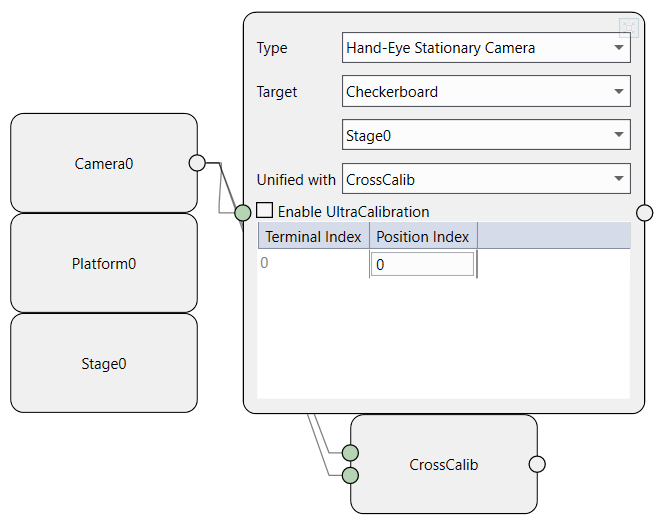
Enables a cross calibration to be unified with current hand-eye calibration.
Enable UltraCalibration
Select this check box to make the generated application be able to perform UltraCalibration.
Related Data
| Table Column | Description |
|---|---|
| Terminal Index | The index of the input terminal. The upper most terminal has an index of 0. |
| Position Index | To acquire images of regions of a part, many alignment systems use multiply cameras to acquire images from multiple regions of a part. These cameras acquire images simultaneously when application uses the position index . If position indexes are different, then cameras acquire images at different times. |
Cross Calibration
It takes three steps to add a cross calibration component: connect it to cameras, , and unify it with hand-eye calibration block.
-
Connect to cameras
Create a new calibration component and rename it (for example, "CrossCalib"), and connect cameras to this component according to its acquisition requirements.
-
Check position indexes
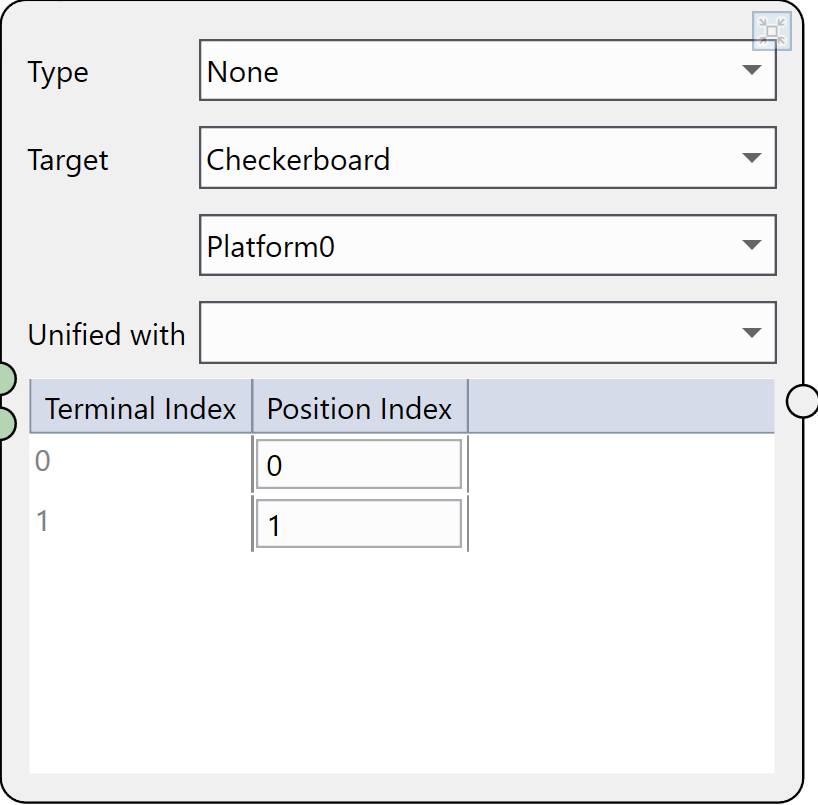
Check whether the position indexes are correctly configured. The first position index is 0, second is 1, and so on. For cross calibration, there should at least two different position indexes.
-
Unify with a hand-eye calibration component
There are two ways to unify a cross calibration component with a hand-eye calibration component, either way will work.
-
In the opened hand-eye calibration component, select the name of the cross calibration component to be unified in the Unified with drop list, and click Yes in pop-up dialog.
-
In the opened cross calibration component, select the name of the hand-eye calibration component to be unified in the Unified with drop list , and click Yes in pop-up dialog.
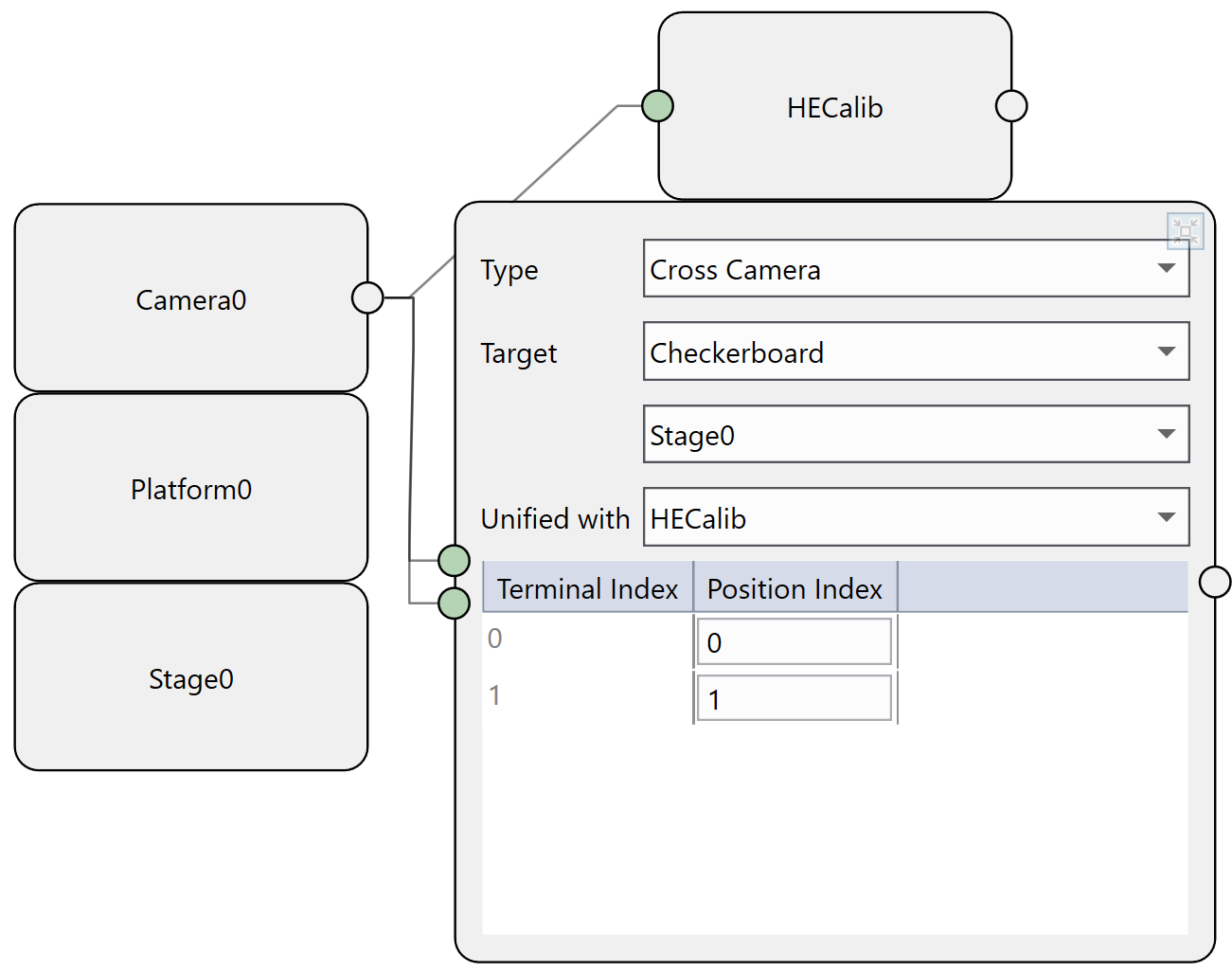
However, if there are more than one cross calibrations which needs to bind with the same hand-eye calibration, only the second way can realize it.
-
Target
| Option | Description |
|---|---|
| Part | Use part features to perform cross calibration |
| Checkerboard | Use calibration plate features to perform cross calibration |
| Hybrid |
Use calibration plate to calibrate cameras intrinsic parameters and generates distortion-free images, and then perform cross calibration using feature(s) of a part on corrected images |
Unified with
Leave it as empty the corresponding hand-eye calibration component has already selected current cross calibration component in its Unified with drop list. Otherwise, select the name of the hand-eye calibration component to unified with and then click Yes in the pop-up dialog.
Related Data
| Table Column | Description |
|---|---|
| Terminal Index | The index of the input terminal. The upper most terminal has an index of 0. |
| Position Index | To acquire images of regions of a part, many alignment systems use multiply cameras to acquire images from multiple regions of a part. These cameras acquire images simultaneously when application uses the position index . If position indexes are different, then cameras acquire images at different times. There must be more than one position index in cross calibration. |
Checkerboard Calibration
Checkerboard calibration does not require any motion devices, nor needs to be unified with any other calibrations, it only requires a calibration plate to be placed stationary in the FOVs of cameras before the calibration. It takes two simple steps to configure a checkerboard calibration component: after connecting to the related cameras, select Pixel to Physical Units in the type field.
Manual Calibration
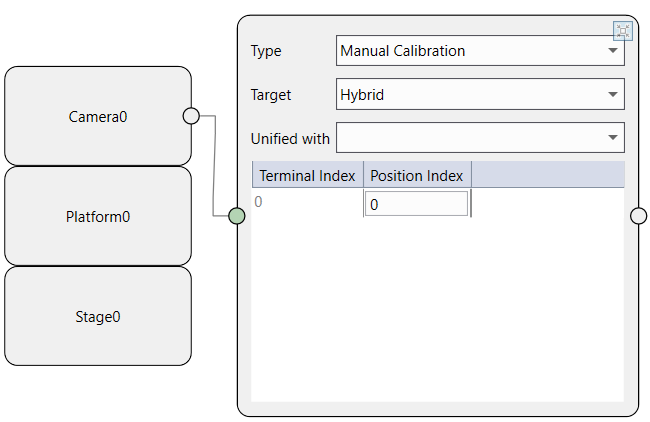
Manual calibration also does not require any motion devices, nor any other calibrations. To add it, choose Manual Calibration type after its connection to cameras.
Target
| Option | Description |
|---|---|
| Hybrid |
Use calibration plate to calibrate cameras intrinsic parameters and generates distortion-free images, and then perform manual calibration using feature(s) of a part from corrected images |
| None | User directly input parameters of transform from Raw2D to Home2D without the need of feature information |
Unified with
Leave it as empty.
Related Data
| Table Column | Description |
|---|---|
| Terminal Index | The index of the input terminal. The upper most terminal has an index of 0. |
| Position Index | To acquire images of regions of a part, many alignment systems use multiply cameras to acquire images from multiple regions of a part. These cameras acquire images simultaneously when application uses the position index . If position indexes are different, then cameras acquire images at different times. |
One Time Calibration
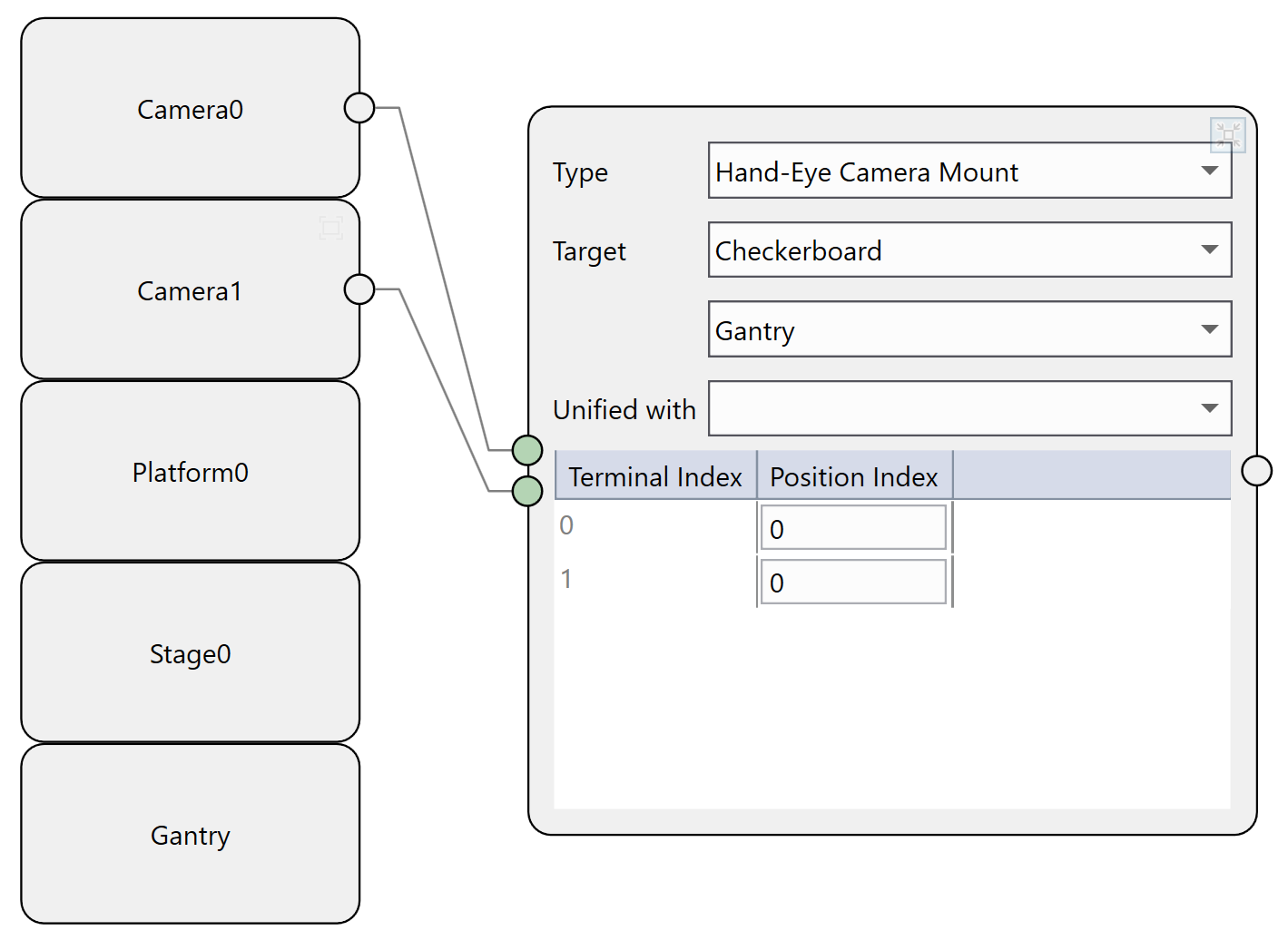
One time calibration performs a moving hand-eye calibration for each connected camera independently. It uses the gantry where the camera is mounted to as the motion device to move the camera over a calibration plate to several specified points, acquires a image at each point, runs the hand-eye calibration in the end to calculate the transform from gantry's space to the Home2D that was established by stage's hand-eye calibration. To add an one time calibration, choose Hand-Eye Camera Mount type after its connection to camera devices.
Target
One time calibration only uses calibration plate as the calibration target.
Unified with
Leave it as empty.
Related Data
| Table Column | Description |
|---|---|
| Terminal Index | The index of the input terminal. The upper most terminal has an index of 0. |
| Position Index | Always be 0. |
One time calibration result is only used for camera offsets adjustment to avoid recalibration during model change, it can not be used to correct images directly for feature finding. Therefore, the one time calibration component can not be connected to any feature finder component in the Configuration Wizard.
Delete
If a calibration component is bounded with another calibration component (such as a cross calibration is unified with a hand-eye calibration), you need unhook them first by choosing empty in their Unified with fields, and then delete the one you would like to delete.
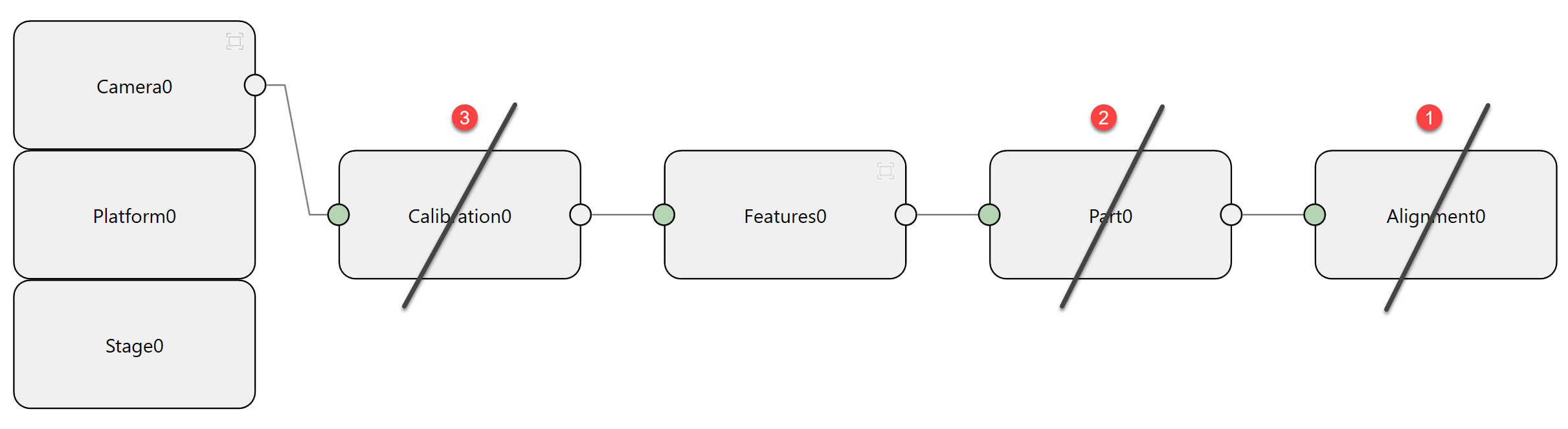
If a calibration component is connected to a finder, and the finder links to a part, the part links to an alignment, then you need to delete alignment component first, then delete the part, and at last the calibration component can be deleted.