Product Recipe
Product recipe manages all recipes in the master and sub recipe structure. It can be found in System category in setup mode.
Master Recipe and Sub Recipe
Product recipe is the master recipe which maintains the name list of sub recipes. Product recipe does not save any other specific data. Under each product, there are three sub recipes: acquisition recipe, calibration recipe and alignment recipe. Here is the summary of the three sub recipes:
| Sub Recipe | Data Saved | When to Save |
|---|---|---|
| Acquisition recipe | All camera and lights settings, and acquisition settings for each task |
Every time camera or lights settings, or acquisition settings such as camera IP address, exposure time, light intensity have been changed, acquisition recipe needs to be saved again. |
| Calibration recipe | All calibration settings and calibration results. |
Every time calibration settings(which may lead to some calibration results invalid) are changed, or any station is recalibrated, calibration recipe needs to be saved again. |
| Alignment recipe | All feature finders and their trained data, camera enable/disable status, offsets setting, LCheck setting, Placement Limit setting |
Every time feature finder vision tools are reconfigured, feature finder is retrained, camera changes its disable/enable status, offsets/LCheck/Placement Limit setting changes, alignment recipe needs to be saved again. |
The benefit of the master-sub recipe structure is that once the product changes, you only need to change the product recipe as all its sub recipes will be automatically changed altogether and you do not need to take time to distinguish which sub recipe belongs to which product. Also, product recipes are indexed with product codes; these codes could be called by external devices through communication which makes automatic recipe change possible, which saves model change time and avoids manual mistakes in the factory.
The product recipe setting has three pages: Current Product Recipe, All Product Recipes and Orphan Sub-Recipes.
Current Product Recipe
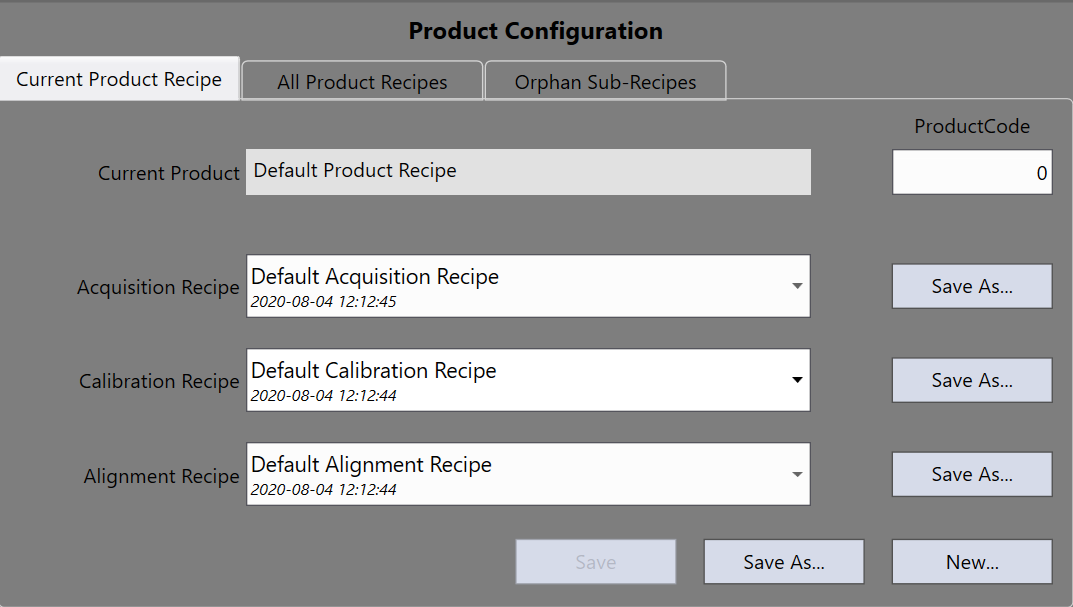
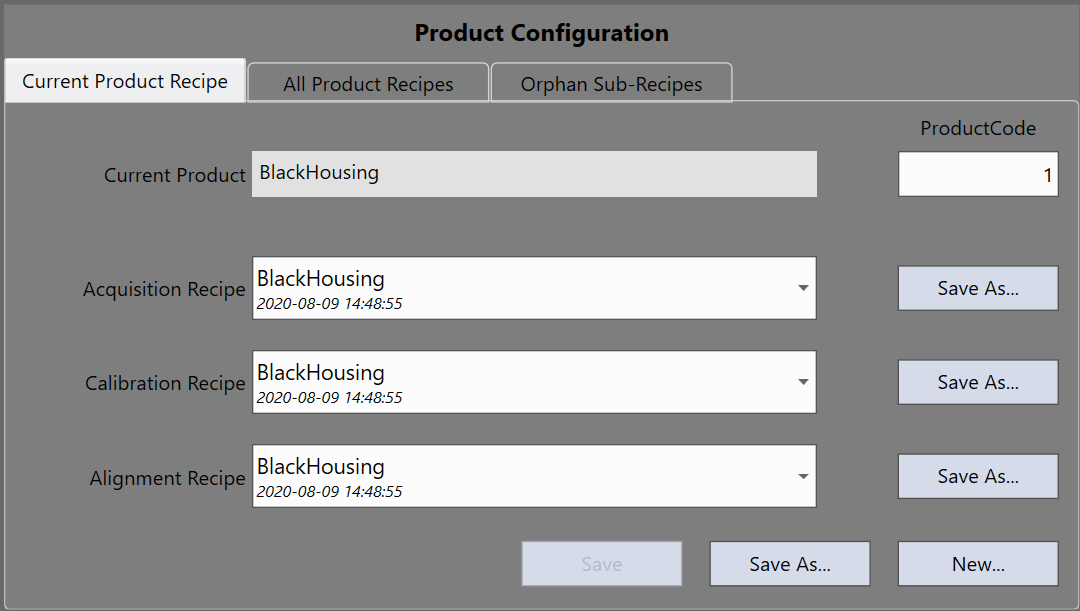
This page is for the operations on the current product recipe.
| Item | Description |
|---|---|
| Current Product | The name of the currently loaded product(master recipe) |
| Product Code | The code number for the current product that can be used for automatic recipe change |
| Acquisition Recipe | The name of acquisition sub recipe of the current product |
| Calibration Recipe | The name of calibration sub recipe of the current product |
| Alignment Recipe | The name of alignment sub recipe of the current product |
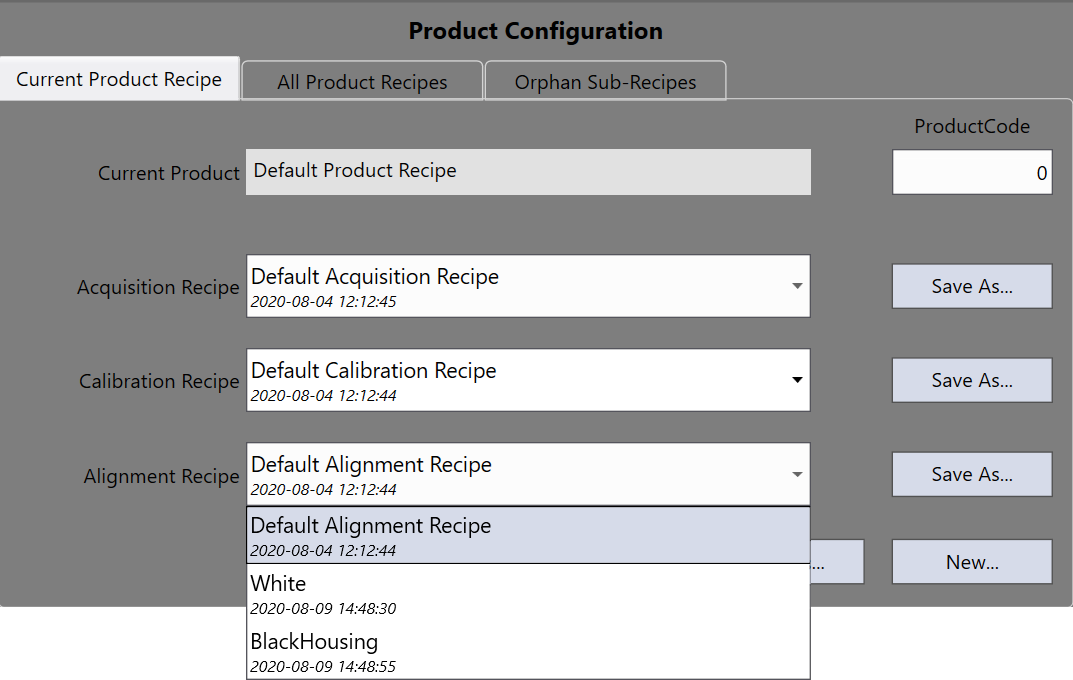
Each sub recipe category has a drop-down list that shows all the available sub recipes and allows the current product to have different sub recipes. All sub recipes have time stamp automatically attached when they were created so that it is more convenient for you to identify them.
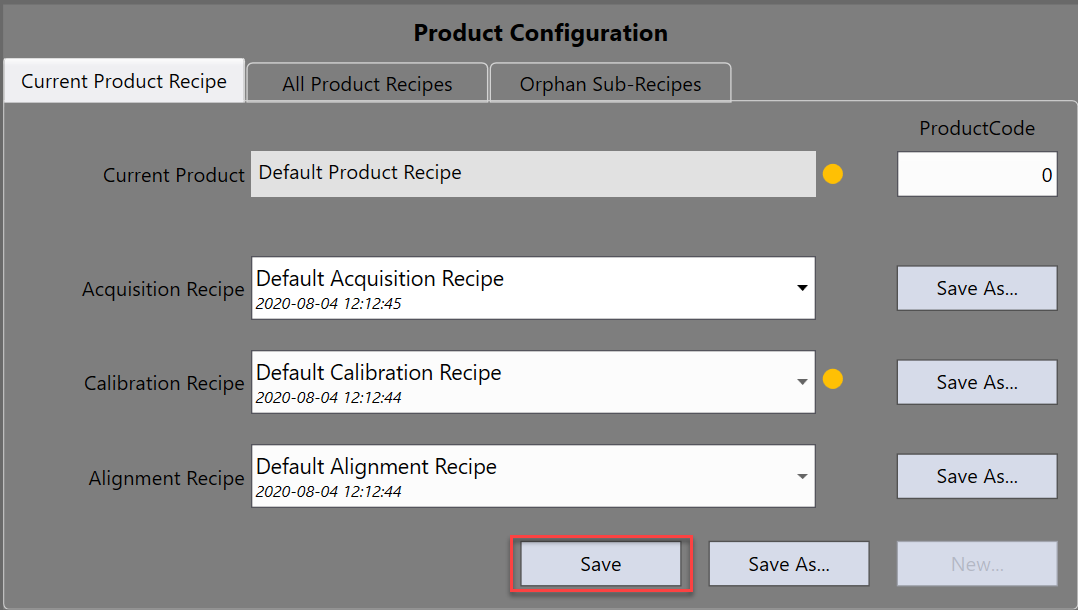
Save
When there is any change happening to any sub recipe, that sub recipe as well as the product recipe will have a yellow dot appearing next to them. Clicking the "Save" button will save the change to its corresponding sub recipe and the current product recipe.
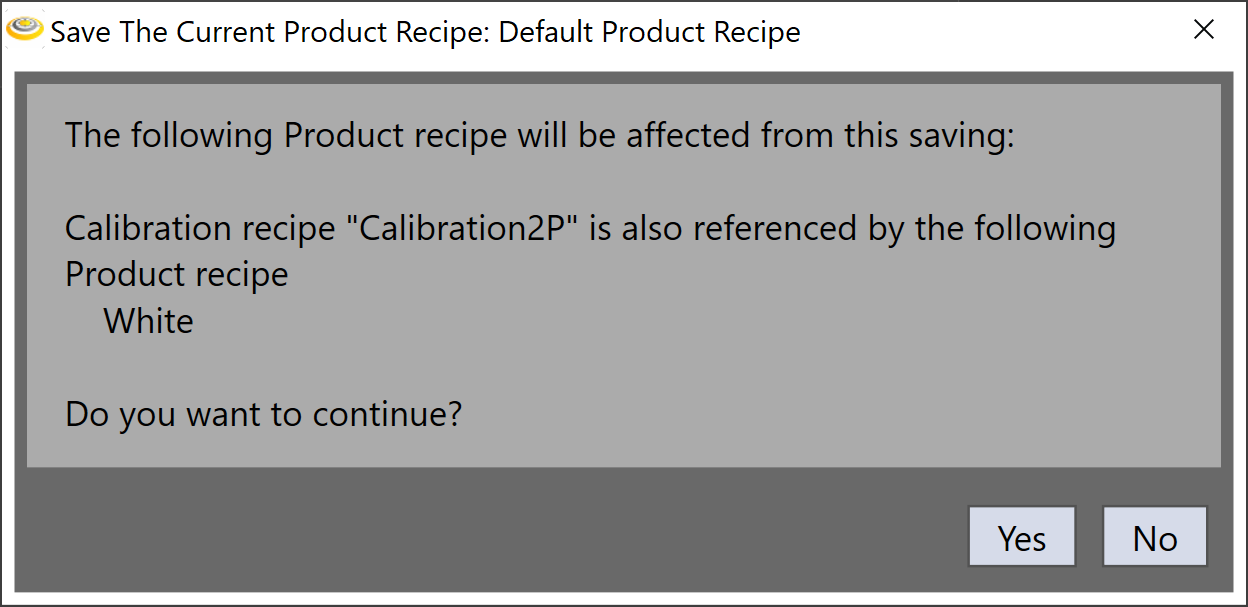
If any of the sub-recipes are also shared by any other master recipe, a message window will pop up to inform what will be impacted.
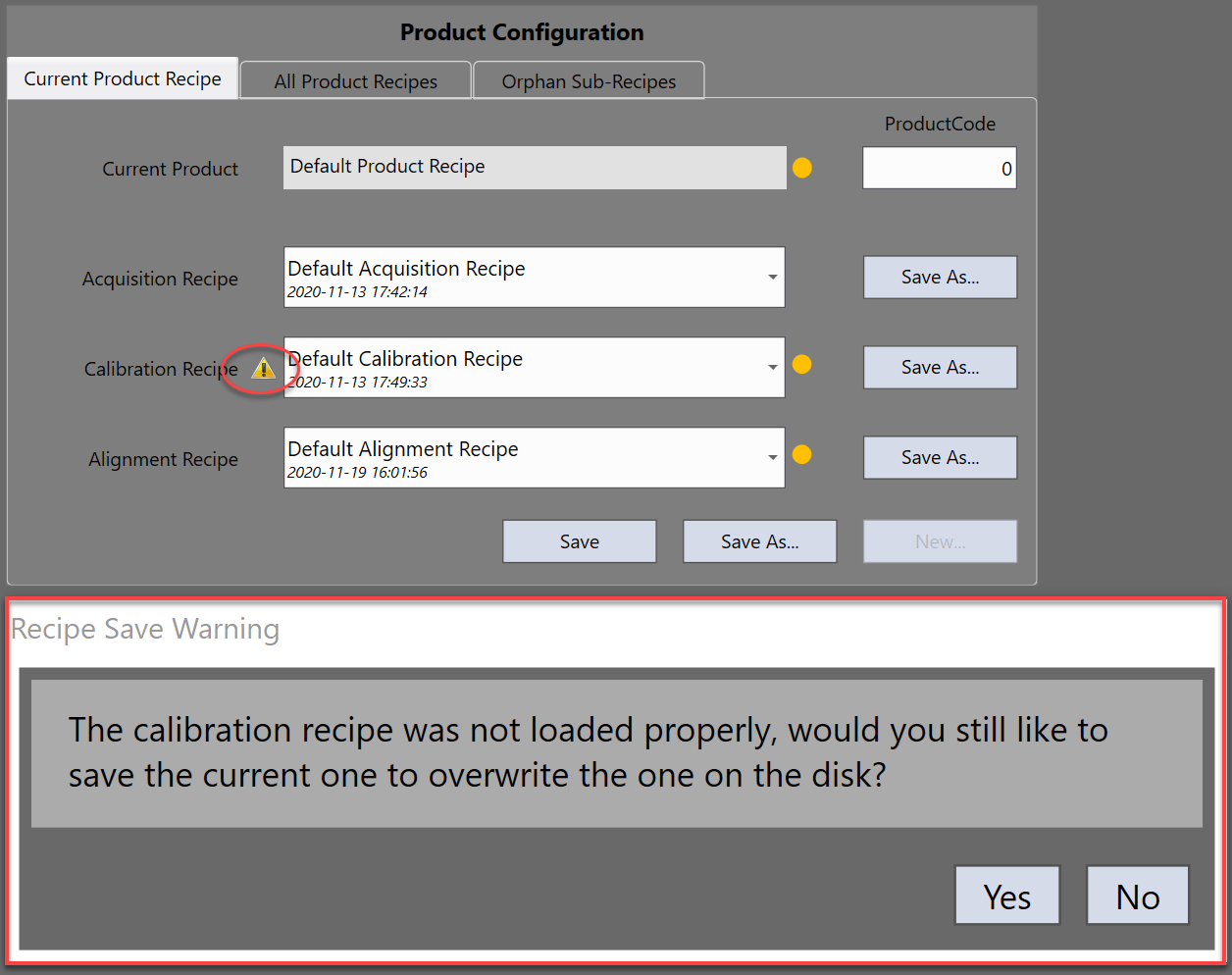
If the current recipe was not loaded properly, clicking the "Save" button will pop up a message window to confirm with you whether you want to overwrite the one on the disk.
Save As
For each individual sub recipe, the Save As button allows the current state of the sub-recipe (Acquisition, Calibration or Alignment) to be saved under a different name. This sub recipe's new name will be selected for the current product recipe. This function can be used to backup recipes.
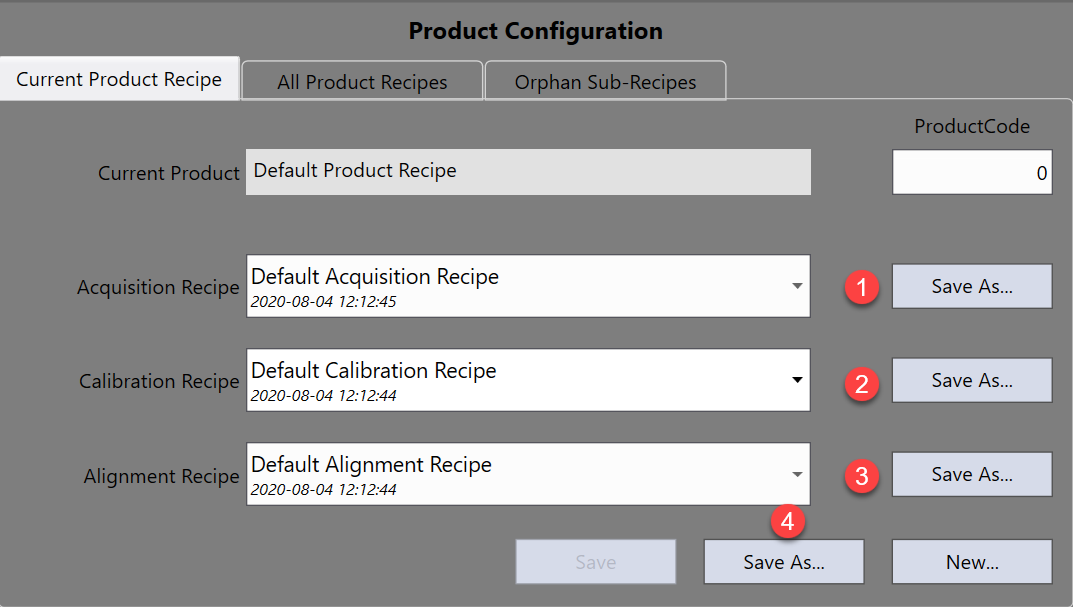
The fourth Save As at the bottom is to save the current product under a different name specified in the pop-up dialog, and this new product name will be selected as the current product.
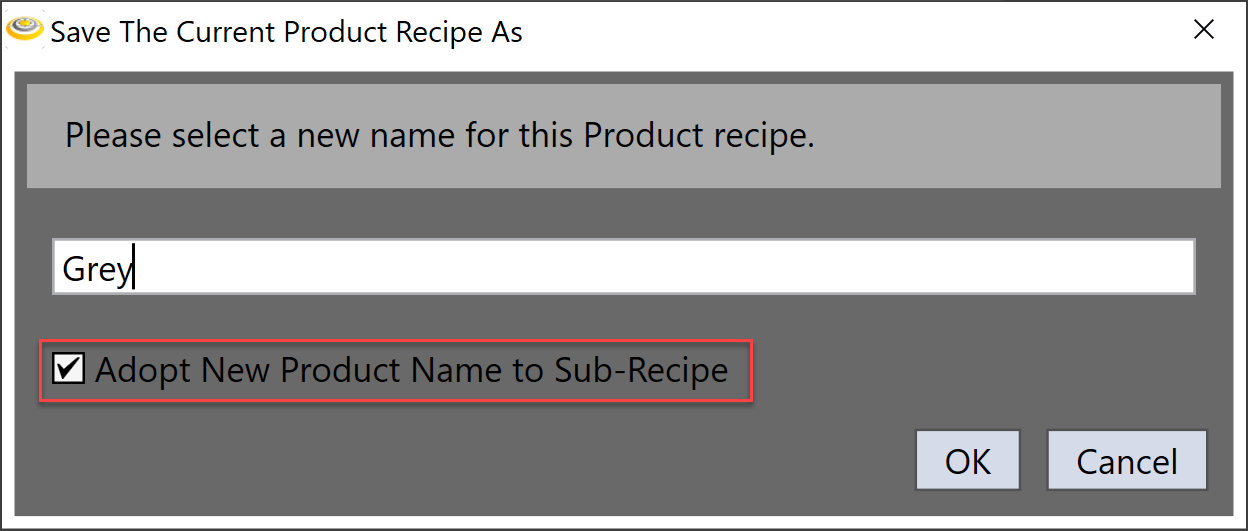
If Adopt New Product Name to Sub-Recipe is unchecked, the new product will share the sub-recipes with the current product. If it is checked, the new product will create its own sub recipes that have the same names with the new product and save all changes to them respectively.
New
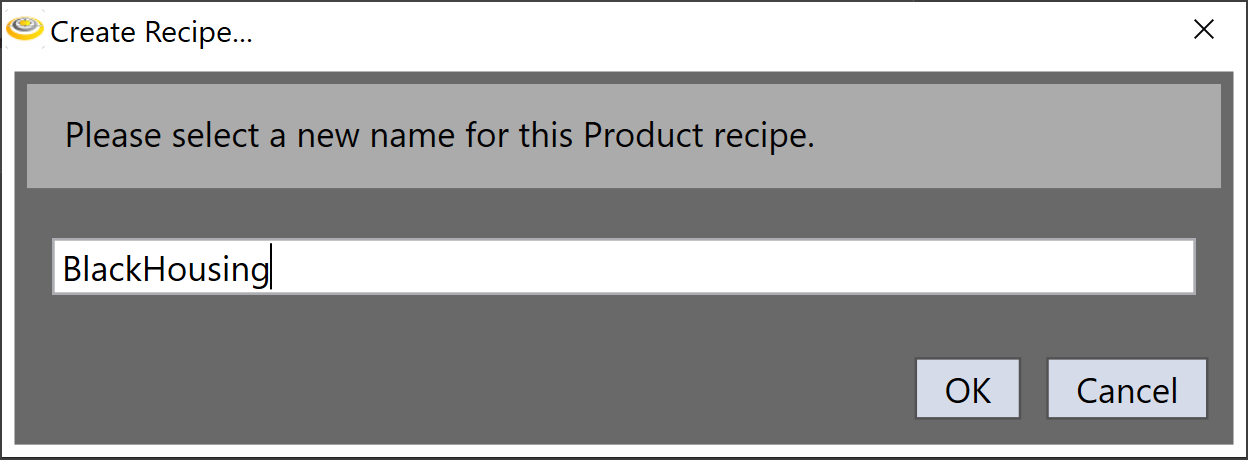
Click New button to create a new product recipe as well as the sub recipes. This new product name will be selected as current product. Note if any sub recipe with the given name already exists, the existing sub recipe will be used instead of creating a brand new sub recipe.
All Product Recipes
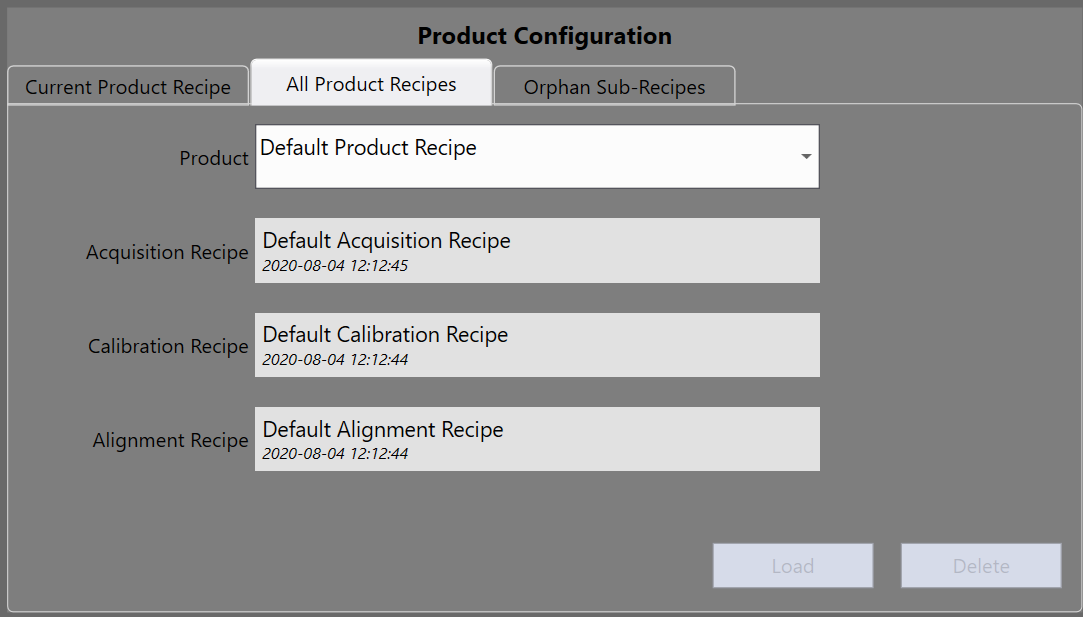
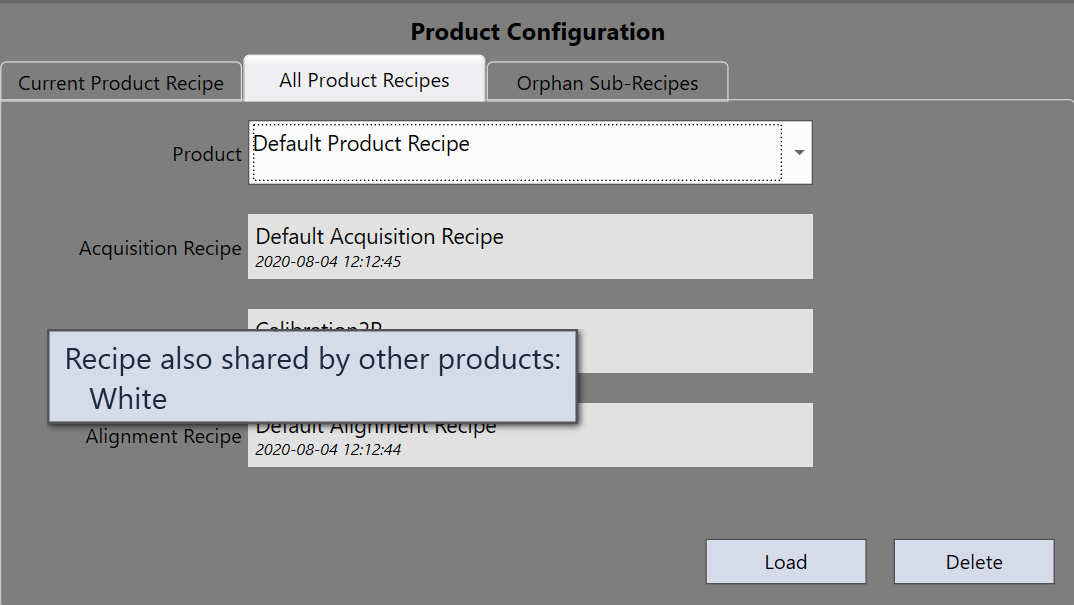
This tab is for loading or deleting operation on the existing products.
| Item | Description |
|---|---|
| Product | The drop down list shows all the available product recipes. |
| Acquisition Recipe | The name of acquisition sub recipe of the selected product |
| Calibration Recipe | The name of calibration sub recipe of the selected product |
| Alignment Recipe | The name of alignment sub recipe of the selected product |
| Product Code | The code number of the current product |
If a sub recipe is shared between products, the information will be shown in a pop up control when mousing over the display.
Load
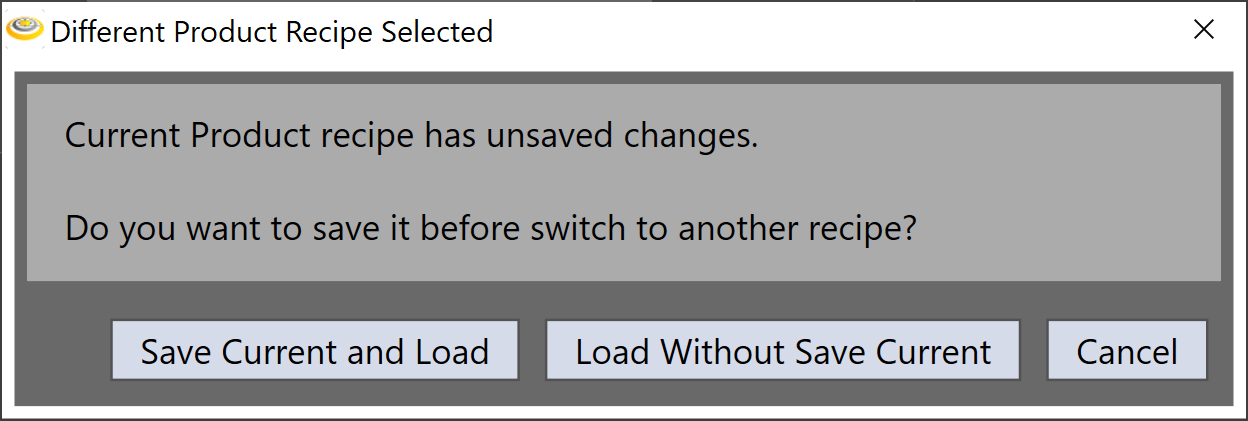
Loads the selected product as current product. If the current recipe or the sub recipes have unsaved changes, a message window will pop up to allow the user to perform desired action.
Delete
Delete the selected product. Note that the corresponding sub recipes associated with the deleting product will not be deleted. Use the "Orphan Sub-Recipes" tab to delete unwanted sub-recipes.
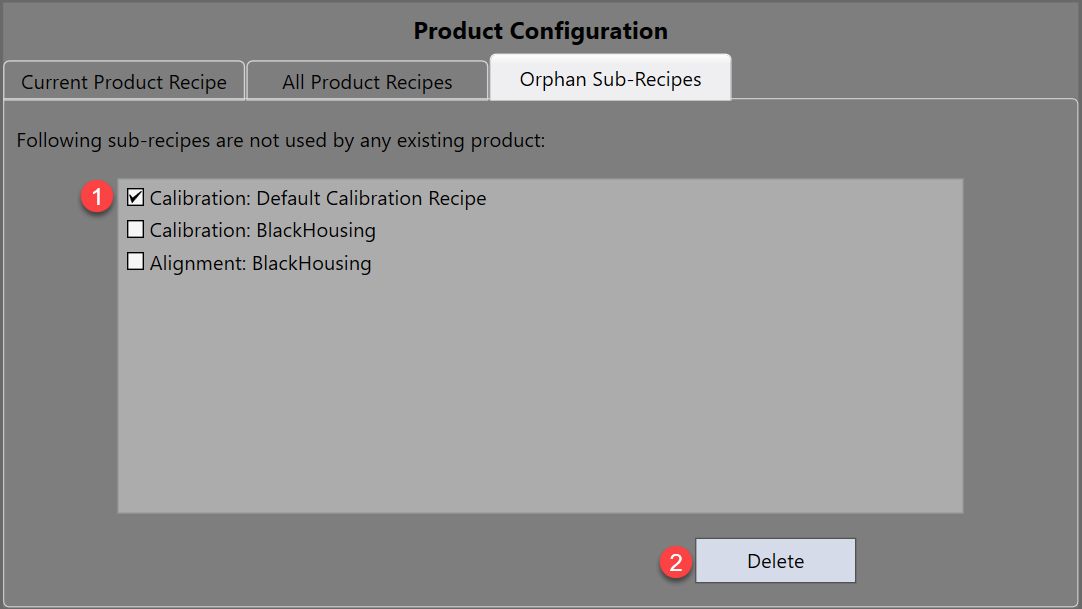
Orphan Sub-Recipes
This tab is for deleting operations on those orphan sub-recipes (the recipes are not referenced by any existing product). If you want to delete them, just select them, and then click the "Delete" button.