Checkerboard Settings
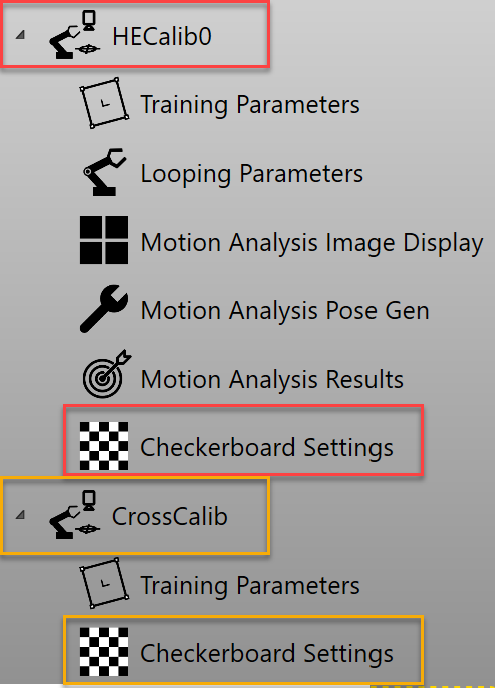
If a calibration is checkerboard-based, in the generated application, there will be one checkerboard settings page under that calibration's group on HMI which allows users to configure the checkerboard parameters for the calibration. For example, the HECalib0 and CrossCalib shown in the screenshot below both have a Checkerboard Settings page under them.
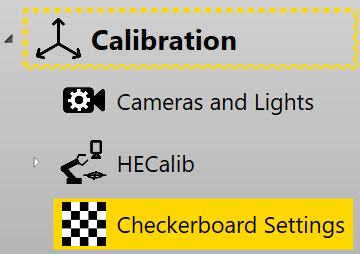
if all checkerboard-based based calibrations use the same checkerboard parameters, users can choose to only set the parameters on the master Checkerboard Settings page and then apply the settings to all calibrations. The master Checkerboard Settings page is located directly under "Calibration" category in the setup mode of the application.
Parameters
All Checkerboard Settings pages have the same parameters to set:
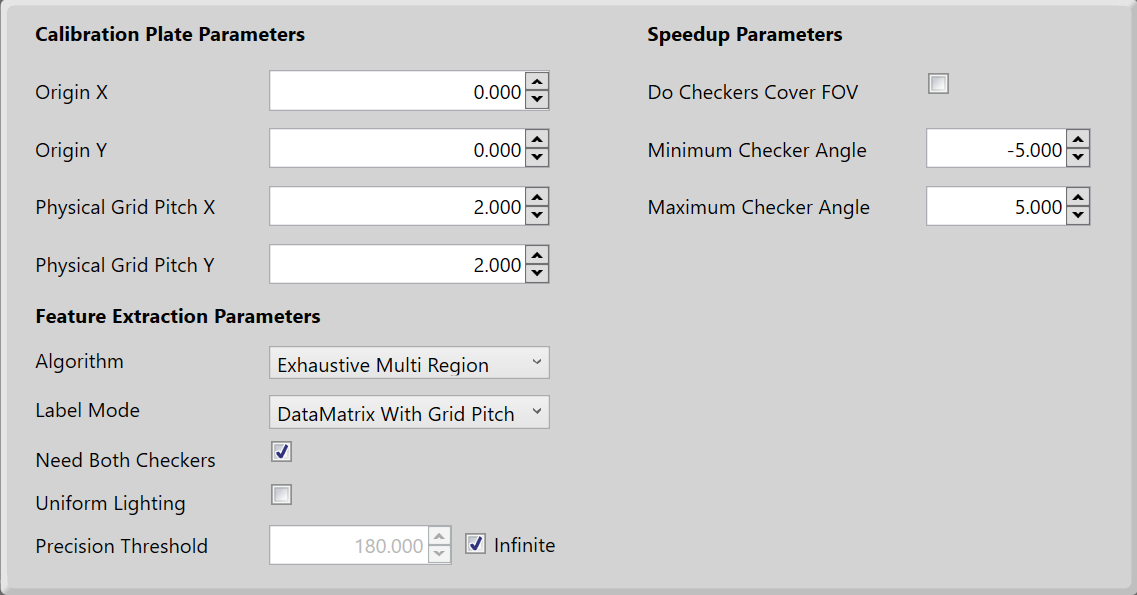
Calibration Plate Parameters
-
OriginX
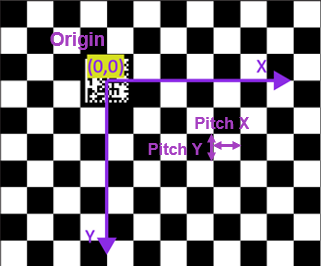
Gets/sets the the x value of the designated origin to be used for labeling of returned feature points. The vertex closest to point (OriginX, OriginY) will be used as the origin for point correspondence when Label Mode is CogCalibFeatureExtractorCheckerboardLabelModeConstants.UseOrigin.
When not operating in CogCalibFeatureExtractorCheckerboardLabelModeConstants.UseOrigin mode, this property is ignored.
-
OriginY
Gets/sets the the x value of the designated origin to be used for labeling of returned feature points. The vertex closest to point (OriginX, OriginY) will be used as the origin for point correspondence when Label Mode is CogCalibFeatureExtractorCheckerboardLabelModeConstants.UseOrigin.
When not operating in CogCalibFeatureExtractorCheckerboardLabelModeConstants.UseOrigin mode, this property is ignored.
-
Physical Grid Pitch X
Gets/sets the physical units of grid pitch along the x-axis of the calibration plate coordinate system (Plate2D, see the remarks section of Cognex.VisionPro.CalibFix.CogCalibFeatureExtractorCheckerboardLabelModeConstants). It is the distance between any two adjacent checker vertices whenever the line joining them is parallel to the x axis of Plate2D.
Throws System.ArgumentOutOfRangeException: The value is less than or equal to 0.
-
Physical Grid Pitch Y
Gets/sets the physical units of grid pitch along the y-axis of the calibration plate coordinate system (Plate2D, see the remarks section of Cognex.VisionPro.CalibFix.CogCalibFeatureExtractorCheckerboardLabelModeConstants). It is the distance between any two adjacent checker vertices whenever the line joining them is parallel to the y axis of Plate2D.
Throws System.ArgumentOutOfRangeException: The value is less than or equal to 0.
Feature Extraction Parameters
For Algorithm and Label Mode, please refer to Feature Extractor
-
Need both checkers
Gets/sets the flag to indicate whether the tool should find only vertices shared by two interior light checkers.
True: the extractor will find only those vertices belonging simultaneously to two interior light checkers(An interior checker is one that does not touch the image boundary or the border of the calibration plate).
False: the extractor will attempt to find all vertices of all interior light checkers.
-
Precision Threshold
Gets/sets the threshold for discarding vertices with excessive positional uncertainty, specified in pixels.
Due to noise and distortion, there are errors in the computed vertex positions. The algorithm internally estimates the position uncertainty for all found vertices, and excludes those from the final result whose position uncertainty estimates exceed the threshold specified here.
Throws System.ArgumentOutOfRangeException: If the input value is less than 0 in the setter.
-
Uniform Lighting
Gets/sets the flag to indicate whether the checkerboard is expected to be uniformly illuminated in the run-time images.
True: the extractor expects the light checkers to be uniformly illuminated, and uses an efficient technique for finding the vertices which can improve the speed performance. However, if in fact the illumination is not uniform, this technique may not find certain vertices that are severely affected by the non-uniform lighting.
False: the tool performs better in presence of severe non-uniform lighting, and may find more vertices in these cases.
Speed Up Parameters
-
Do Checkers Cover FOV
Gets/sets whether the checkers are expected to entirely cover the field of view. Note that the purpose of this property is to improve speed performance when the checker coverage is known. This property should only be set to true if it is known beforehand that the checkers will cover the entire image for each camera at each pose. Note that Do Checkers Cover FOV is only used when Algorithm is Cognex.VisionPro.CalibFix.CogCalibFeatureExtractorCheckerboardAlgorithmConstants.Exhaustive.
-
Minimum Checker Angle
Gets/sets the minimum expected angle of checker orientations. Note that if the new value is larger than Maximum Checker Angle, then Maximum Checker Angle will be changed to the new Minimum Checker Angle. The purpose of Minimum and Maximum Checker Angle is to improve speed performance when the checker orientations are known. Minimum and Maximum Checker Angle are only used when Algorithm is Cognex.VisionPro.CalibFix.CogCalibFeatureExtractorCheckerboardAlgorithmConstants.Exhaustive.
-
Maximum Checker Angle
Gets/sets the maximum expected angle of checker orientations. Note that if the new value is smaller than Minimum Checker Angle, then Minimum Checker Angle will be changed to the new Maximum Checker Angle. The purpose of Minimum and Maximum Checker Angle is to improve speed performance when the checker orientations are known. Minimum and Maximum Checker Angle are only used when Algorithm is Cognex.VisionPro.CalibFix.CogCalibFeatureExtractorCheckerboardAlgorithmConstants.Exhaustive
Change Checkerboard Parameters
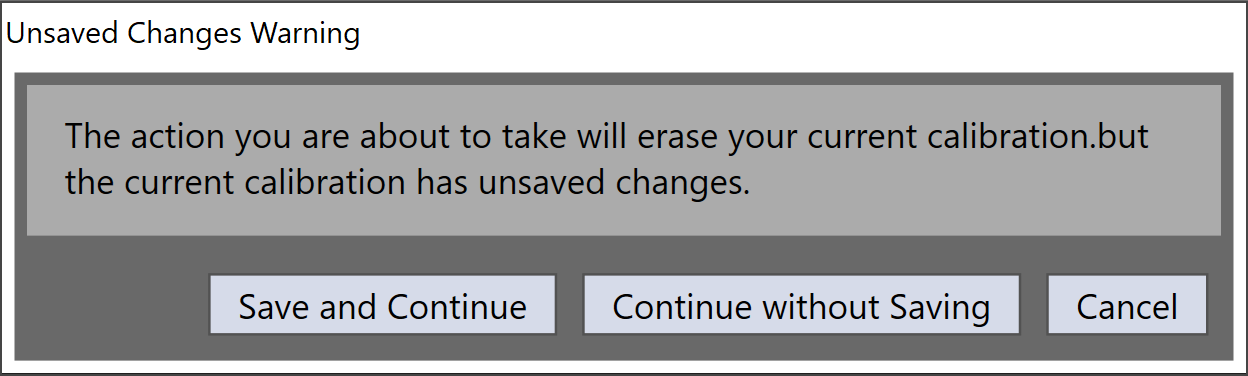
At any time, change of a checkerboard parameter will lead to its corresponding calibration result invalid. To avoid users from making calibration result invalid unintentionally, this function will ask users to confirm the action before leaving current settings page.
-
Save and Continue
Erase current calibration data and save the checkerboard parameter changes to current product recipe
-
Continue without Saving
Erase current calibration data, keep the checkerboard setting changes only on current settings page without saving them to recipe
-
Cancel
Cancel the changes on this page and do not change current calibration data
For the master Checkerboard Settings page, after making changes to parameters, users need to click "Apply To All" button to apply the changes to all other Checkerboard Settings pages that are under specific calibration groups.
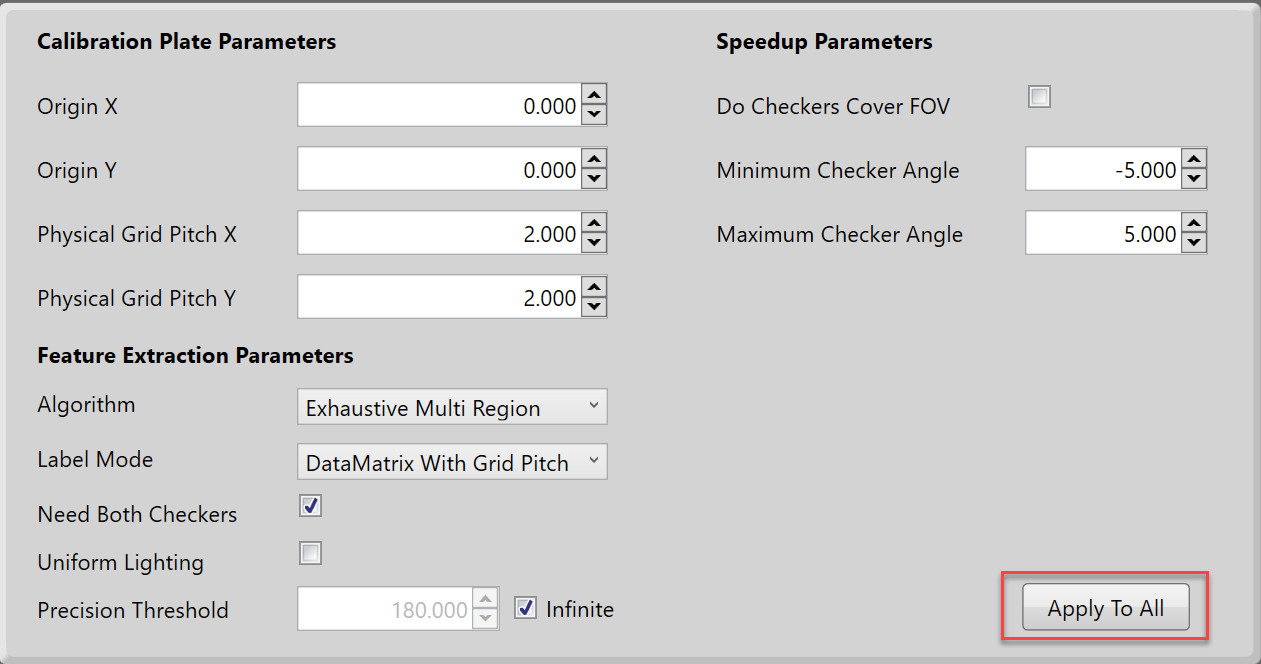
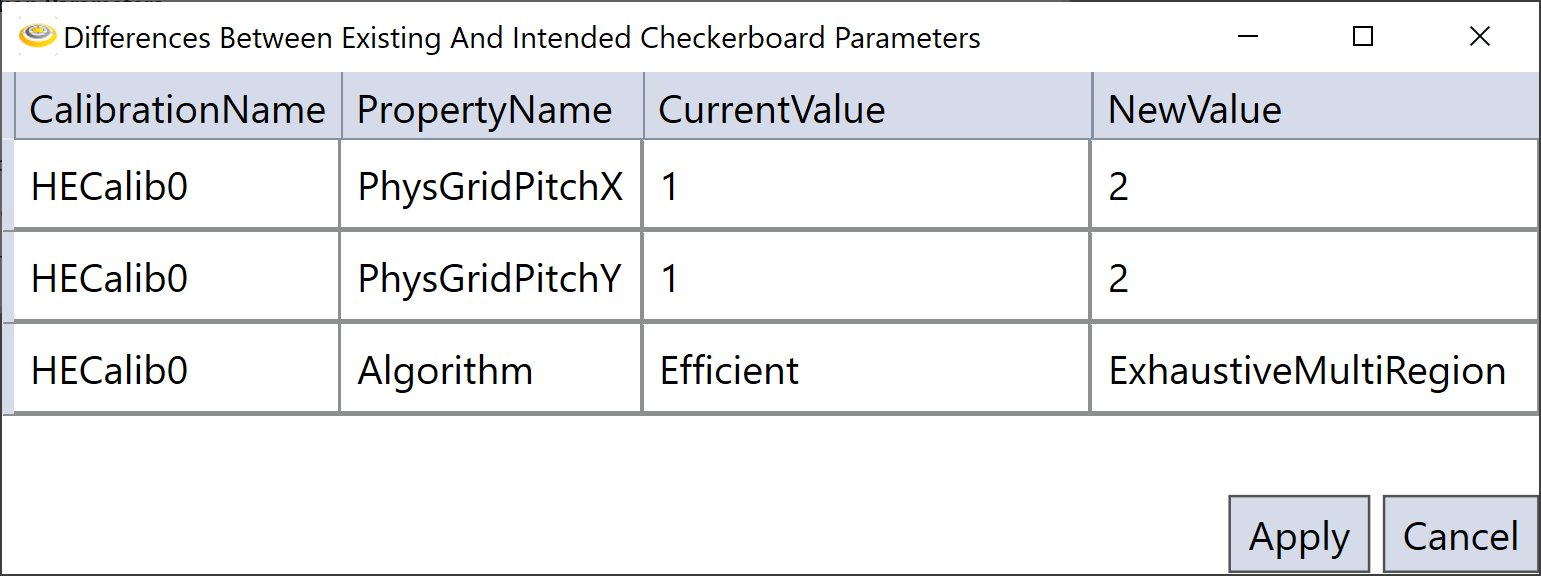
After the "Apply To All" button is clicked, there will be a pop-up dialog showing the calibration names and their checkerboard setting parameters that are different with the master page's. These parameters' current values and new values if the master parameters are applied will also be listed out for users to compare. Click "Apply" button to apply master page changes to all calibration's checkerboard settings, otherwise click "Cancel".
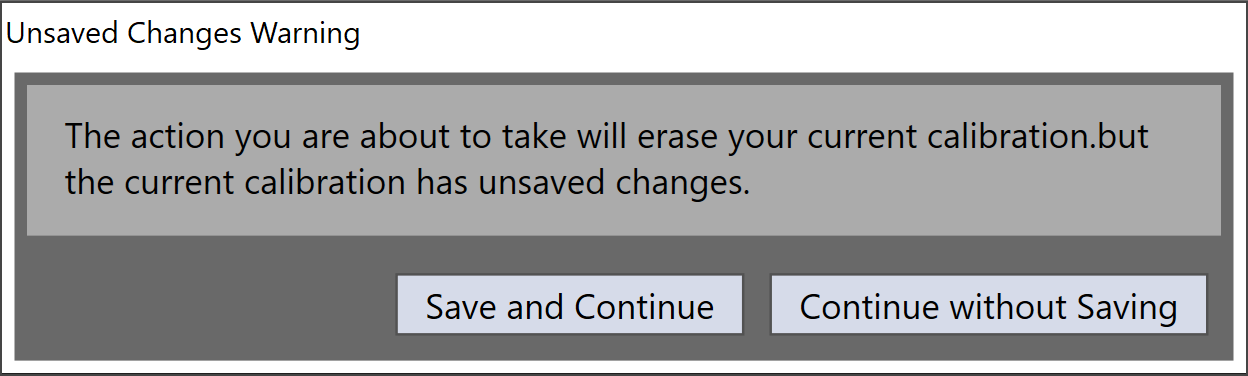
After applying to all and before leaving the master setting page, the application will pop up another dialog to remind users whether to save the checkerboard parameter changes caused by the master page to the current product recipe of the application.
-
Save and Continue
Erase current calibration data and save the checkerboard parameters changes to the current product recipe
-
Continue without Saving
Erase current calibration data, keep the checkerboard setting changes only on Checkerboard Settings pages without saving them to recipe.