Hand-eye Calibration Task
Hand-eye Calibration ComputeCalibResults task extracts and accumulates features of the calibration target at each stage pose, and finally computes hand-eye calibration results. The task can be executed by three types of command keys: HEB command to initialize the hand-eye calibration, HE command at each stage pose to extract and accumulate features and poses, HEE command to compute the calibration results using the accumulated data. Henceforth, we refer hand-eye calibration ComputeCalibResults task as hand-eye calibration task.
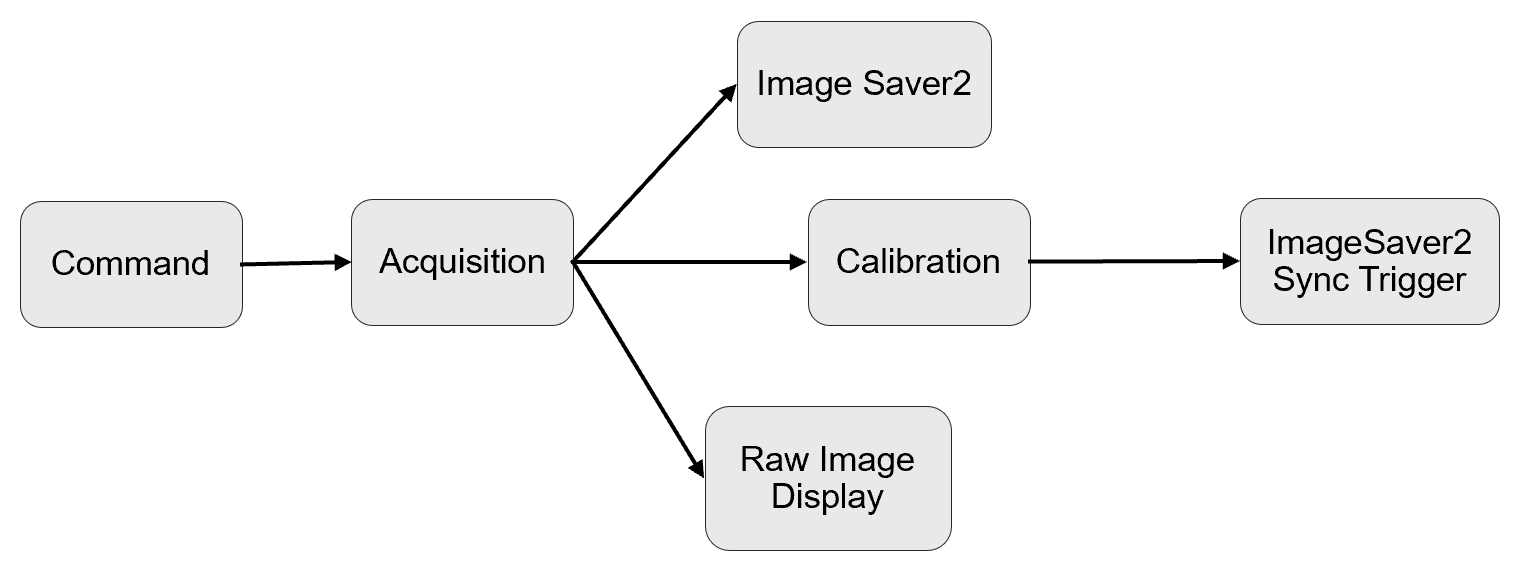
The hand-eye calibration task has 6 subtasks: Command, Acquisition, Image Saver2, Raw Image Display, Calibration, and ImageSaver2 Sync Trigger.
Command
When a command string is received by the CommandHandler script, an equivalent CommandArgs object is created. This object contains all the data that is needed to execute the target task. The task scheduler passes the CommandArgs object to the target task and the object is made available to the task by the Command subtask. The Command subtask makes the object available in its output pin, and also publishes it as a tag. Various components within the task either use the tag or the output available at the pin to act appropriately. For example, a downstream subtask may use the tag to implement a Condition expression that conditionally executes the task. Or, the customer can intercept the object that is available at the output of the subtask to add any additional data that are required by their customizations.
Execution Mode
The hand-eye calibration task uses three execution modes: Acquire, AcquireAndProcessImage, and ProcessImage.
-
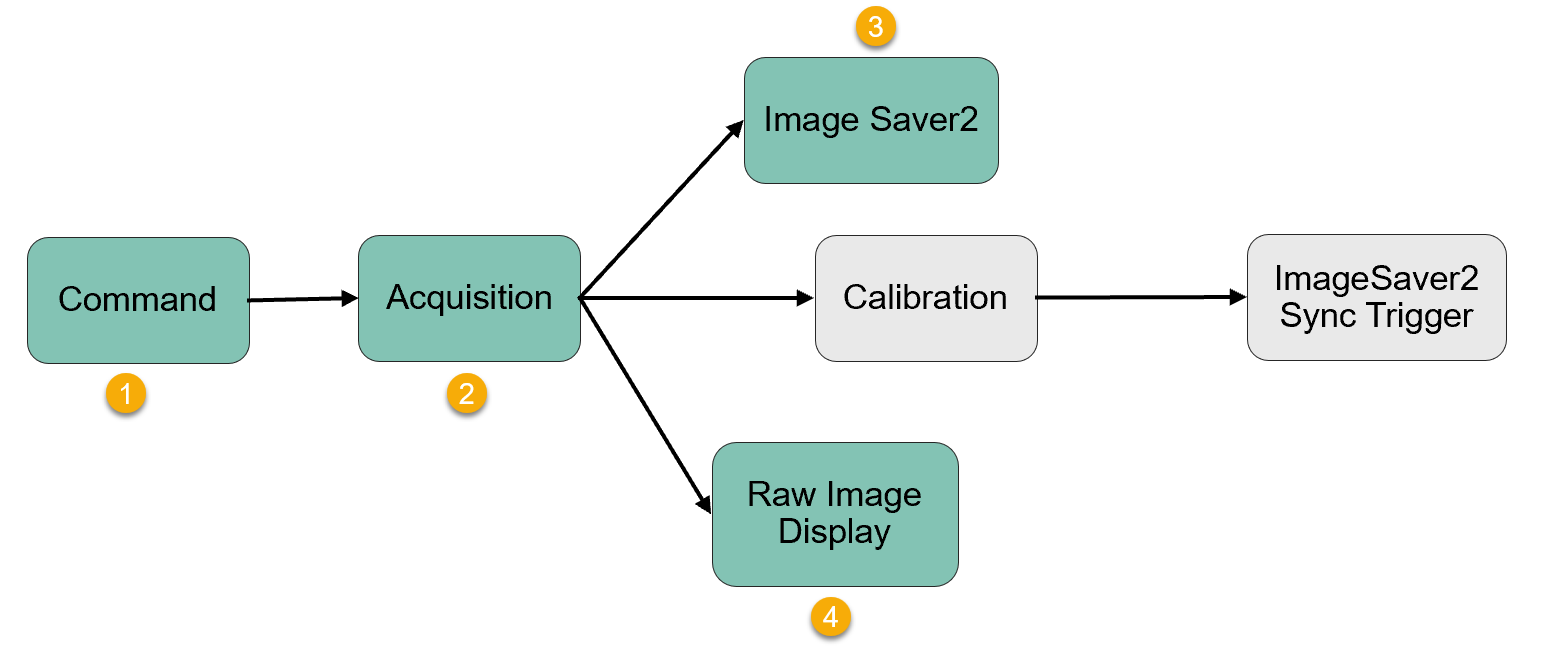
ExecutionMode: Acquire
AlignPlus supports applications that use a single camera to acquire multiple images of various non-overlapping regions of a part, also known as shuttling camera applications. During the hand-eye calibration process, for every pose of the alignment motion device, the task acquires the images at all positions before locating the calibration target features, The command string that executes the task should have the execution mode field set to Acquire in the encodedID when only acquiring images at the various positions. For applications that do not use shuttling cameras, the ExecutionMode is never set to Acquire.only.
When ExecutionMode is Acquire, the task will only runs Acquisition subtask, Raw Image Display subtask, and Image Saver2 task.
-
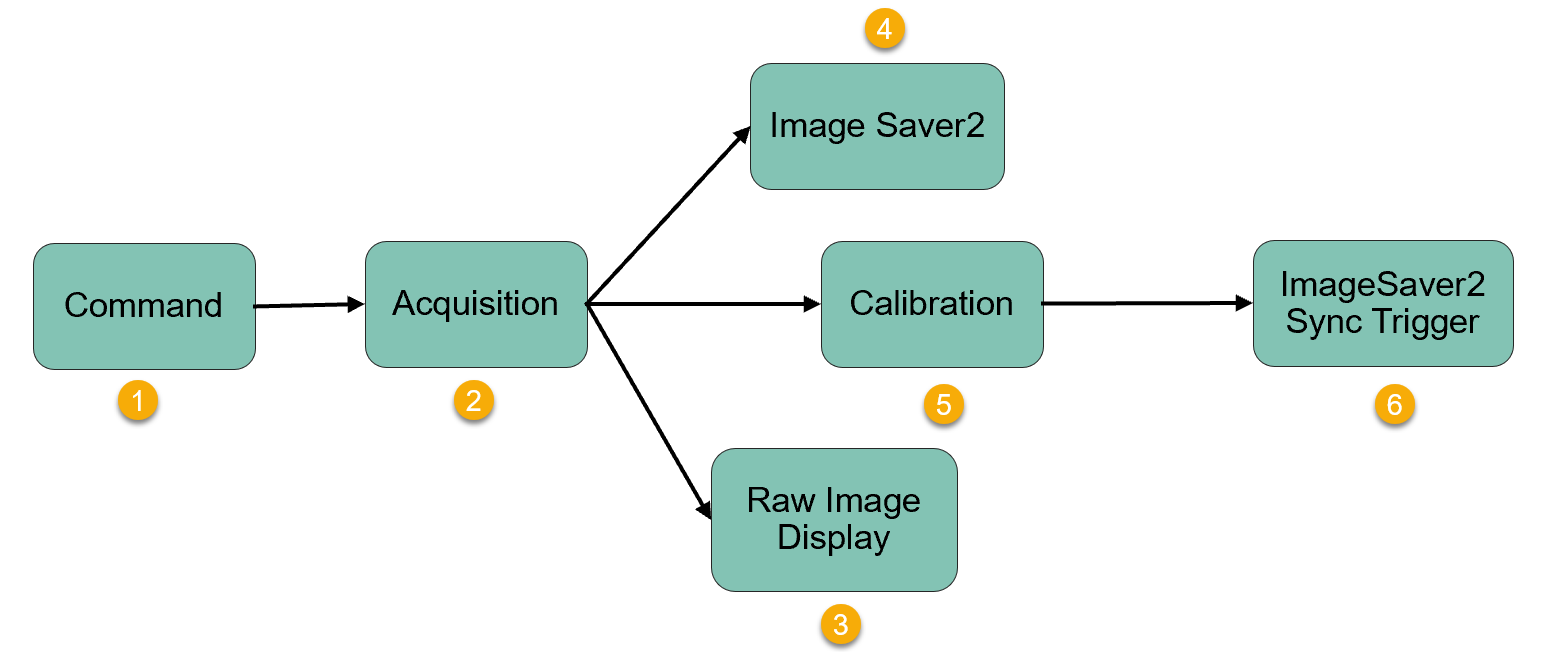
ExecutionMode: AcquireAndProcessImage
When cameras are at last acquisition position for a given stage pose during calibration, the execution mode in the encodedID in the command string has to be set to AcquireAndProcessImage. When the task is executed, the image at the last position is captured and calibration target features are located in all images captured at all camera positions. In this case, ExecutionMode should be set as AcquireAndProcessImage. The workflow below shows all its sub tasks and the execution sequence.
-
ExecutionMode: ProcessImage
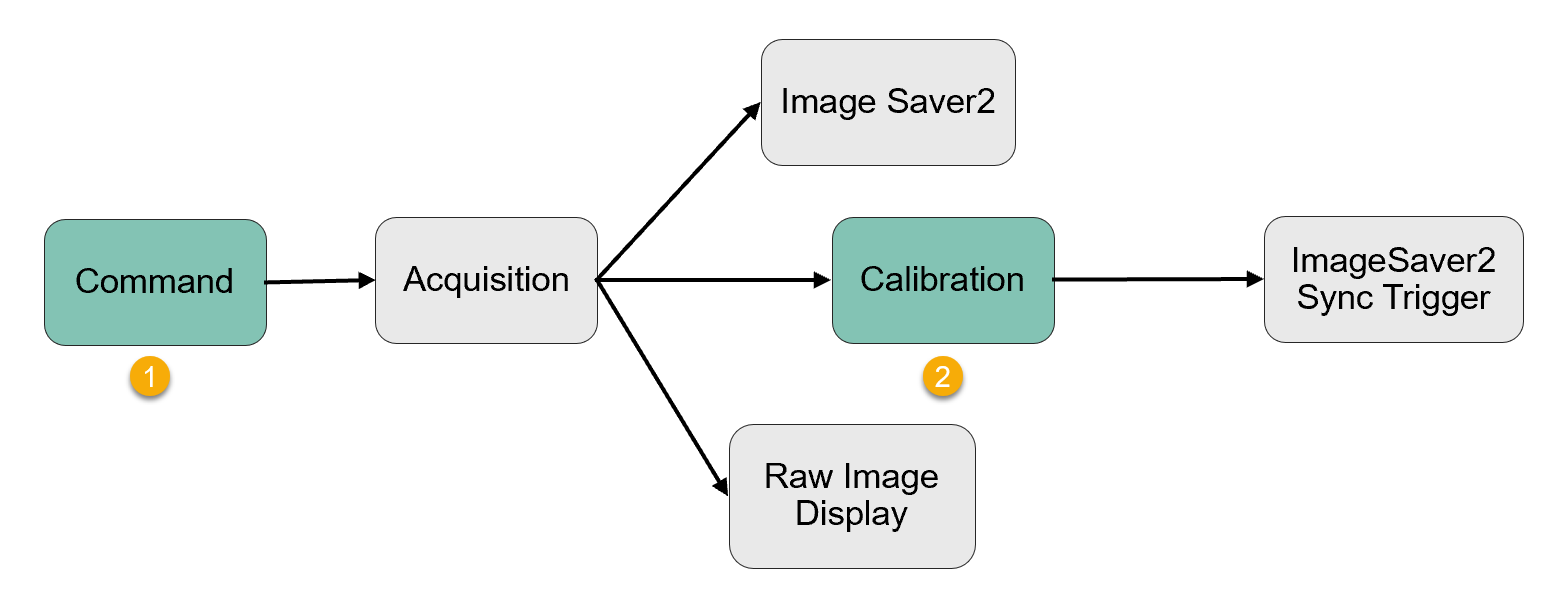
At the beginning of hand-eye calibration process, the accumulated features and stage poses inside calibration subtask has to be cleared. The task has to be executed by creating a command string with command key set to HEB and the ExecutionMode in the encodedID set to ProcessImage.
When all the features need to calibrate have been accumulated, the task is executed using a command string with command key set to HE and execution mode in the encodedID set to ProcessImage. This results in the computation of the hand-eye calibratino results.
The work flow below shows all its sub tasks and their execution sequence.
Acquisition
Running condition:[ExecutionMode = Acquire || AcquireAndProcessImage]
Acquisition subtask triggers cameras to acquire images of the calibration target at a position encoded in the encodedID in the command string that executes the task.
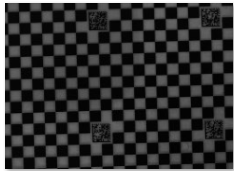
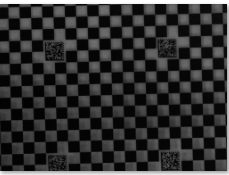
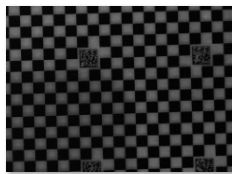
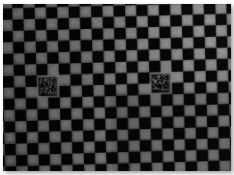
For a shuttling camera application that uses two cameras that shuttle to two positions, the hand-eye calibration task is executed twice. The first using a command string with an encodedID that encodes the first position and with execution mode set to Acquire. The second using a command string with an encodedID that encodes the second position and with execution mode set to AcquireAndProcessImage. Both the executions execute the Acquisition subtask.
|
Command |
ExecutionMode | Position Index | Image Item | Before Acquisition | Acquisition at Pos0 | Acquisition at Pos1 |
|---|---|---|---|---|---|---|
| 1 | Acquire | 0 | Cam0Pos0 | Null |
|
/ |
| 0 | Cam1Pos0 | Null |
|
/ | ||
| 2 | AcquireAndProcessImage | 1 | Cam0Pos1 | Null | Null |
|
| 1 | Cam1Pos1 | Null | Null |
|
For non-shuttling camera applications, a single command string with an encodedID that encodes the execution mode to AcquireAndProcessImage is used to acquire the image.
|
Command |
ExecutionMode | Position Index | Image Item | Before Acquisition | Acquisition at Pos0 |
|---|---|---|---|---|---|
| 1 | AcquireAndProcessImage | 0 | Cam0Pos0 | Null |
|
| 0 | Cam1Pos0 | Null |
|
Calibration
Running condition:[ExecutionMode = ProcessImage || AcquireAndProcessImage]
The calibration subtask is executed during various phases of the hand-eye calibration process. When the task is executed because of a command string with command key set to HEB, the accumulators that gather calibration target features and stage poses are cleared and readied to perform a new hand-eye calibration.
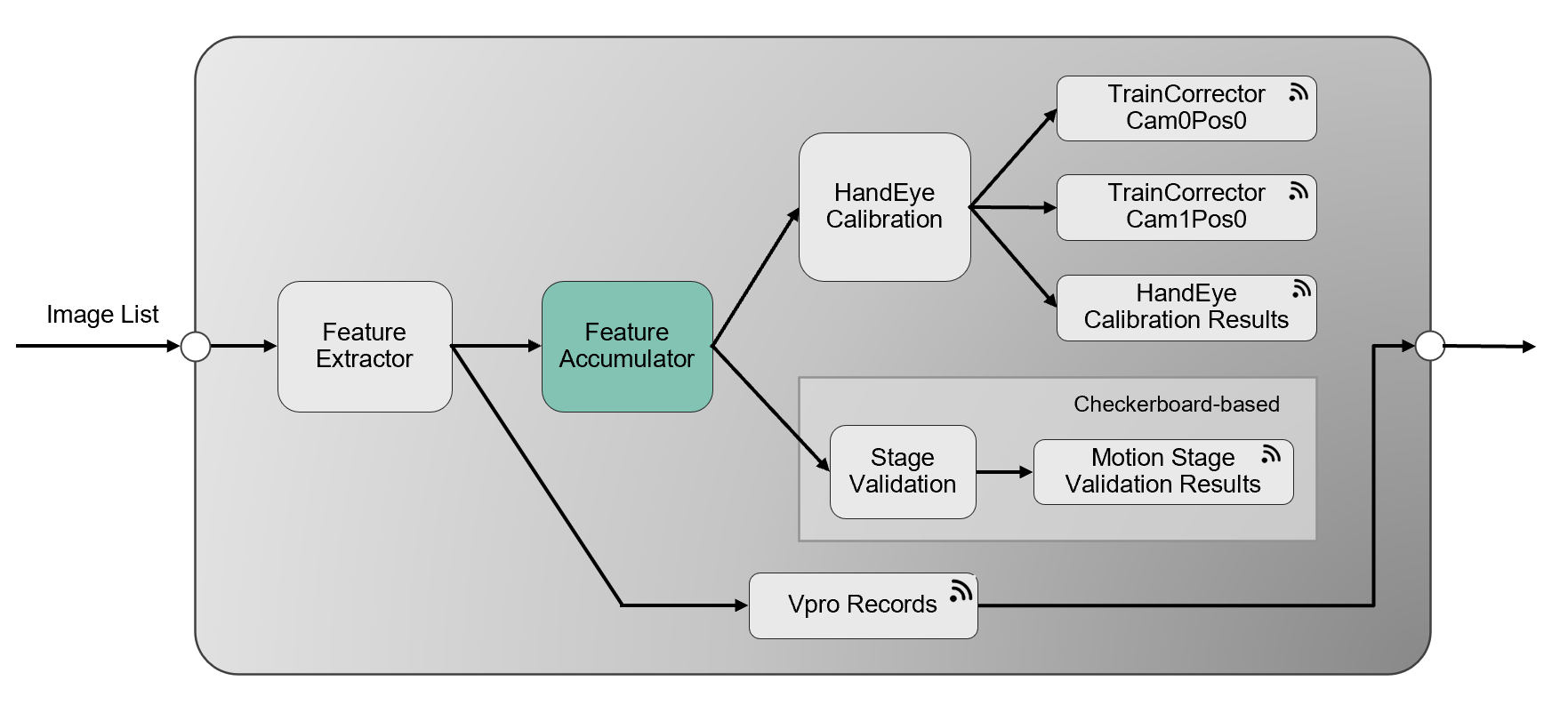
IDuring the feature accumulation phase, the task is executed by a command string with command key set to HE. During this phase the features on the calibration target are extracted and accumulated in the Calibration subtask. Image and graphic data that are computed during feature extraction and published by the VPro Records publisher. Image display HMI subscribe the published data and provide a visual feedback of the calibration process to the user.
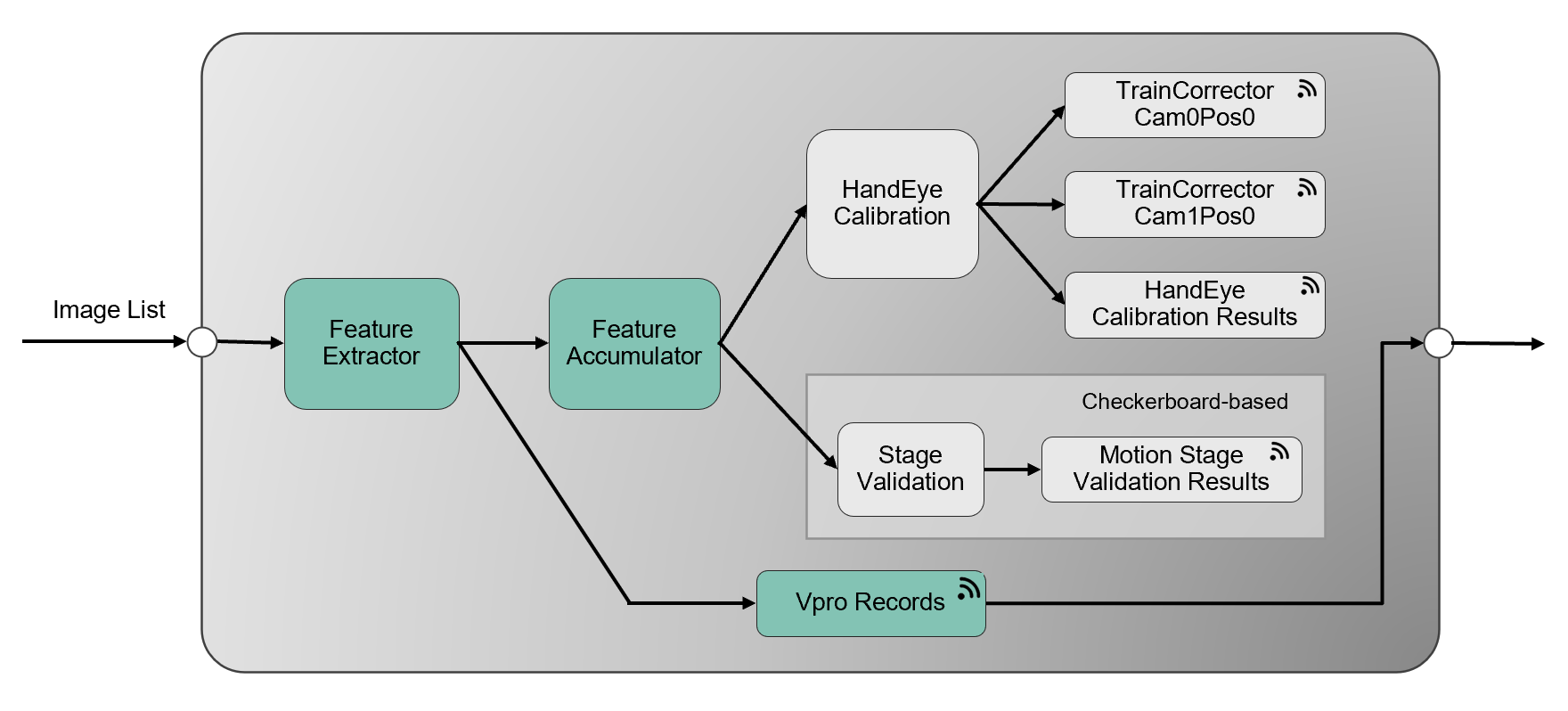
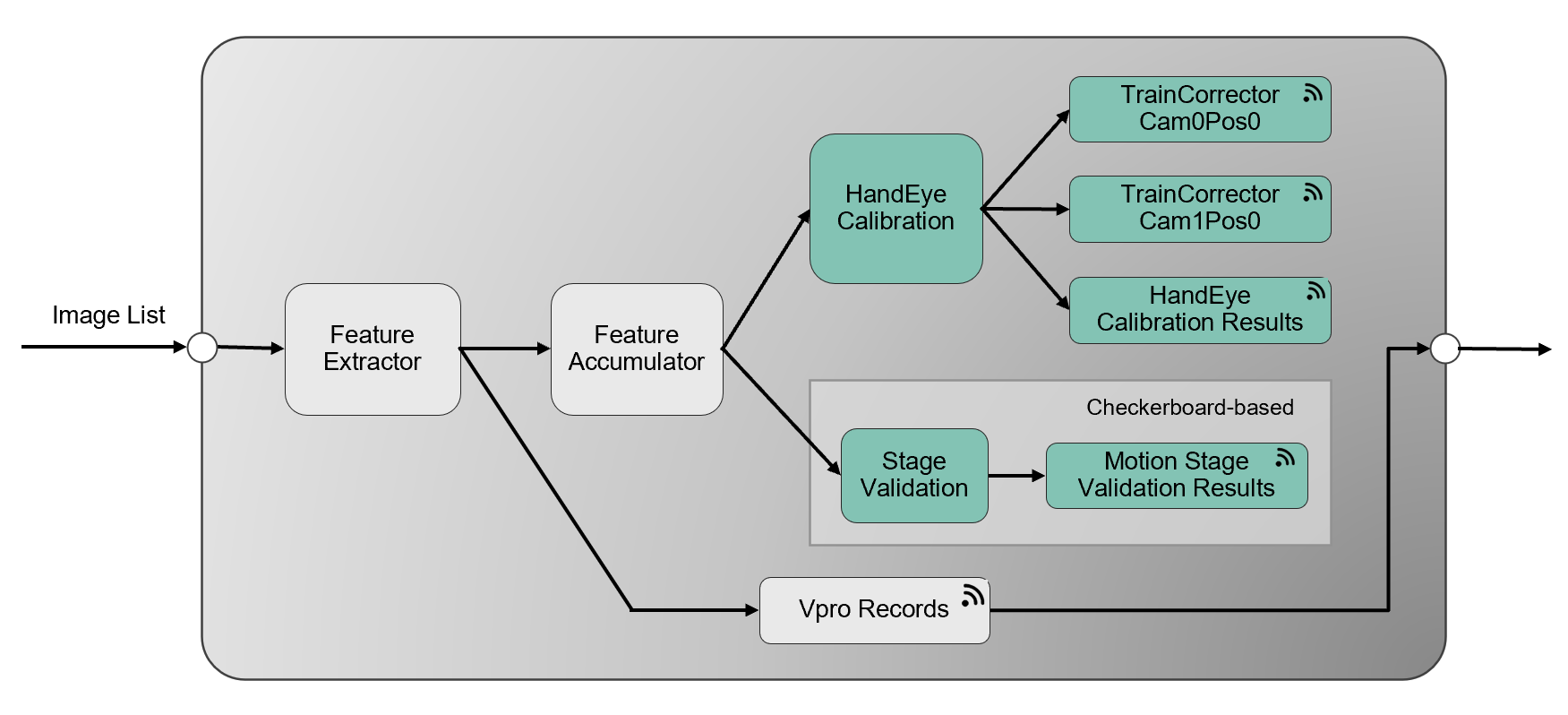
After all the required features are extracted, the task is executed by a command string with the command key set to HEE. During this phase, the accumulated features are used to compute and publish the hand-eye calibration results in the Calibration subtask. Image correctors that compensate for imaging system non-linearities to generate a distortion free image are trained. Data that provides feedback about the quality of the motion device is publishedAfter all the required features are extracted, the task is executed by a command string with the command key set to HEE. During this phase, the accumulated features are used to compute and publish the hand-eye calibration results in the Calibration subtask. Image correctors that compensate for imaging system non-linearities to generate a distortion free image are trained. Data that provides feedback about the quality of the motion device is published.
Subtasks for Saving Images
The hand-eye calibration task saves all acquired images in TIF format along with the command data that executed the task. These images can be used to generate hand-eye calibration results in an off-line mode. It also supports screenshots saving in JPG files for user to manually review feature extraction results. There are two subtasks that are used to save images.
Image Saver2
Running condition: Always run.
Image Saver2 subtask accumulates raw images and their corresponding commands every time when hand-eye calibration task acquires images. The accumulated images and commands would get cleared when Image Saver2 Sync Trigger subtask is called at the end of the task.
Image Saver2 Sync Trigger
Running condition:[ExecutionMode = ProcessImage || AcquireAndProcessImage]
Image Saver2 Sync Trigger subtask saves all accumulated raw images and their commands from Image Saver2 subtask into TIF files if current task's raw image saving function is enabled. It also saves image records into JPG files when screenshot saving function is enabled. See how to enable raw image saving and screenshot saving in Image SavingImage Saving
Raw Image Display
Running condition:[ExecutionMode = ProcessImage || AcquireAndProcessImage]
Raw Image Display subtask publishes raw images for image display. The published images are the raw images captured by the cameras and do not include any graphics. Those records will be shown on task's image display page if "Display Raw Image" is selected in functional panel below navigation tree. See more information at Show Graphics in Multiple Display.