Image Saving
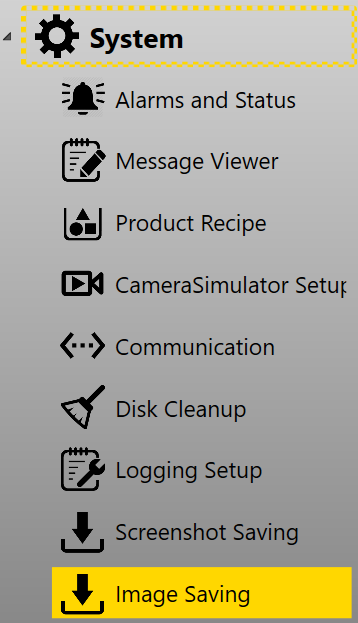
Image saving function disables or enables raw image or screen shot saving. It can be found in System category.
Settings
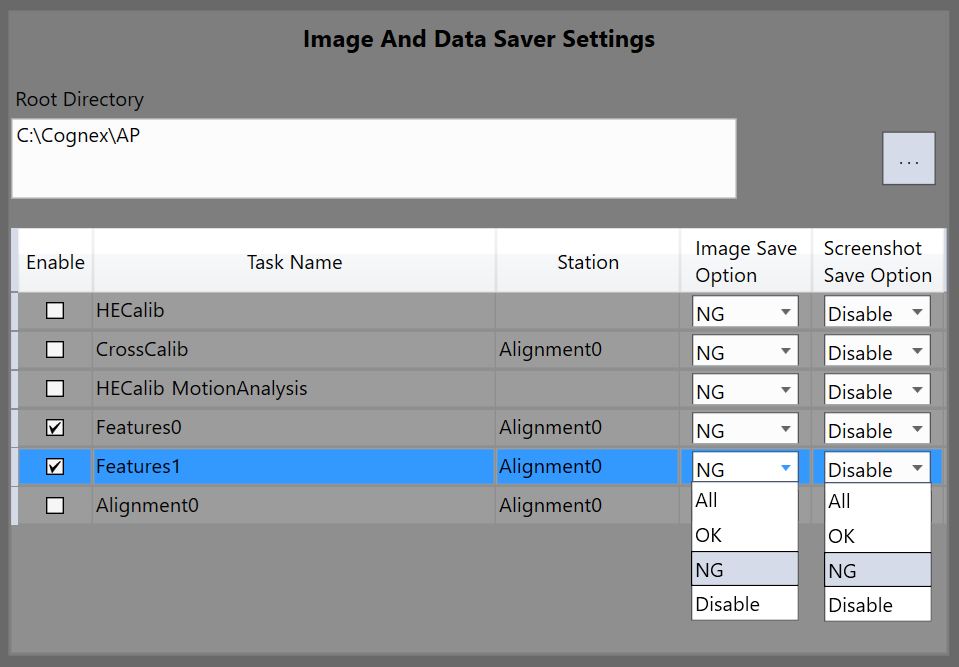
The setting page is as below:
| Item | Description |
|---|---|
| Root Directory | Root directory for raw image saving and screen shot saving. |
| Enable | Disable or enable raw image saving and screens shot saving functions in selected task. |
| Task Name | The task whose images are to be saved: every calibration, feature finder, motion analysis, and alignment tasks can save images independently |
| Station | Alignment component name in configuration wizard |
| Image Save Option |
|
| Screenshot Save Option |
|
Sub Directories
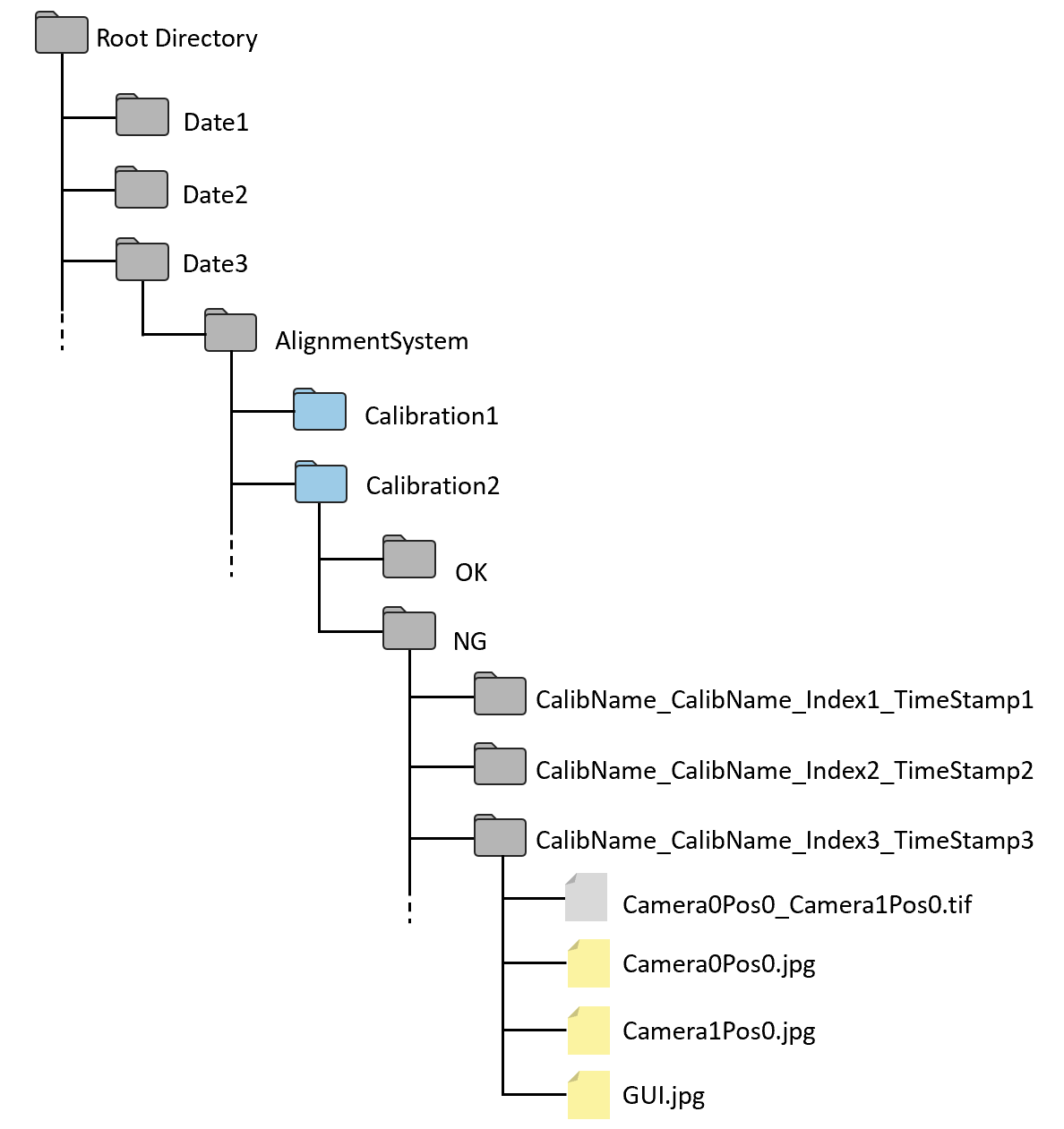
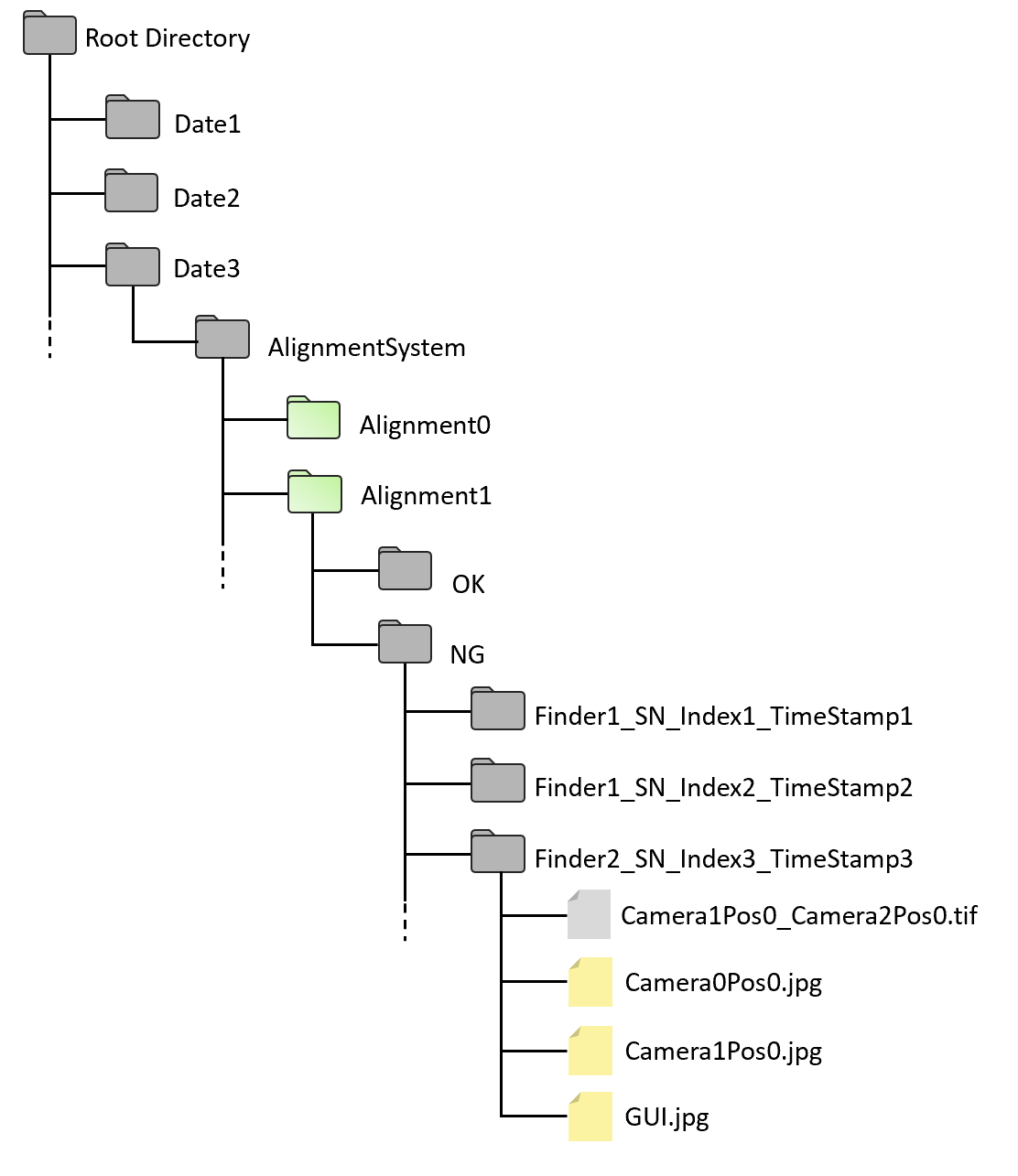
All images would be saved under root directory but will be distributed into different sub directories depending on date, alignment system, station name, etc. Here is the directory structure for calibrations and feature finders.
| Calibration sub directories | Feature finder sub directories |
|
|
Here are the keywords used for sub directories:
| Keyword | Description |
|---|---|
| Root Directory | Root directory specified in Image Saving HMI |
| Date | Date in the format of "yyyyMMdd" when images are saved |
| AlignmentSytem | Current alignment system |
| Calibration | The calibration component name specified in configuration wizard, such as "HECalib0", "CrossCalib" |
| Alignment |
The alignment component name specified in configuration wizard, such as "Alignment0", "Alignment1" |
| OK |
The folder to save images into when calibration or feature finding result is OK |
| NG | The folder to save images into when calibration or feature finding result is NG |
| Finder | The feature finder component name specified in configuration wizard, such as "Features0", "Features1" |
| SN | Serial number of the part whose images are saved |
| Index | Index which increases by 1 automatically every time there is one new raw image from one camera is saved |
| TimeStamp | Time in the format of "HHmmss.fff" when images are saved |
Note that raw images and screen shots are saved under the same sub directory if they are both enabled to be saved.
Image Files
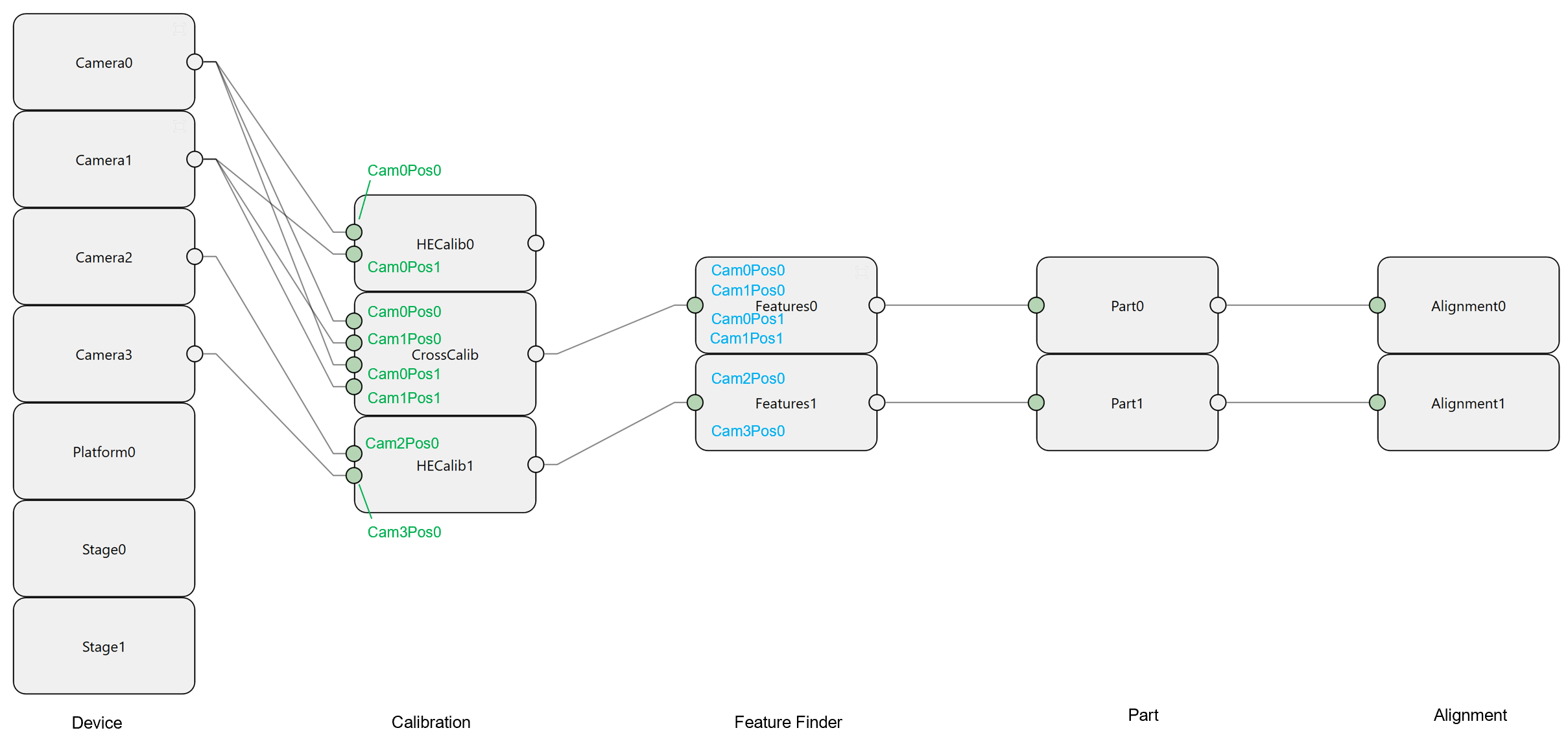
Images files are named using AcqName which is composed of two parts: camera name and position name, such as Camera0Pos0, or Camera1Pos0. In the example below, all AcqNames are marked for calibrations and feature finders in configuration wizard:
Raw Images
Raw images are saved in TIF files in the unit of acquisition position. For all cameras that acquire images at the same position in one calibration or feature finding task, their raw images will be saved together into one TIF file whose name is a combination of all AcqNames, such as "Camera0Pos0_Camera1Pos0.tif" or ""Camera0Pos1_Camera1Pos1.tif". If there are four cameras acquiring images at the same time at one position, then the image file will be like "Camera0Pos0_Camera1Pos0_Camera2Pos0_Camera3Pos0.tif". The TIF file will contain four images inside then.
Image Records
Image records are annotated images with result graphics. It is one of the screen shot image types. Image records are saved in JPG file in the unit of AcqName. such as "Camera0Pos0.jpg", "Camera1Pos0.jpg". See more settings about image records in Screenshot Saving.
Main GUI Screenshot
Main GUI saves screen shot of the main user interface. It is always named as "GUI.jpg". See more settings about main GUI saving in Screenshot Saving.