PatMax Finder
PatMax Finder finds a point feature using PatMax tool on input image.
Add
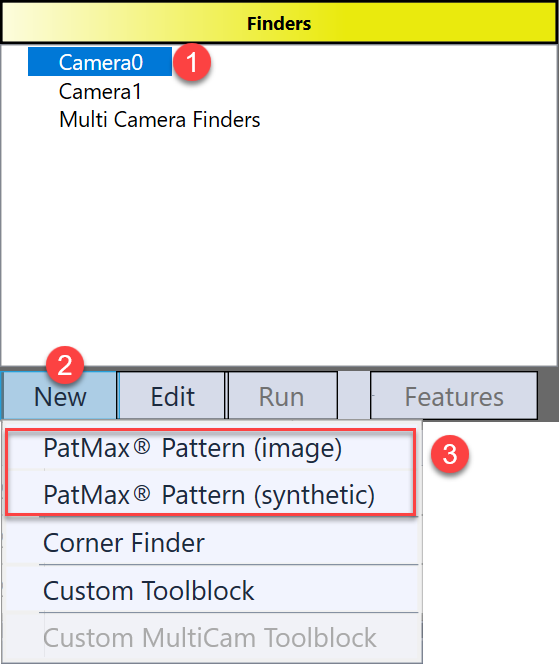
PatMax Finder is available in Point Features Finder HMI control. The steps to add it are:
-
Select one image
-
Click "New" button under the Finders panel
-
Choose "PatMax Pattern (image)" or "PatMax Pattern (synthetic)", then a PatMax finder will be available under the selected image for user to edit.
PatMax Pattern(Image) Finder
PatMax Pattern (Image) finder is a simplified PatMax tool which makes user focus on train time and run time parameter settings.
Train Time Settings
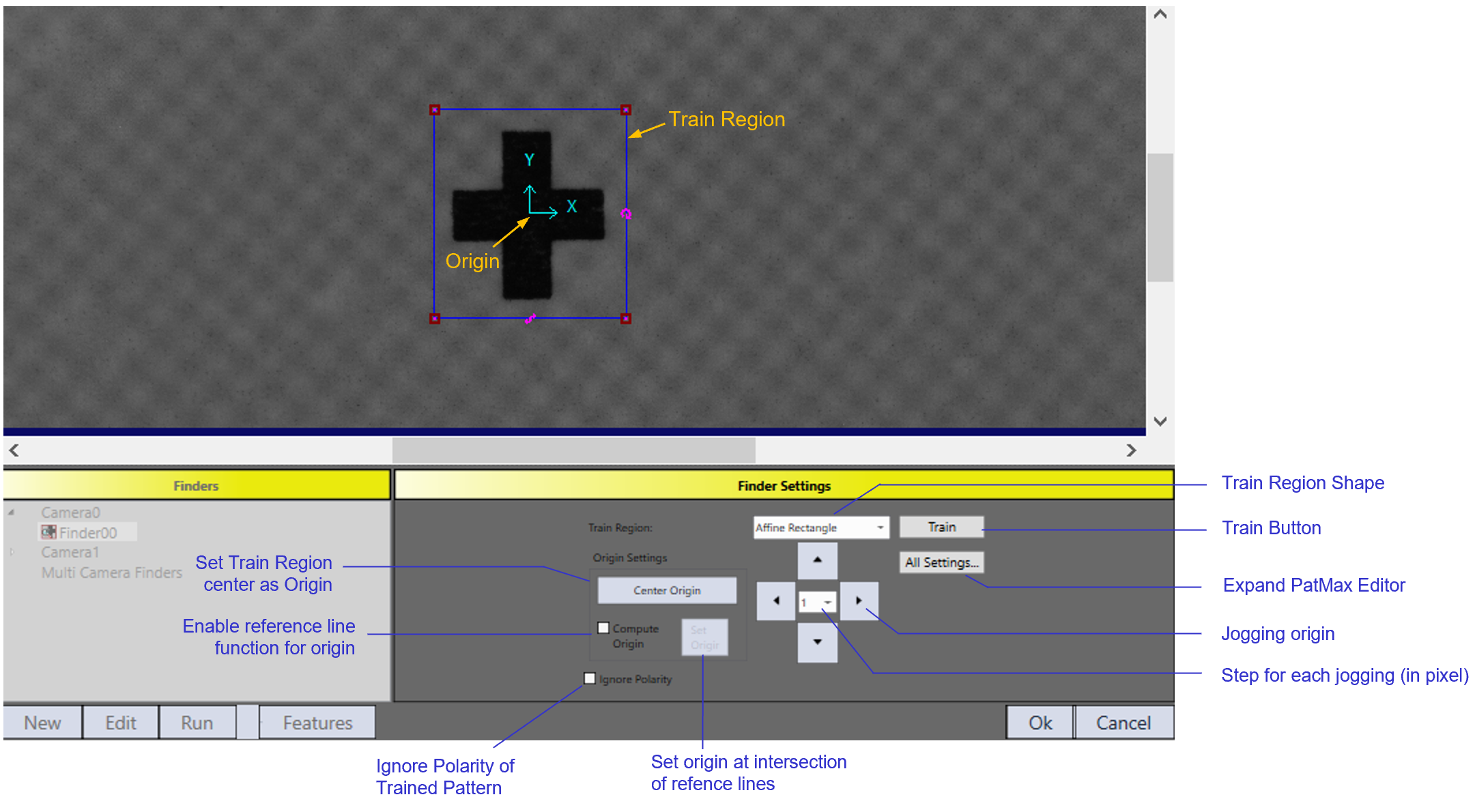
After PatMax Finder is added, the UI will automatically enter train time settings.
|
Category
|
Parameters | Description |
|---|---|---|
| Train Region | Train Region | Editable region on image. |
| Train Region Shape | Select different options in the list for train region shape. The default option is affine rectangle. | |
| Origin | Origin |
Origin of train pattern. It can be either manually moved on image display or jogged using four arrow buttons on Finder Setting panel. Note: The output feature's LocationX and LocationY are determined by the origin of found pattern on run time image, theta is determined by the angle difference from found pattern to trained pattern.
|
| Jogging origin | Four arrow-shape buttons for user to jog the origin on image display. | |
| Step for each jogging | Configure the number of pixels a jog moves | |
| Center Origin |
Set the center point of train region as pattern origin. |
|
| Compute Origin | Enable using two reference lines to compute their intersection as pattern origin. | |
| Set origin | After reference lines are manually placed and adjusted on image display, click this button to compute two lines' intersection and set it as pattern origin. It is enabled only when Compute Origin is checked. | |
| Other Parameters | Ignore Polarity | Ignore the polarities of train time features. |
| All Settings | Open PatMax tool editor for user to get access to all parameters in PatMax tool. | |
| Train | Train |
After all parameters are set, click this button to train pattern. |
Compute Origin
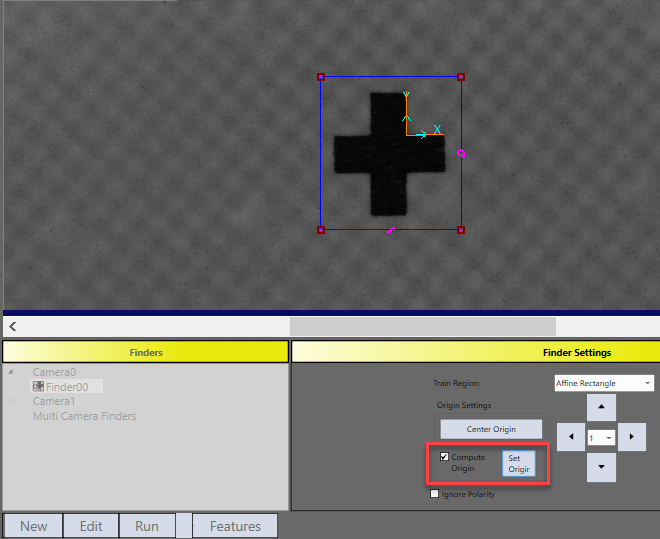
In applications where PatMax Finder's output feature should report location of a specific point on a fiducial mark, Compute Origin can be used to precisely locate the point. Here is an example: after Compute Origin is checked, two orange colored reference lines will be available on image display. User then can manually align these two lines to two perpendicular edges of the cross mark, thereafter click Set Origin button to let the finder compute the intersection of these two lines and set the result point as pattern origin.
Run Time Settings
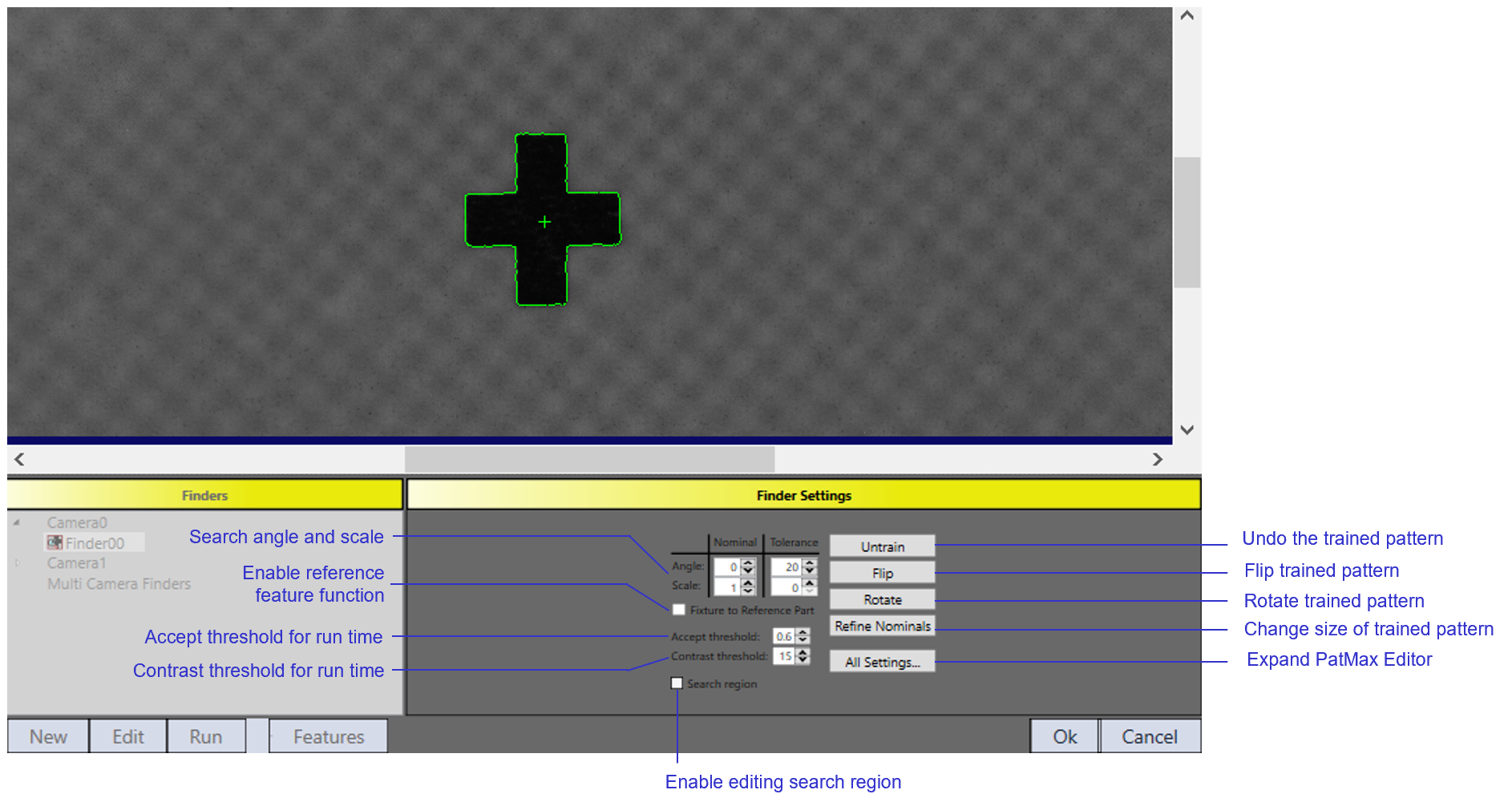
After pattern training, the Finder Setting panel moves next to run time settings.
|
Category
|
Item | Description |
|---|---|---|
| Trained Pattern Origin | Flip | Flip trained pattern |
| Rotate | Rotate trained pattern | |
| Refine Nominals | Change the size of trained pattern | |
| Untrain | Untrain the pattern, by clicking this button the HMI will roll back to train time settings | |
| Run Time Parameters | Angle | Specifies the rotation range for pattern searching, the default angle values are from -20 to 20 degrees |
| Scale | Specifies the scale range for pattern searching, the default value is 1 without tolerance | |
| Accept threshold | Coarse finding accept threshold. PatMax uses two steps for pattern finding: coarse finding and fine finding. Patterns found during coarse finding will be selected as candidates for fine finding only when their coarse scores exceeds this threshold. | |
| Contrast Threshold | Minimum acceptable contrast for a pattern instance. Only pattern instances where the average difference in pixel values across all feature boundaries exceeds the contrast threshold are considered by PMAlign | |
| Search region | Search region | Enable/disable editing search region. When it's disabled, PatMax finder uses the entire image as search region. |
| Other Parameters | Enable a Reference Part |
Disabled: Current PatMax Finder will be used for both golden pose training and run time feature finding Enabled: Current PatMax Finder will only be used for golden pose training(reference mode). Run time feature finding requires another finder. |
| Expand PatMax Editor | Open PatMax tool editor for user to get access to all parameters in the PatMax tool |
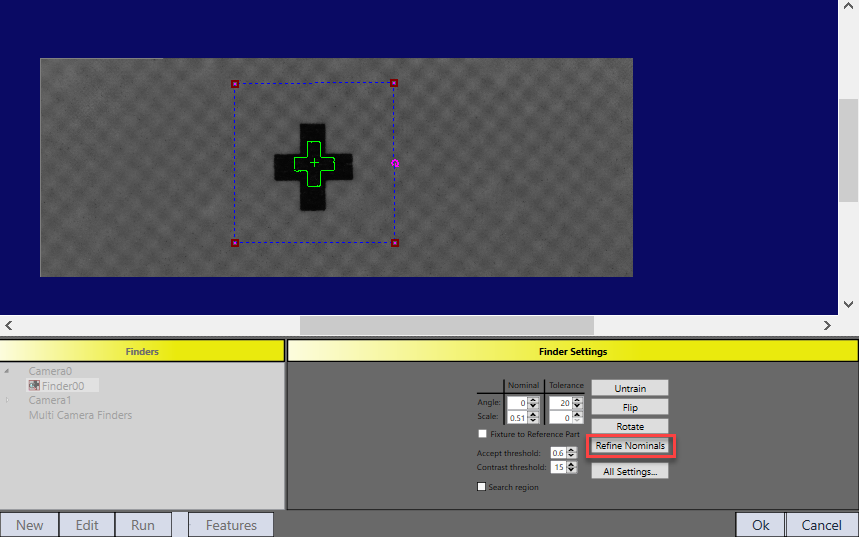
Refine Nominals button enables users to edit the scale of trained pattern. When the trained pattern and run time patterns have a constant scale difference, rescaling the trained pattern to make its size the same as run time patterns will reduce searching time for PatMax tool.
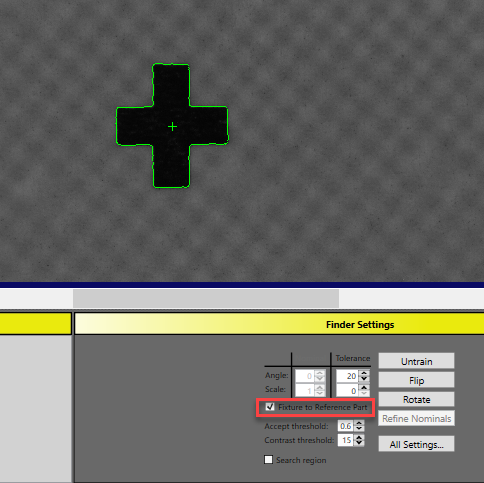
Enable Fixture to Reference Part option means current finder is only used for golden pose training, not for run time feature finding.
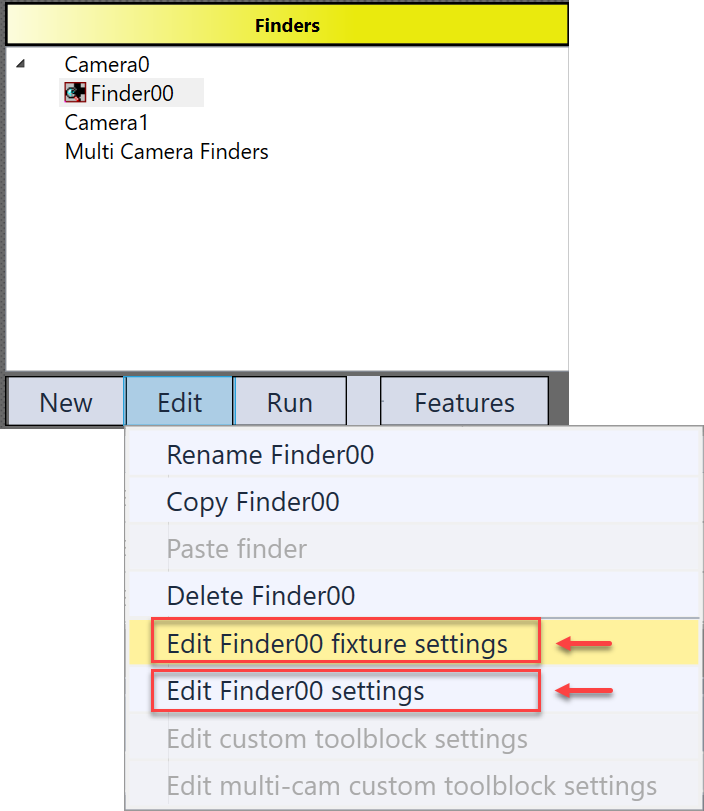
Once it is enabled, the reference features and run time features needs to be trained separately in the same PatMax finder. In the example below, Edit Finder00 fixture settings is for reference part feature finding, Edit finder00 settings is for run time part feature finding.
For more information about reference part, please refer to Use reference part's feature position in Golden Posetopic.
PatMax Pattern(Synthetic)
PatMax Pattern(Synthetic) is to train patterns which has regular geometrical shapes.
This finder offers rectangle, circle and triangle shapes for user’s immediate choice. As for other shapes such as cross, manual drawing in Synthetic mode in advanced options of PatMax is needed.
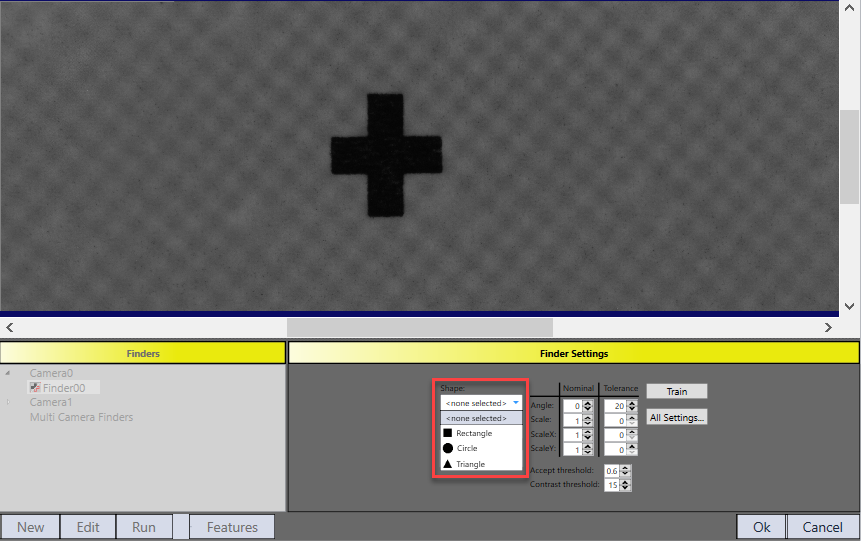
For more details about PatMax tool, please refer to PMAlign Edit Control in VisonPro documentation.
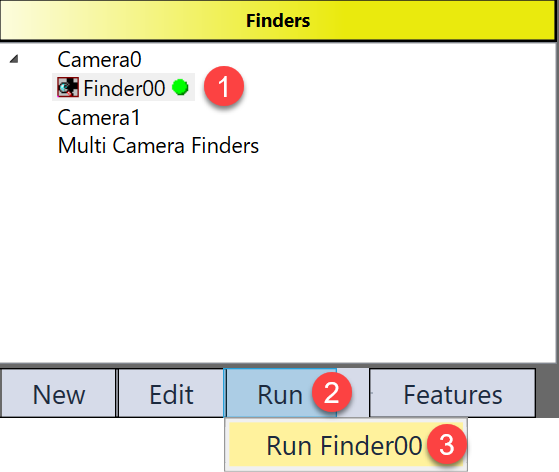
Run
After configuring all parameters, click "OK" button, and run PatMax Finder to check the result.