Custom ToolBlock Line Finder
Custom Toolblock Line Finder is line feature finder that allows user to customize how the line should be found through Line Finder
Add
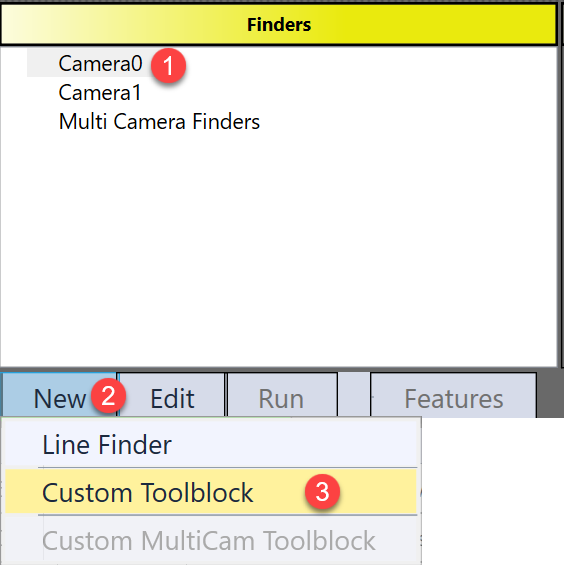
Custom Toolblock Line Finder is available in Line Features Finder HMI control. The way to add it is first select a image; second, click the "New" button under Finders panel; and last, choose "Custom Toolblock".
Setting
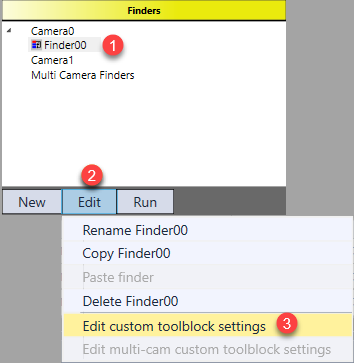
All settings of this finder are contained in the custom toolblock. Follow the steps to open the toolblock: 1) select the finder, 2) click “Edit” button, 3) choose “Edit custom toolblock settings”.
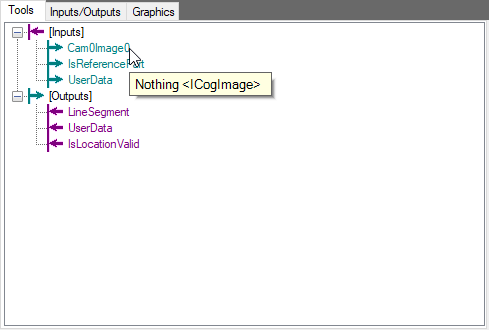
However, the input image of the toolblock is initially null because this Finder has not been run yet.
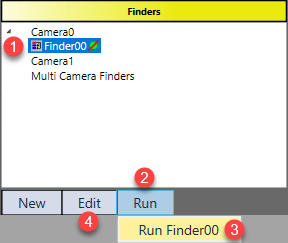
To get input image, click “Ok” button, run the current finder once in Finder panel, and open the toolblock again. Then, the toolblock is ready for user to customize.
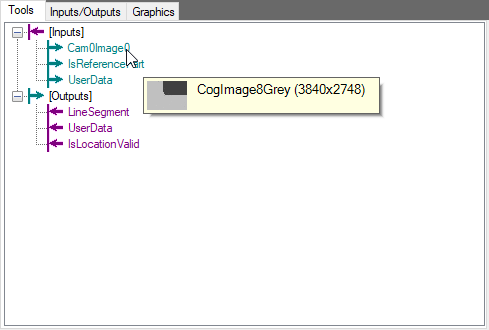
Inputs
| Parameters | Type | Description |
|---|---|---|
| Cam0Image0/Cam1Image1 | Cognex.VisionPro.ICogImage | Input image(s) from corresponding camera(s) |
| InReferecePart | Boolean | A input pin for user to decide whether and how to use it for golden pose training using reference part |
| User Data | Cognex.VisionPro.CogDictionary |
Contains a CogDictionary with user specified data. |
Outputs
| Parameter | Type | Description |
|---|---|---|
| LineSegment | Cognex.VisionPro.CogLineSegment | The found line segment. |
| UserData | Cognex.VisionPro.CogDictionary | Specifies extra data that user wants to output, can be left as null |
| IsLocationValid | Boolean | Specifies whether the line feature is successfully found. |
Editing
Custom Tool Block Line Finder does nothing unless user configure vision tasks within it. User can directly add tools here or add an inner tool block first and then edit tools within it. The latter is recommended as it keeps the outside toolblock neat.
1. Within the inner tool block, add inputs and outputs
CogLineSegment type is under "Cognex.VisionPro" namespace within "Cognex.VisionPro.Core" assembly. Therefore, users can follow the following steps to add "LineSegment" ouput.
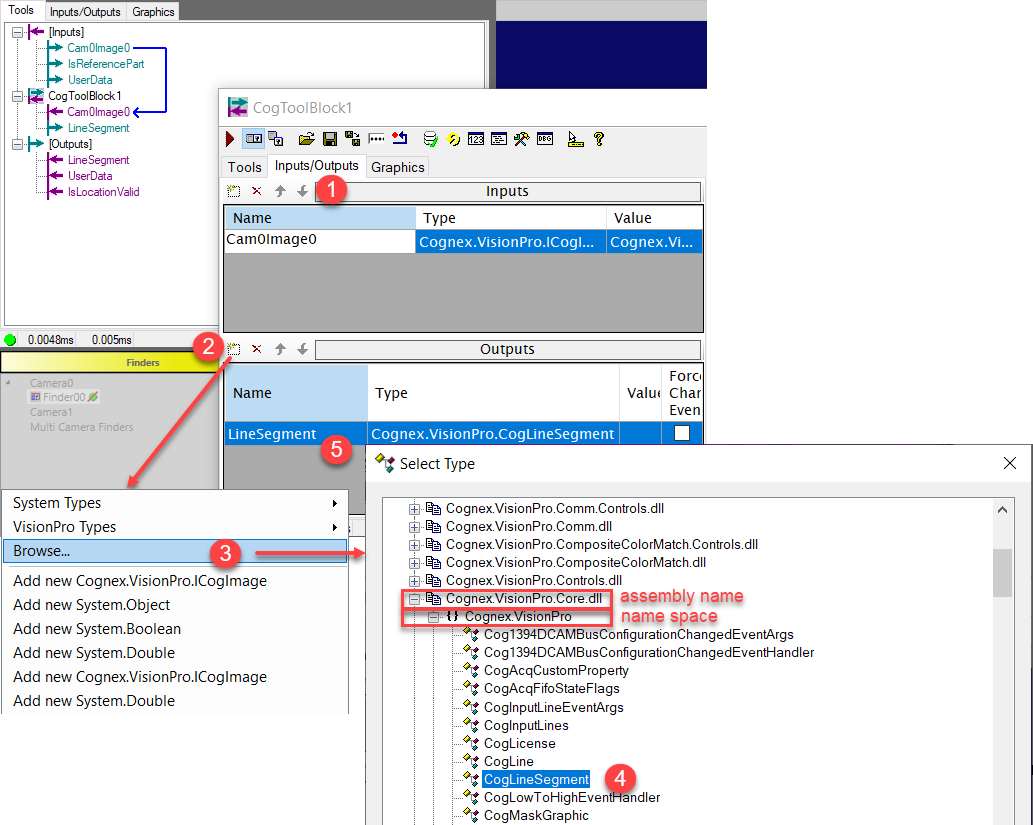
Add another output pin "IsValid" as a Boolean.
2. Link inner and out tool block input and output pins.
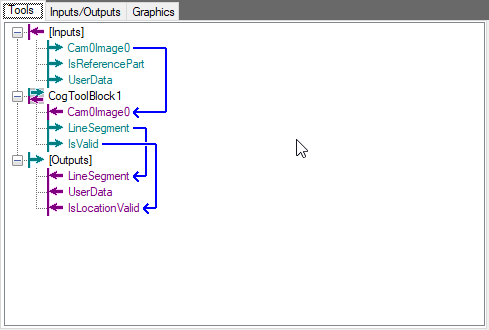
3. Editing inner tool block
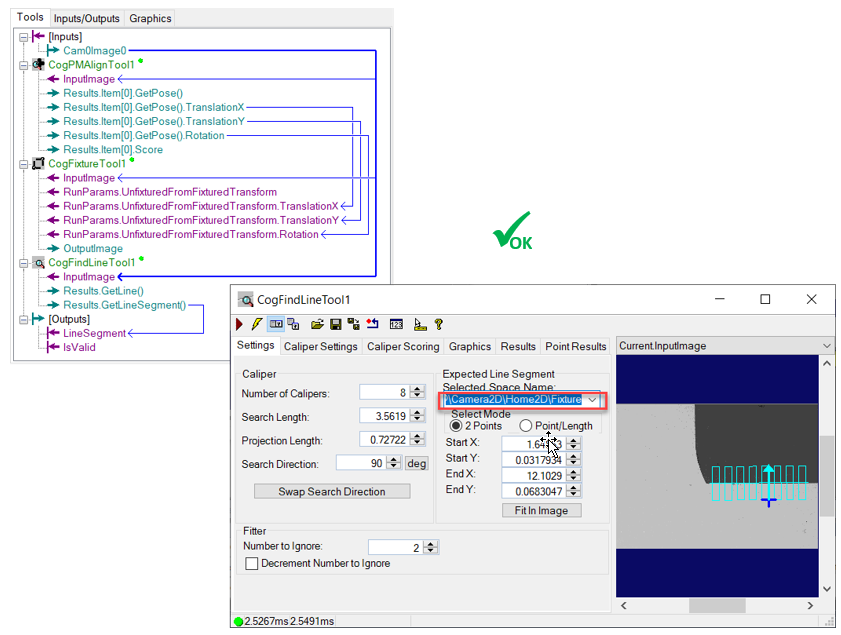
User can design inside how the target line should be found. Here is one example of it.
1) Add CogPMAlignTool tool to locate the part
PatMax tool here helps locate the part and guide CogFindLineTool to search specific ROI on the part in run time.
2) Add CogFixtureTool to create a fixture space
CogFixtureTool creates a new fixture space based on part's current location.
3) Add CogLineFinderTool to find a line
There is one detail to be considered: If CogLineFinderTool directly use the output image from CogFixtureTool, then the LineSegment result will be based on fixture space, not Home2D space.
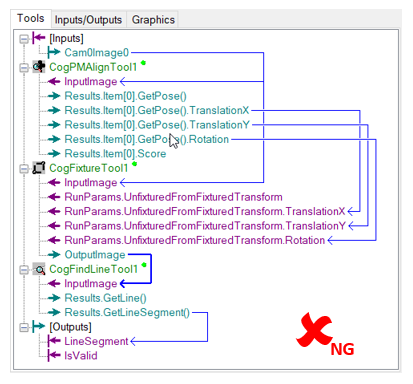
To output Home2D space result as expected, CogLineFinderTool needs to get input image from the source image (whose selected space is Home2D) of the toolblock, and change its ROI region to use the fixture space generated by the CogFixtureTool. This operation will make sure CogLineFinderTool track the run time part and output result in Home2D.
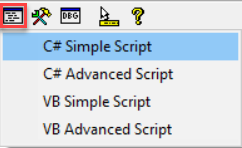
4. Add script code inside inner tool block to check whether inner tool block runs successfully.
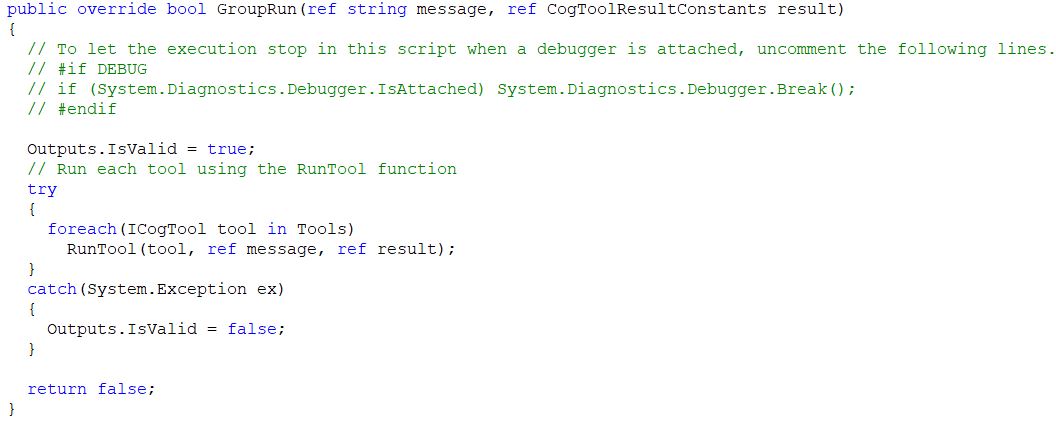
5. Test inside inner tool block to see if "IsValid" output reflects the ok/ng result correctly.
Run
After setting up the tool block, click "Ok" button and run finder to check the result.