Alignment Task
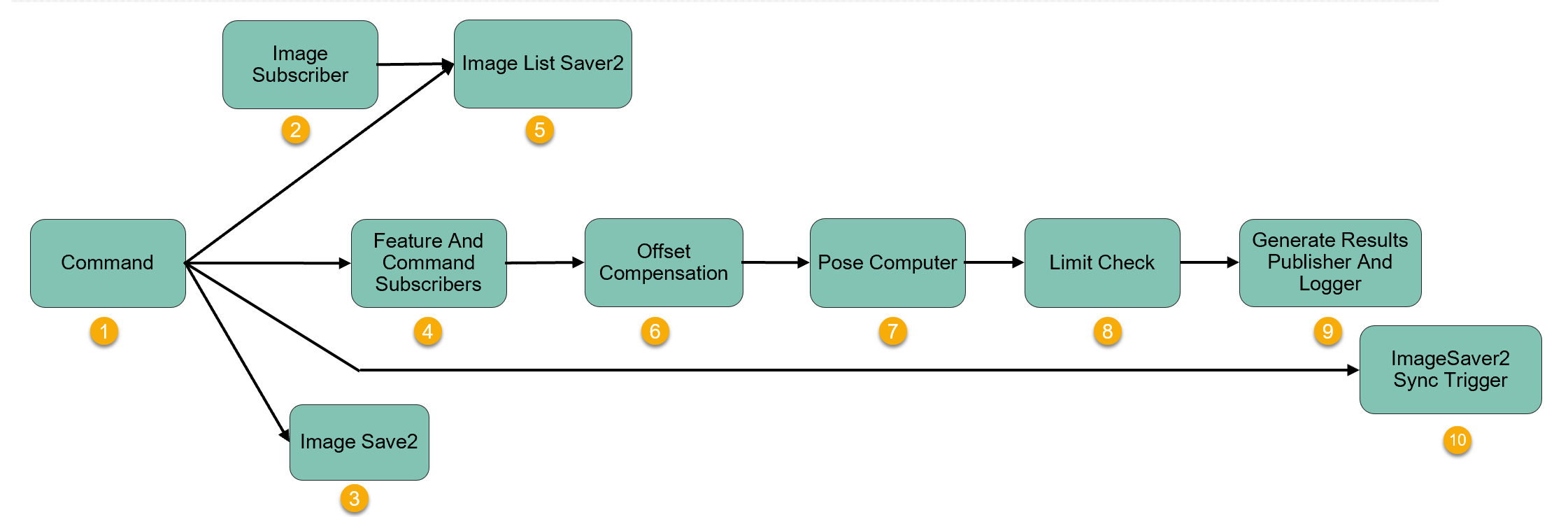
Alignment task calculates how much motion device should move to bring the parts to target positions. It also has other functions such as allowing user to add offsets, checking whether alignment data is with spec and saving all images from connected feature finders to image files. Alignment task is triggered by GP/GPA command, or LFGP command if user want to run alignment right after run time feature finding.
Command
When a command string is received by the CommandHandler script, an equivalent CommandArgs object is created. This object contains all the data that is needed to execute the target task. Command subtask is the interface to receive CommandArgs object from task scheduler which makes the object available to current task as an output pin and a public tag.
There are two properties in the CommandArgs object that controls the workflow of alignment task: ExecutionMode and AlignmentOperation. In alignment task, ExecutionMode should always be set as ProcessImage and AlignmentOperation is always set as Align.
Feature And Command Subscribers
Running condition: Always run.
This subtask subscribes train time and run time features and their commands from corresponding feature finders' tasks. For assembly application when assembly is performed using paired-features mode, this subtask will subscribe two corresponding feature finder's run time features and their commands. For assembly application where assembly parameters are computed using golden pose mode, the two corresponding feature finders' both train time and run time features as well as their commands will be subscribed. For alignment applications, the subtask will subscribe to only one corresponding feature finder's train time and run time features and their commands, it will also subscribe that feature finder's offset camera centers, and use either the train time features or offset camera centers as output trained features depending on user's choice. See more information about offset camera centers at Camera Center Parameters on page 1.
Offset Compensation
Running condition: Always run.
Offset compensation allows user to manually input offsets to run time features to compensate the final alignment or assembly result based on feedback from inspection results. See more information at Offset Compensation.
Pose Computer
Running condition: [ExecutionMode = ProcessImage]
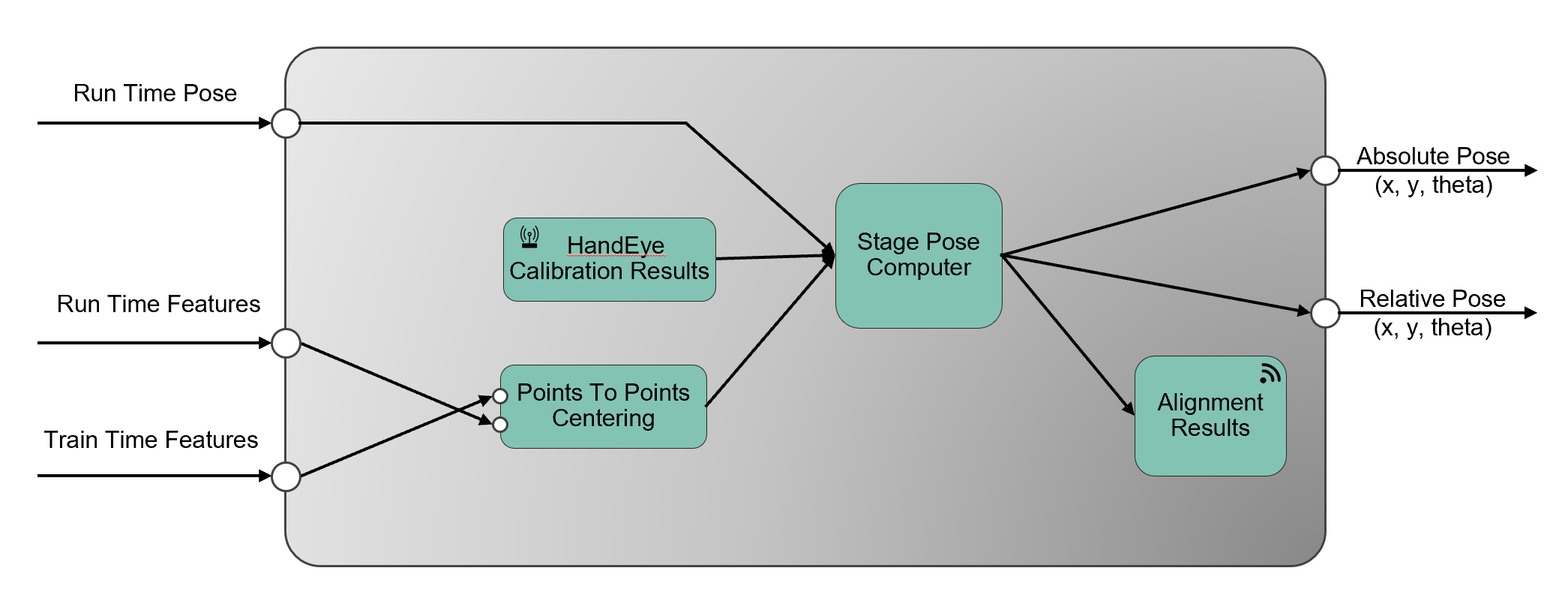
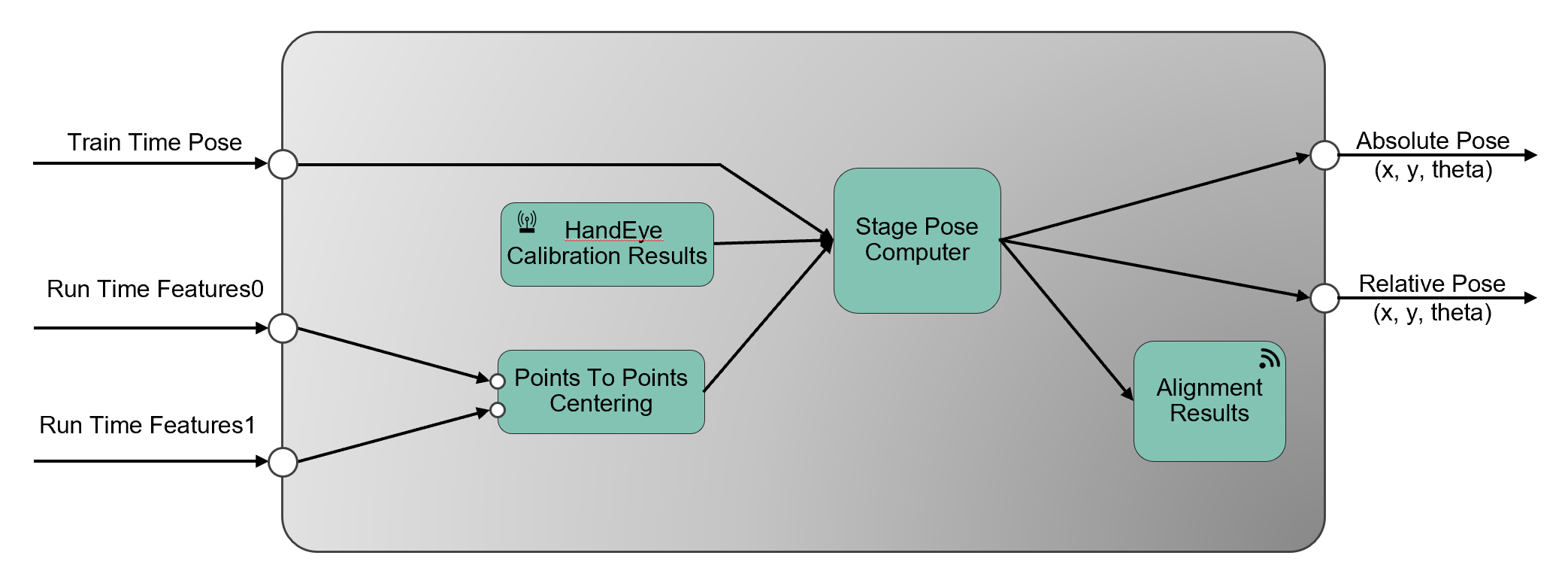
Pose computer subtask computes transforms between target position and current position using Points To Points Centering Block, and then use Stage Pose Computer to calculate the desired stage pose based on hand-eye calibration results, stage's current pose or trained pose as well as the transform computed by Points To Points Centering Block. The output of this block are absolute target pose and the relative change in stage pose.
Here is an example of Pose Computer subtask for Align To Base application where a transform from run time features to train time features are computed first, and then forwarded to stage pose computer that computes target pose.
Here is an example for Assembly Guided Pick application using paired features mode.
Limit Check
Running condition: Always run.
Limit check use pose computer's output x, y, theta as input, to check if they're within certain alignment limit specs defined on by user. See more information at Placement Limit Checker.
Generate Results Publisher And Logger
Running condition: Always run.
This subtask saves all alignment or assembly result data into a dictionary and publishes the dictionary data in Task Results Block. It also saves all the result data using the Result Logger Block into an alignment log file whose stored directory is specified by user in Logging Setup.
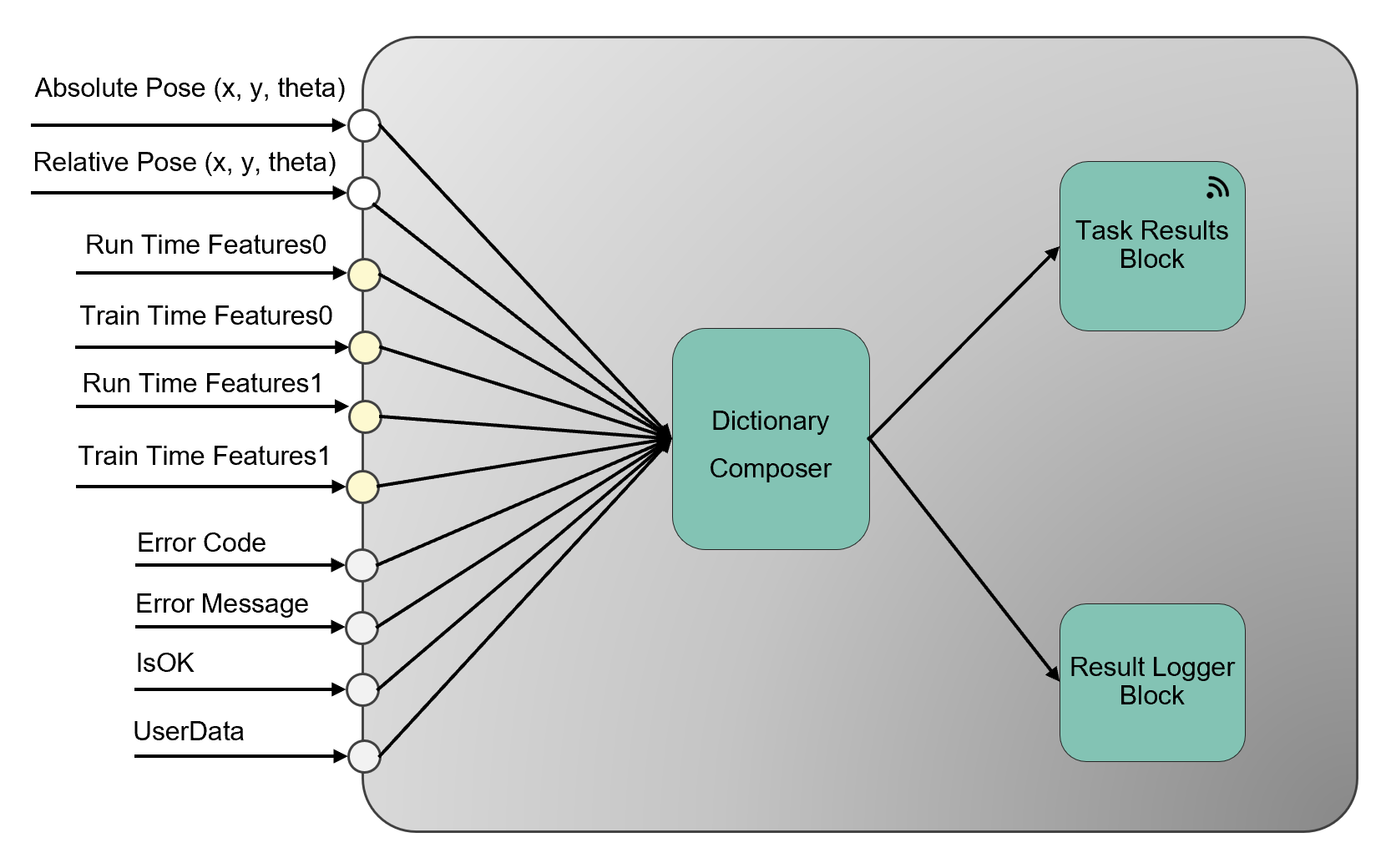
The result data includes: connected feature finder's train time(if golden pose is used) and run time features information, relative and absolute pose that motion device should move to, Error Code, Error Message, IsOK from LCheck, and user data from user's customization.
Subtasks for Image Saving
When alignment task's image saving function is enabled, it save the following images to corresponding sub folders:
1. Save each feature finder's run time raw images and their commands into TIF files, save those images with their graphics into JPG files under that feature finder's sub folder;
2. Save an 1x1 dummy TIF file with alignment command into alignment sub folder.
Here is an example of auto generated sub folders for alignment image saving:
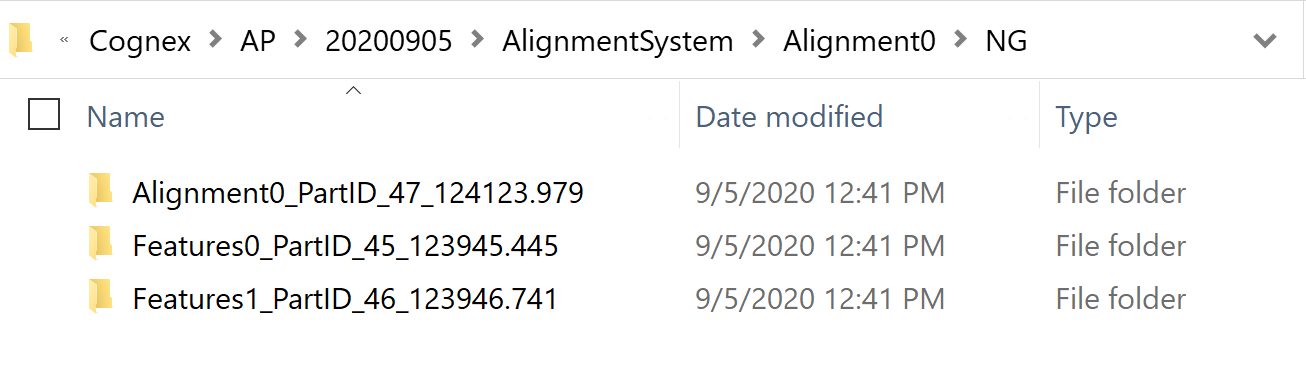
Image Subscriber
Running condition: Always run.
This subtask subscribes all images lists and their commands from connected feature finders. Those images later will can be used for image saving or image display.
Image List Saver2
Running condition: Always run.
Image List Saver2 subtask split image lists based on different feature finders so that afterward images from different feature finders will be saved into different sub folders.
Image Saver2
Running condition: Always run.
Image Saver2 subtask combines alignment command with an 1x1 image which would be saved into a TIF file in Image Saver2 Sync Trigger subtask.
Image Saver2 Sync Trigger
Running condition: Always run.
Image Saver2 Sync Trigger subtask saves all images and their commands saved in Image List Saver2 subtask(s) and Image Saver2 subtask into TIF files if current feature finder's raw image saving function is enabled. It also saves image records in Image List Saver2 subtasks(s) into JPG images when screenshot is enabled. See how to enable raw image saving and screenshot saving in Image Saving