Configure Auto Calibration Settings
To configure the auto calibration settings, complete the following steps:
- Click Sensor on the Setup Navigation pane.
-
Click
 , to open the Advanced Settings dialog box.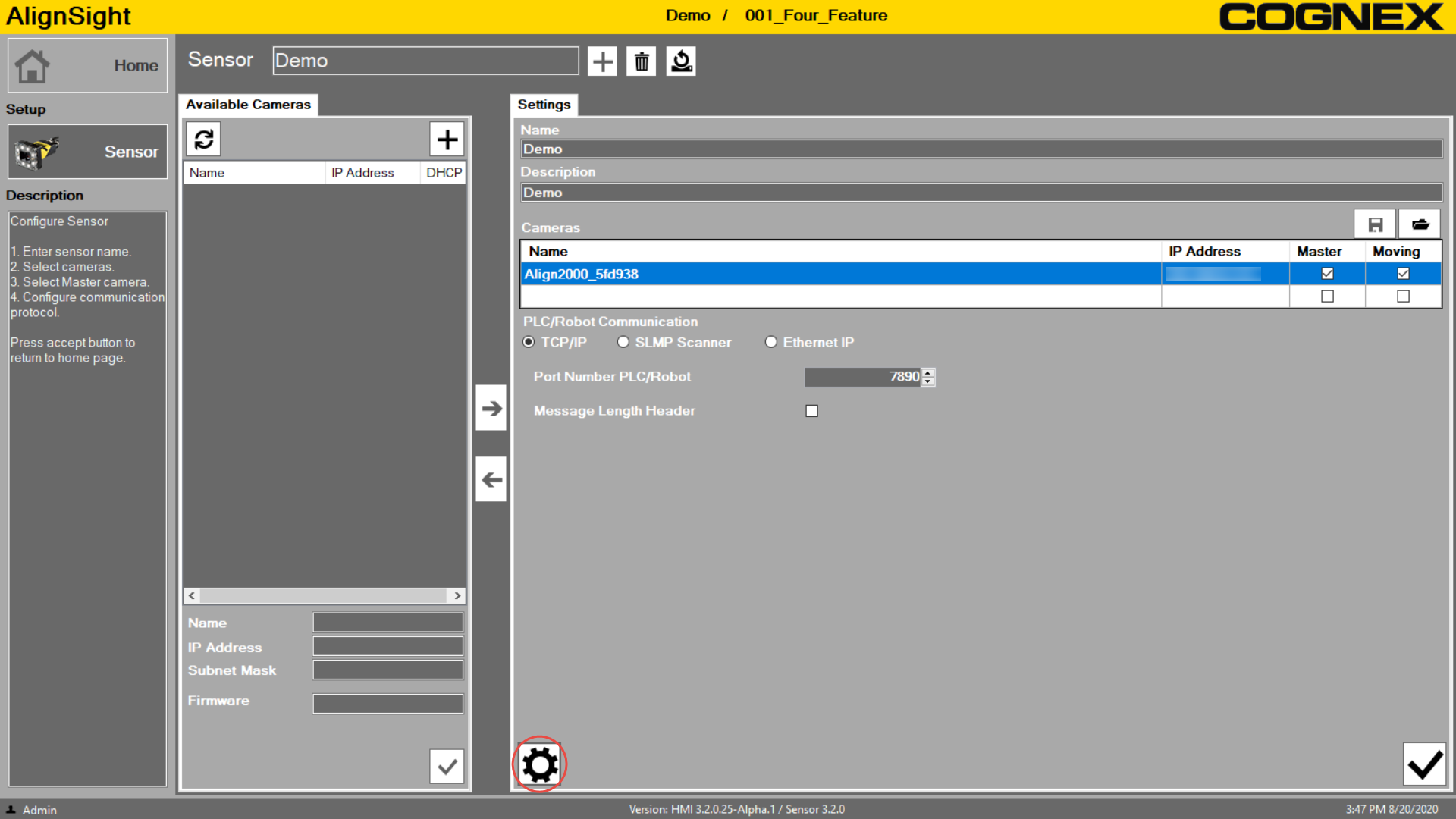
-
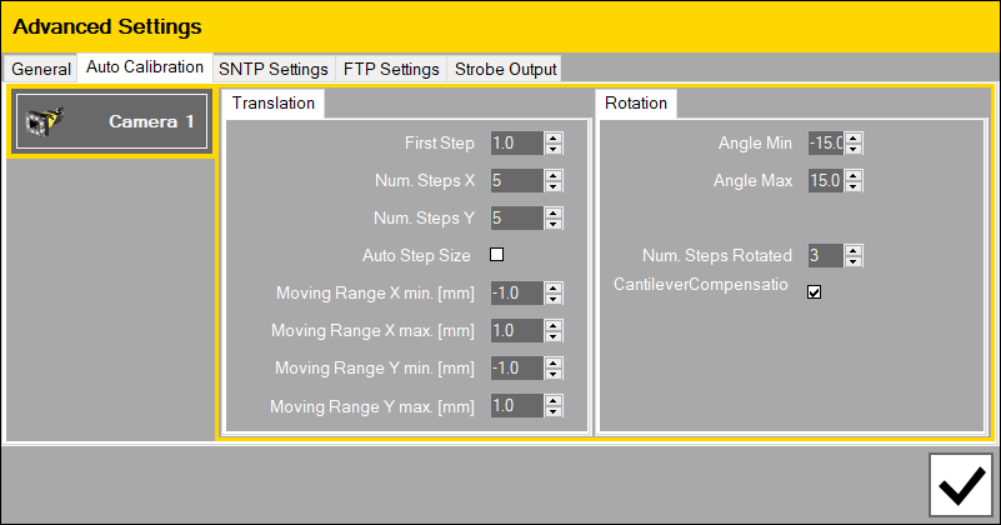
Click the Auto Calibration tab.
-
(Optional) To determine how the part should move during auto calibration, adjust the settings on the Translation and Rotation tabs. In most cases, you can use the default settings for your applications.
During the auto calibration, the part moves along the x-axis and y-axis, and then rotates based on the settings you specified on the Auto Calibration tab.
Note: It is required that the origin of the trained pattern is at the center of the training region (default). Manually moving the origin away from the center may cause Auto Calibration to fail. If this happens you can adjust the first step size to make sure the pattern doesn't move outside of the field of viewTranslation Settings
Settings Description First Step Adjust the distance of the first step of the Auto Step Size for when the system is determining the optimum step size for the field of view (default = 1.0) Num. Step X Specify the number of steps to move along the X axis (default = 5). Num. Step Y Specify the number of steps to move along the Y axis (default = 5). Auto Step Size Select this check box to calculate the size of each moving step automatically. By default, this check box is selected. If you deselect the Auto Step Size check box, you need to manually specify the part moving range in the Moving Range X and Moving Range Y text boxes. Moving Range X min. [mm] Manually specify the lower boundary of the moving range along the x-axis, based on the starting pose position provided to the ACB command to initialize the auto calibration.
 Example
If the X coordinate value of the pose provided to the ACB command is x, and the value in the Moving Range X min text box is -20, then the lower boundary of the moving range is x-20.
Note: This setting is disabled if the Auto Step Size check box is selected.Moving Range X max. [mm] Manually specify the upper boundary of the moving range along the x-axis, based on the starting pose position provided to the ACB command to initialize the auto calibration.
Example
If the X coordinate value of the pose provided to the ACB command is x, and the value in the Moving Range X max text box is 20, then the upper boundary of the moving range is x+20.
Note: This setting is disabled if the Auto Step Size check box is selected.Moving Range Y min. [mm] Manually specify the lower boundary of the moving range along the y-axis, based on the starting pose position provided to the ACB command to initialize the auto calibration.
Example
If the Y coordinate value of the pose provided to the ACB command is y, and the value in the Moving Range Y min text box is -20, then the lower boundary of the moving range is y-20.
Note: This setting is disabled if the Auto Step Size check box is selected.Moving Range Y max. [mm] Manually specify the upper boundary of the moving range along the y-axis, based on the starting pose position provided to the ACB command to initialize the auto calibration.
Example
If the Y coordinate value of the pose provided to the ACB command is y, and the value in the Moving Range Y max text box is 20, then the upper boundary of the moving range is y+20.
Note: This setting is disabled if the Auto Step Size check box is selected.Rotation Settings
Settings Description Angle Min Specify the minimum angle degree of the rotation range, based on the starting pose position provided to the ACB command, to initialize the auto calibration (default = -15).
Angle Max Specify the maximum angle degree of the rotation range, based on the starting pose position provided to the ACB command, to initialize the auto calibration (default = 15).
Num.Steps Rotated Specify the number of steps to rotate (default = 3). Cantilever Compensation Select this check box to automatically calculate and apply a translational movement to bring the trained feature back into the camera field of view. By default, this check box is selected.
Use this setting when the calibration target is mounted on a robot arm with cantilever, which means, the trained feature is far from the rotation center. When the rotation begins, a small rotation angle can move the trained feature outside of the camera field of view. If you select the Cantilever Compensation option, you can bring the trained feature back into the camera field of view and then continue the calibration process.
- To confirm the settings and exit the Advanced Settings dialog box, Click
 . You have configured auto calibration settings, and you can start to run the auto calibration commands.