DataMan
The DataMan page of the Provisioning application provides a list of standalone devices, as well as device groups, and allows you configure what data you want to collect from each of your devices. You can also provision one or more of your devices at the same time, or individually by IP address.
The DataMan page:
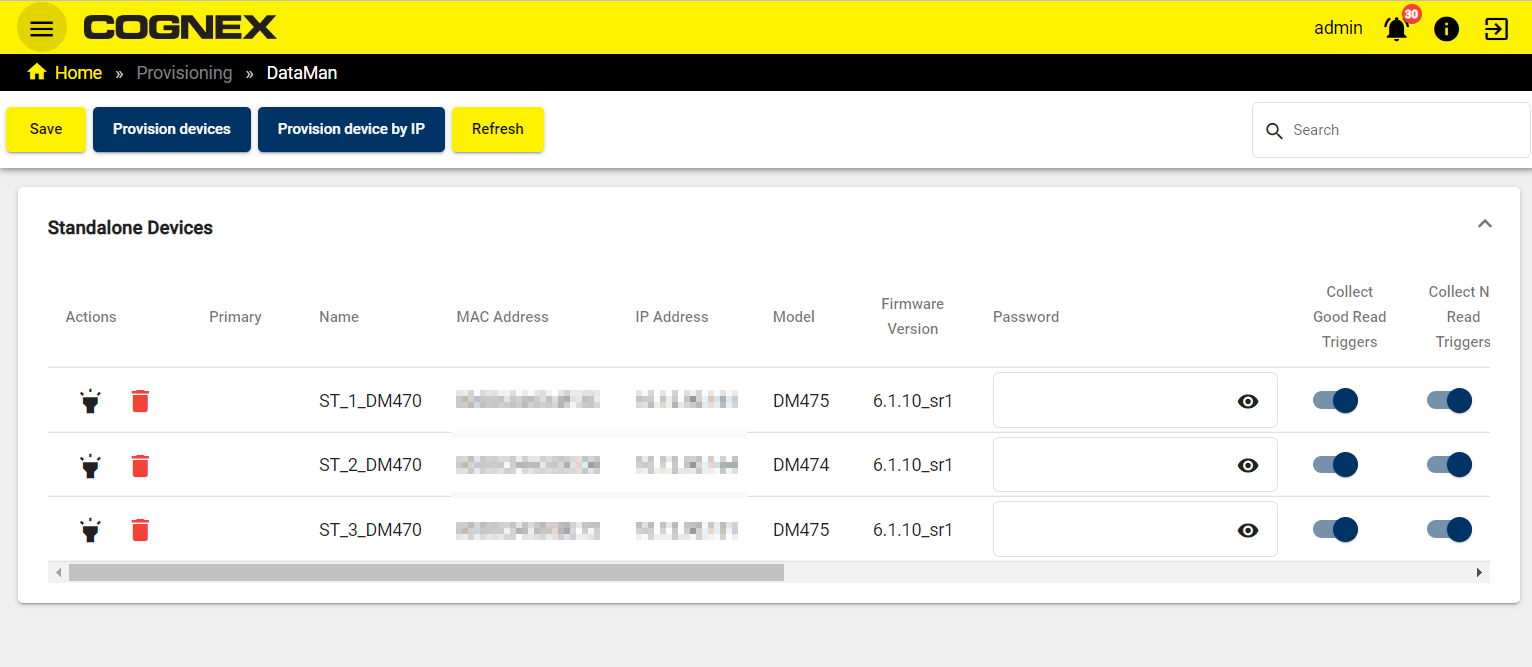
To refresh the list of connected devices, click Refresh in the header.
To provision devices, click Provision devices and use the pop-up dialog to select the devices. To provision a device by IP address, click Provision device by IP and enter the device IP address.
Click Save to apply any changes you make to device data collection settings.
Device Actions
You can perform actions on an individual device by clicking on the icons in the Actions column of the row for the selected device:
|
|
|
|---|---|
| Icon | Action |
|
|
Flash LED |
|
|
Delete |


- Click the Flash LED button to remotely trigger the LED of the device for easy identification.
- Click the Delete button to remove the device from the list.
Provisioning Devices
Click on Provision devices in the header to open the Provision devices pop-up dialog:
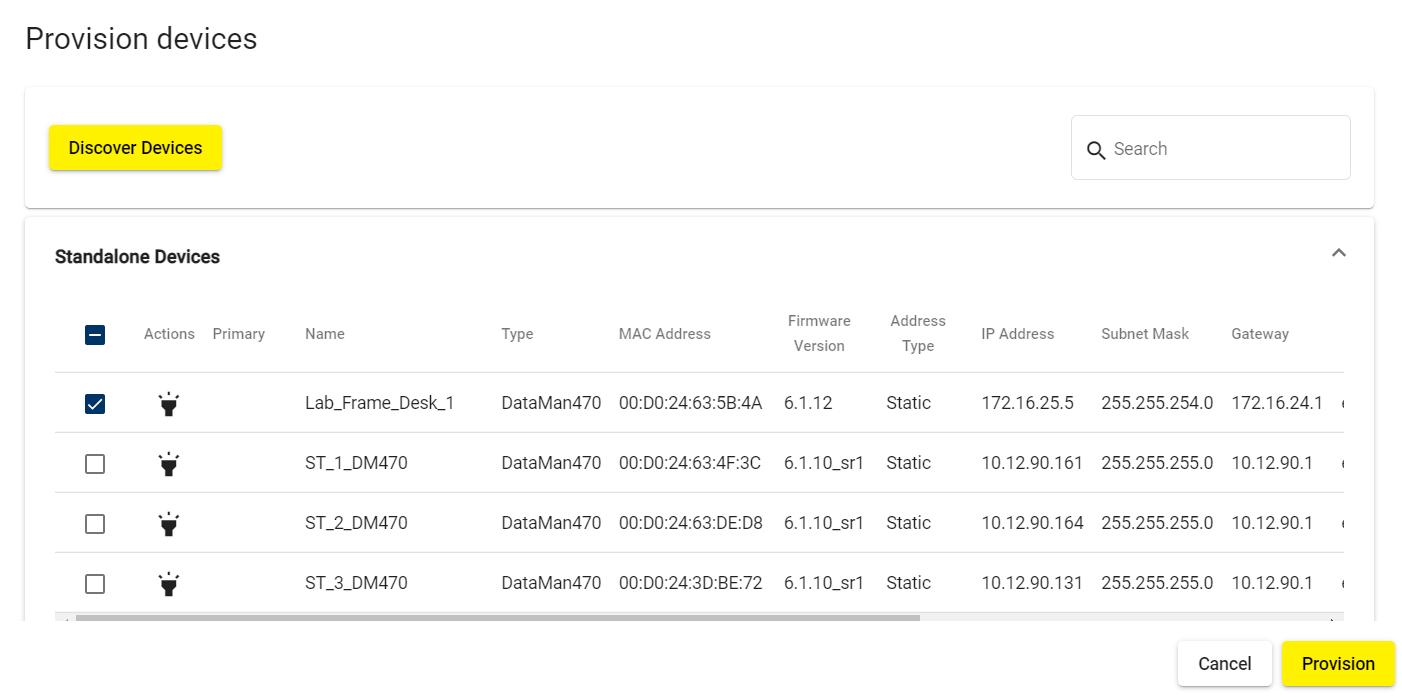
The Provision devices dialog provides a list of connected devices. To provision one or more devices, check the checkbox for the selected devices, and click Provision.
To flash the LED on a device for easier identification, click the Flash LED icon in the Action column of the row for the selected device.
To refresh the list of connected devices, click Discover Devices.
To search for a specific device in the list, enter the name or IP address in the Search bar.
Provision Device by IP
Click on Provision device by IP in the header to open the Provision device by IP pop-up dialog:
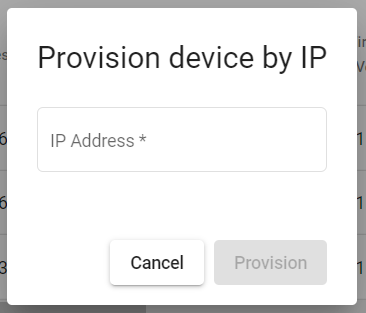
Enter the IP address of the selected device, and click Provision.
Data Collection Settings
You can modify collection settings for different types of device data by switching the toggles on or off in each data collection column of the row for the selected device:
|
|
|
|---|---|
| Column | Description |
| Password | Provide the password for the device to make any changes. |
| Collect Good Read Triggers | Enable this setting to collect good read trigger data from the device. |
| Collect No Read Triggers | Enable this setting to collect no read trigger data from the device. |
| Collect Validation Failure Triggers | Enable this setting to collect validation failure trigger data from the device. |
| Collect Good Read Images |
Enable this setting to collect good read image data from the device. Note: When you enable good read image data collection, the device image format is set to 1/4 size JPEG.
|
| Collect No Read Images | Enable this setting to collect no read image data from the device. |
| Collect Validation Failure Images | Enable this setting to collect validation failure image data from the device. |
| Collect Device Configuration Changes | Enable this setting to collect device configuration change data from the device. |
| Collect Statistics | Enable this setting to collect statistics from the device. |
| Collect Tunnel Trigger Result | Enable this setting to collect tunnel trigger results from the device. |
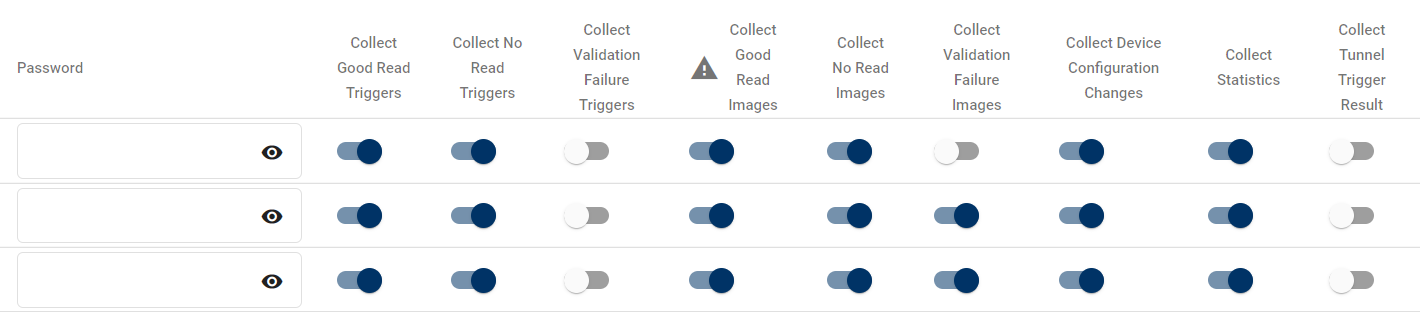
To order the list of devices by type of data collection enabled, click on a data collection column header.