Train
During the training process, the neural network learns to identify features based on the labels applied to the image. The key to training is to ensure that you include all possible variations within your training set, and that your images are accurately labeled.
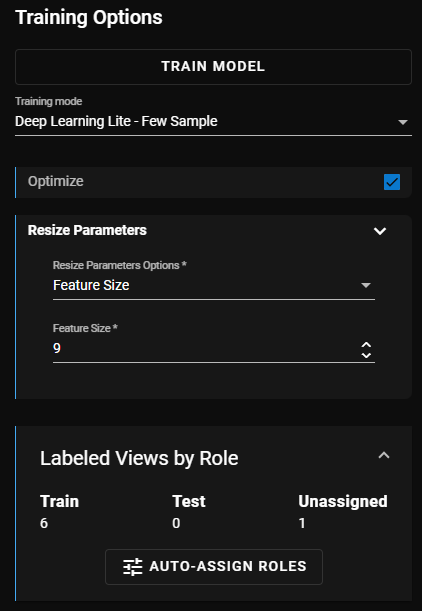
You have several training options:
 1. Training Mode
Choose a training mode.
-
Deep Learning Lite - Few Sample (Default): Optimized for standardized objects. Requires only a few images to train.
-
Deep Learning Lite - Accurate: Optimized for rotated and scaled objects. Requires more images to train.
2. Optimize
The larger the image size, the longer the training process takes.
3. Labeled Views by Role
You can manually assign a Role to an image. The role options are:
-
None: Apply this role to images that are not used to train or test the model with. These images are used in the Process step to build the Metrics and Statistics results.
-
Train: Apply this role to views to train the model with. A tool cannot train without views assigned this role. Number of images required varies based on training mode selection.
-
Test: Apply this role to views that you would like to use as unseen images to test the trained model with.
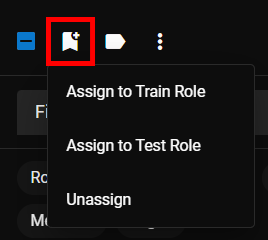
To manually assign to a role, select the view(s) in the view panel and click the Assign Role icon.
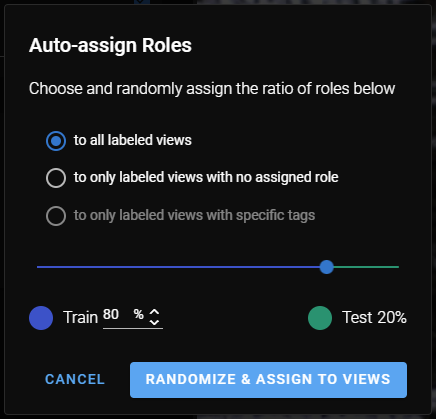
To auto-assign roles to images, click Auto-Assign Roles. A pop-up window provides you with options for how to assign roles:
See the Label section for more information.
After you set the training options, click Train Model to complete the training.