Masking
Masking excludes unnecessary areas from the ROI The Region of Interest (ROI) is the area of the image where the vision tool operates. and can help improve tool accuracy. If the tool you are configuring has an upstream An upstream tool comes first in the toolchain and its output defines a downstream tool. An upstream tool can have several downstream tools. tool that produces blobs, you can apply masking to your ROI based on the blobs that the upstream tool produces.
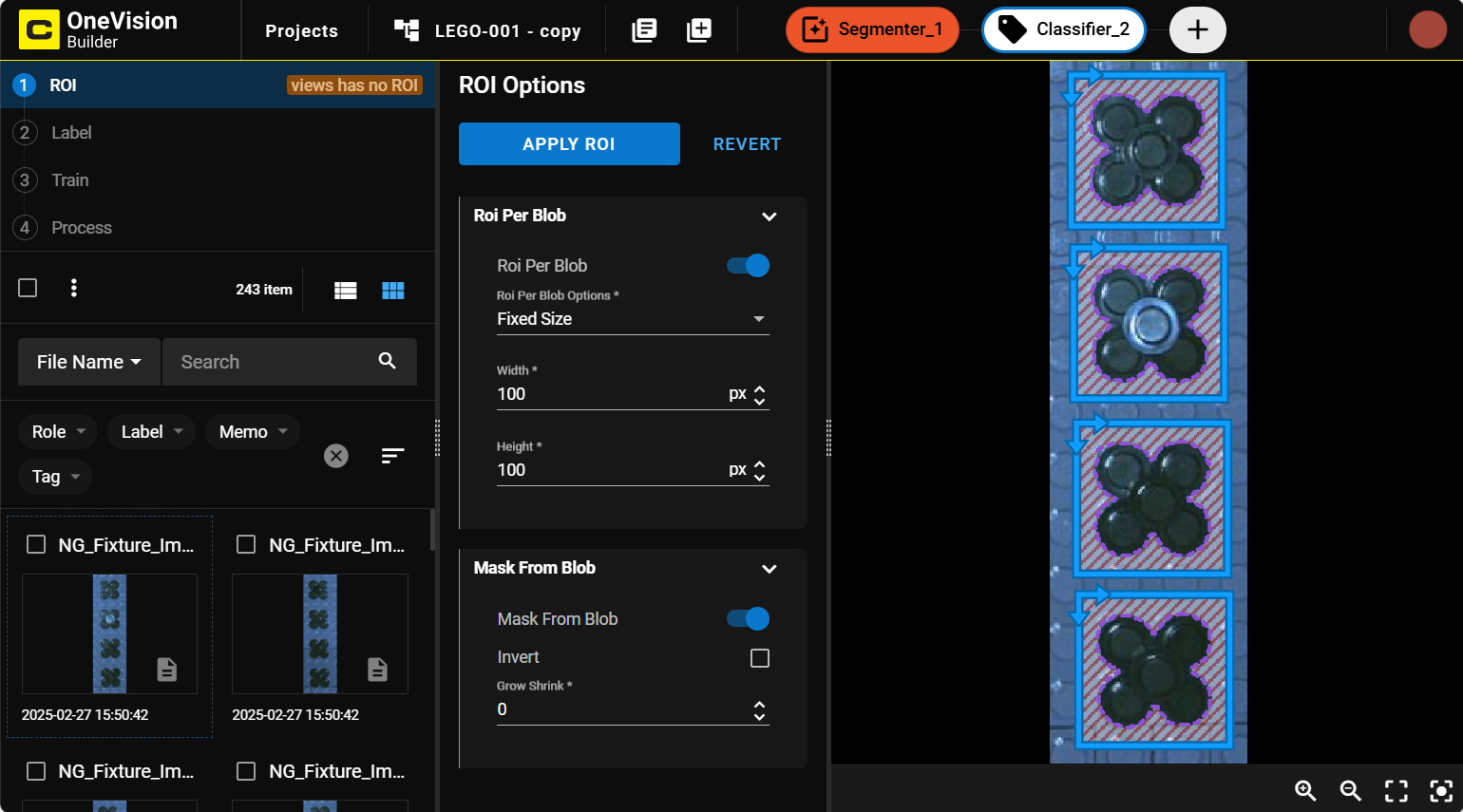
To apply masking, enable the Mask From Blob toggle in the ROI Options panel. When enabled, the tool displays additional mask settings. By default, the Inverted checkbox is unchecked, which means that the area covered by the upstream blob is unmasked, and the areas outside the blob are masked out and therefore excluded from the inspection. To invert these settings, check the Inverted checkbox.
The Grow/Shrink setting defines the size of the masked area compared to the blob that the mask is based on. The value of the Grow/Shrink setting is the difference between the masked area and the blob area defined in pixels. The Grow/Shrink setting produces different results depending on the Inverted setting:
-
If the Inverted setting is disabled, meaning that the area covered by the upstream blob is unmasked, a positive value for the Grow/Shrink setting increases the size of the unmasked area, and a negative value decreases the size of the unmasked area.
-
If the Inverted setting is enabled, meaning that the area covered by the upstream blob is masked out, a positive value for the Grow/Shrink setting increases the size of the masked area, and a negative value decreases the size of the masked area.